Gather 2.0 Web App
Last updated: November 23, 2026
This new feature is rolling out now! If you don't see it available, stay tuned. You will soon.
Pin Gather right to your dock or taskbar for instant access, with no more tab hunting! Install Gather as a web app so it opens in its own window, with your team just one click away.
Who is the web app for? For most people, the Gather desktop app is the best way to use Gather, and it's the one we recommend. The web app is really for Linux users who don't have a desktop app, or Chrome users who prefer to stay in their browser. Our support team may also suggest it if you're experiencing memory-related performance issues.
Installing the web app
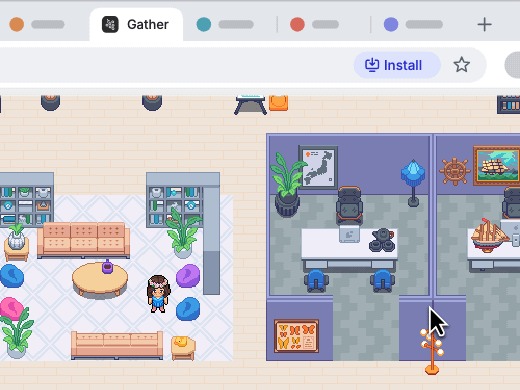
Open Gather 2.0 in a web browser
On the right side of your browser’s address bar, click Install
Confirm the install when your browser asks
Gather opens in its own window. Pin it to your dock or taskbar for instant access.
FAQs
How do I uninstall the Gather web app?
Open the Gather web app. In the top right corner, click Uninstall.
Is there a Gather desktop app for Linux?
Not at the moment. The web app is the best way to get an app-like experience on Linux.
Will I still get notifications?
Yes. You can receive desktop notifications for calendar events and actions like teammates waving at you, even when Gather isn’t the active window. You can configure notifications from Settings > Notifications > Desktop Notifications.
Where can I download the desktop app for Windows and Mac?
You can find it on the Gather download page.
To submit a bug report or share feedback:
Open the Main Menu and select ‘Report an issue’
Or email support@gather.town