Gather 2.0 Mobile App
Last updated: November 11, 2026
Stay connected to your Gather team on the go.
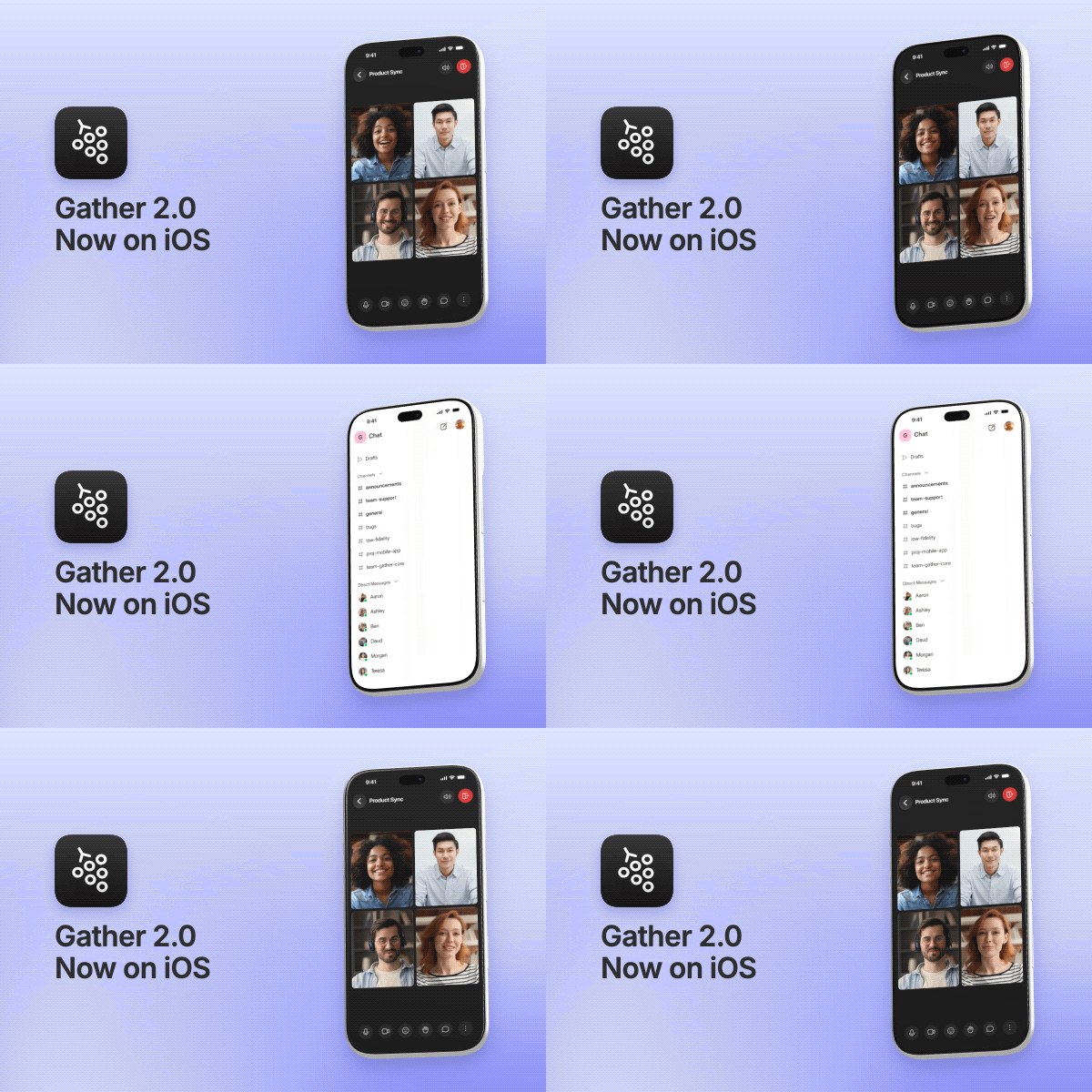
The Gather 2.0 mobile app is now available for iOS. (Don't worry, the Android version is coming soon!)
With the Gather Remote Work 2.0 mobile app, you can:
Start and join meetings
Message in channels and send DMs
See your schedule through your synced calendar
Getting started
Download the Gather Remote Work 2.0 mobile app.

(Android coming soon)
Open the app and sign in via Google, SSO, or with your email address.
Select the space you want to connect to.
To switch to a different space in the future, go to Settings > Switch Space
That’s it! Now you can connect with your Gather team anytime, anywhere.
Status Overview
Teammates will appear as Active 🟢 only if they’re online via the desktop app or a desktop browser.
Teammates will appear with a green mobile icon if they’re joining a meeting via the mobile app.
Teammates will appear inactive if they are only chatting or viewing the mobile app.
To learn more about your Gather status, read this guide: 📄 Set Status & Availability
Mobile Chat
Use the Chat tab to access your channels, DMs, threads, and drafts, so you never miss a message when you’re on the move. Thread replies, react with emojis, and search for people or topics to jump right back in.
When you send a chat message, you can include attachments, format the text, and use @ to mention teammates.
Mobile Meetings
Use the Meeting tab to view and join meetings currently happening in your space, or start a new call. Meetings will appear in this tab if they’re happening in a Meeting Area. Conversations at desks or in coworking areas will not display.
If you’ve set up the Google Chrome integration, the Calendar tab will display your schedule for the day. When scheduled meetings start, you can also join via this tab.
While in a mobile meeting, you can:
Turn your mic & camera on/off
Put volume on speaker mode or phone mode
React with emojis
Raise your hand
Chat during meetings
FAQs
Can I connect to more than one space at a time?
You can only view one space at a time, but it’s easy to switch between them if you belong to multiple. Simply go to Settings > Switch Space. If your second space is associated with a different email address, you’ll need to log out first.
Can I see my team’s virtual office from the mobile app?
You can’t see the space, but you can see who’s online and what meetings are taking place. If a meeting is public, you can join in a click or start a call anytime.
When will the Android version be available?
Soon! Our team is currently working on the Android app and plans to release it as soon as possible. You can follow along with our changelog.
To submit a bug report or share feedback:
Open the Main Menu and select ‘Report an issue’
Or email support@gather.town