GitHub Integration
Last updated: October 2, 2025
Overview
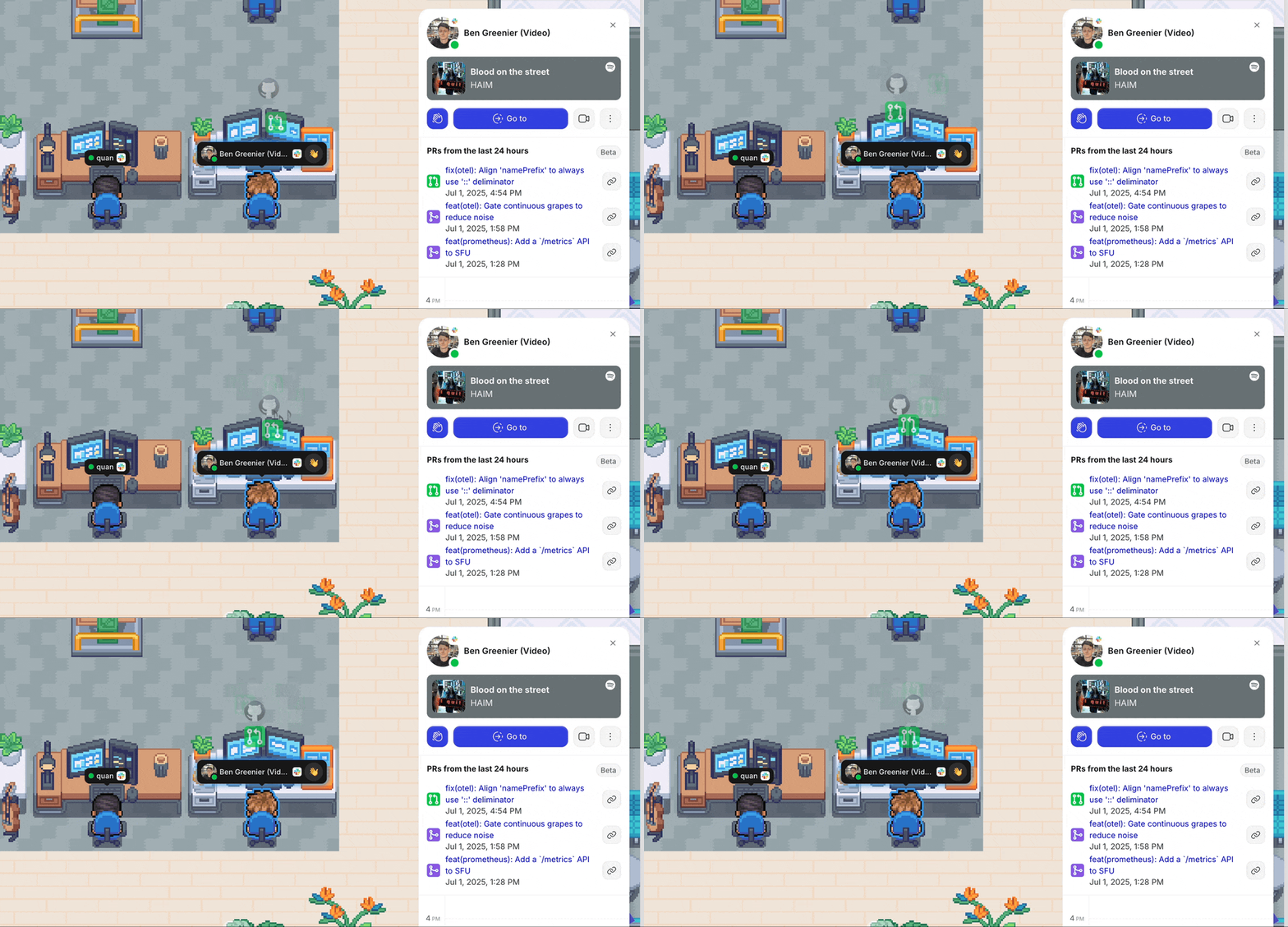
See icons on the map above your coworkers who have opened and merged PRs on GitHub.
Click on their profiles to see a list of recent PRs they’ve been working on.
Select a team area to see a list of PRs that team is working on.
Setting Up the Integration
The GitHub integration requires a GitHub admin to approve the installation of the Gather GitHub App for your GitHub organization.
1. Connect your GitHub organization to Gather
You must be a GitHub Admin to perform this step.
In Gather, go to Settings > Integrations and scroll down to the GitHub section.
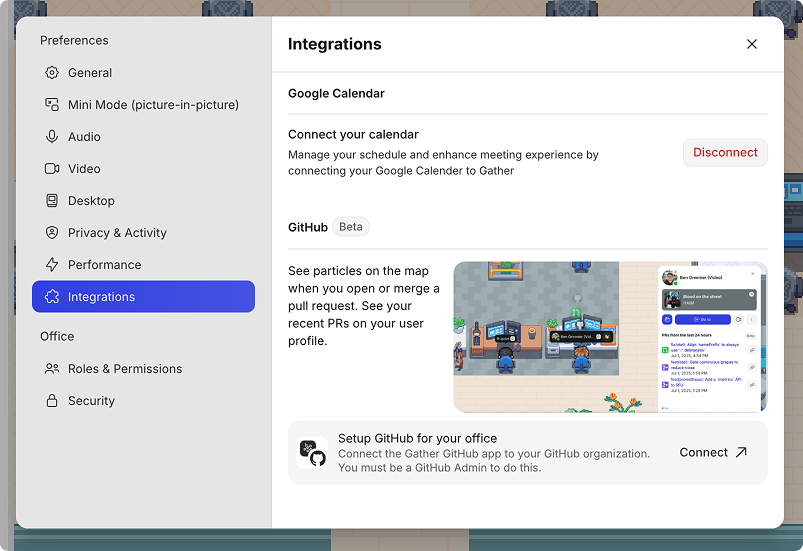
Click Connect to start the connection process. You will be redirected to GitHub to complete the installation process.
You should see this confirmation once your office is connected:

2. Connect your individual GitHub account to Gather
If you performed step #1, you will have this step done for you automatically!
Once your office is connected, you can connect your individual GitHub account to Gather. This will emit icons when you open PRs and list them in your user inspection panel in Gather.

Click Connect to start the process. You will be redirected to GitHub to complete the connection process.
You should see this once your account is connected:

You will now see emotes on the map when you merge a PR and see them listed in your user inspection panel.
3. Connect your colleagues to GitHub
The Gather GitHub integration works best when your whole office is connected. As part of setup, you can link your colleagues’ GitHub accounts for them.
If you link a teammate’s GitHub account for them, they can always go into settings and modify or disconnect their account.
For each member in your office, you can assign a GitHub user for the GitHub organization you linked.
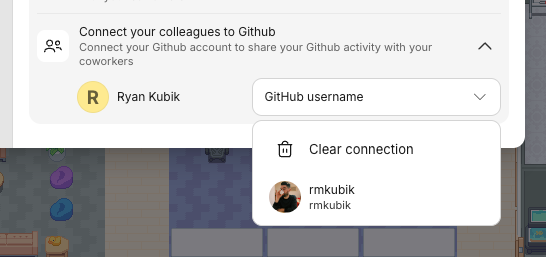
All users you link this way will show icons above their heads when they open PRs and have them listed in their user inspection panels.
Add the GitHub Dock
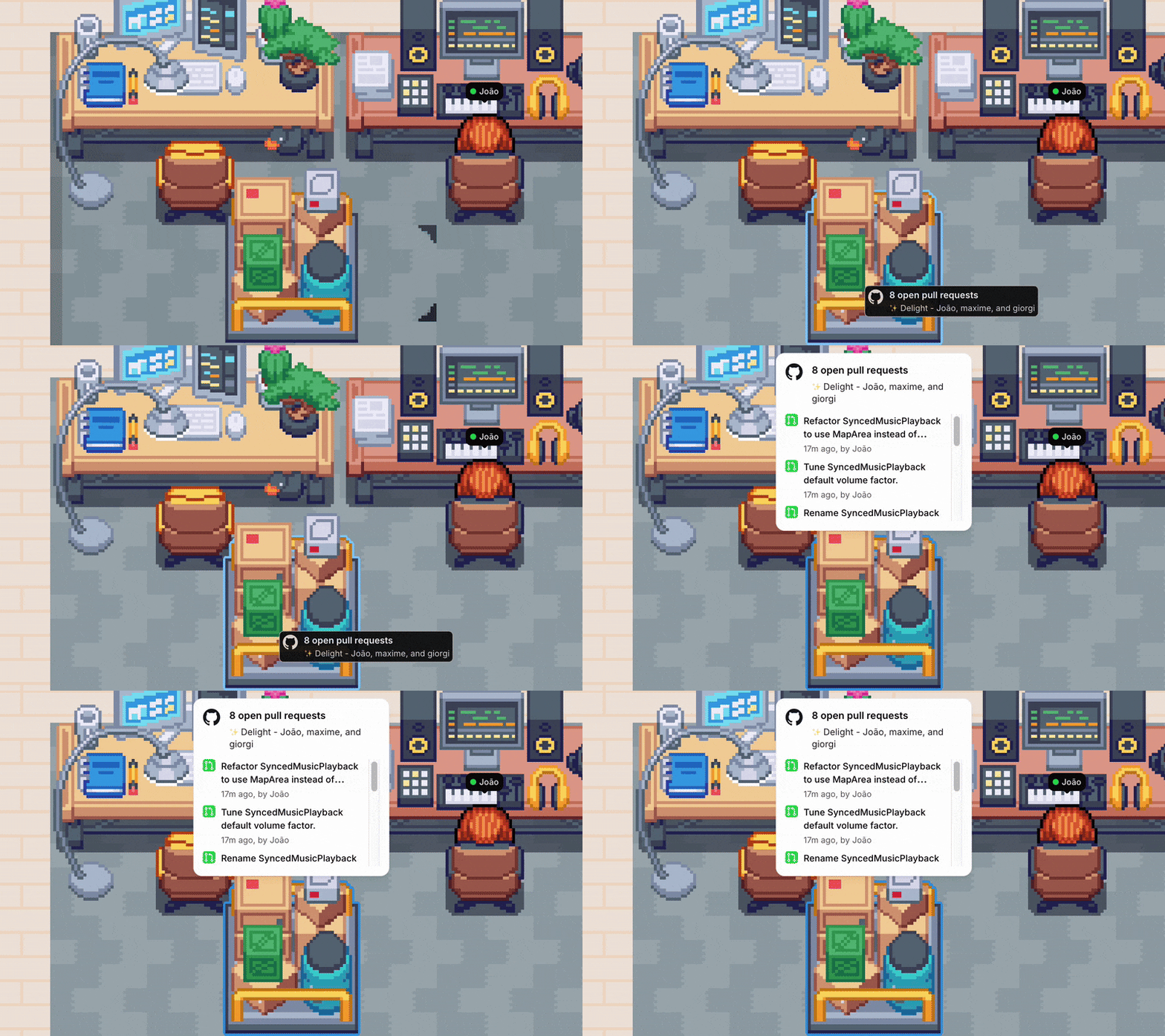
Easily see what your engineering team is shipping with the new GitHub Dock. Hovering over this object shows a preview of recent pull requests, and clicking it provides even more details so you can encourage collaboration and keep work moving.
To add the GitHub Dock:
Open the Main Menu (Gather logo) in the left sidebar
Click Decorate Desk
Click the dots to see more categories and select Interactive
Select the GitHub Dock and click to pace it in your team area
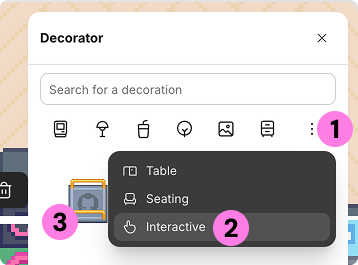
For the GitHub Dock object to display PR updates, you must first follow the instructions above to connect your organization’s GitHub account.
FAQs
How can I remove the GitHub integration from my repository?
In the Settings > Integrations tab under GitHub, click the Disconnect button on the 'Your office is connected to GitHub" line.
How can I remove the GitHub PRs from my profile?
In the Settings > Integrations tab under GitHub, remove your GitHub connection. Then, go into the Connect your Colleagues menu find your Gather user name and select Clear Connection from the drop down.
Why can I see PRs for repositories I don’t have access to?
The GitHub admin that connects the Gather integration to your GitHub organization chooses which repositories Gather has access to. All PRs in the selected repositories will be shown on a user’s inspection panel in Gather. Gather does not check for the viewer’s GitHub permissions to view the PR.
If you prefer some repositories not show up this way, change the repository access of the Gather GitHub application.
Can Guests see my GitHub data?
Guests who join your space will not see any GitHub information in inspection panels or on map objects.
To submit a bug report or share feedback:
Open the Main Menu and select ‘Report an issue’
Or email support@gather.town