Studio Overview: Editing Your Office
Last updated: September 4, 2026
Drag-and-drop meeting rooms, desks, and team areas to represent how your company actually works.
Add meeting rooms and common areas for team meetings or to cowork
Add new desks as your company grows
Organize people into team areas so everyone knows which team sits where
To edit objects without changing the actual floor plan, we recommend decorating your office instead. Learn more: 📄 Decorating Your Office
How it Works
Only one Admin can access Studio at a time. While Studio is open, no one else can edit or decorate the office until you close Studio.
Important Concepts
Objects within Areas (like Team Areas or Meeting Rooms) are automatically grouped, so you can move the entire collection at once.
If you click on a single object, you can edit its specific type, color, or rotation.
If you add, move, or resize an Area so it overlaps another, the existing Area will automatically shift to make space for both.
Shortcuts
Copy an object or area:
⌘ + Cfor Macs orCtrl + Cfor WindowsPaste an object or area:
⌘ + Vfor Macs orCtrl + Vfor WindowsTo undo any action:
⌘ + Zfor Macs orCtrl + Zfor Windows
Removing An Object or Area
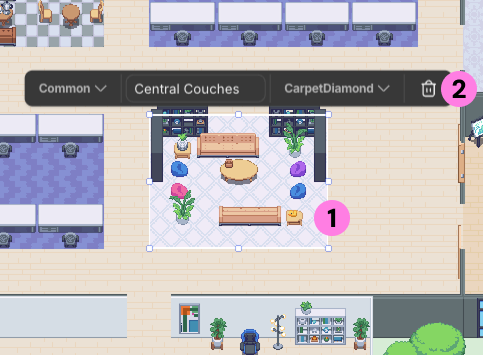
Click on the Object or Area you want to remove
Click the trash can icon to delete it
Resizing an Area
Click the Area you want to resize
Click and drag the edge handle to make the area bigger or smaller
The walls and floors will automatically expand and shrink to accommodate the new size
If making the Area bigger, adjacent areas will automatically shift to make room
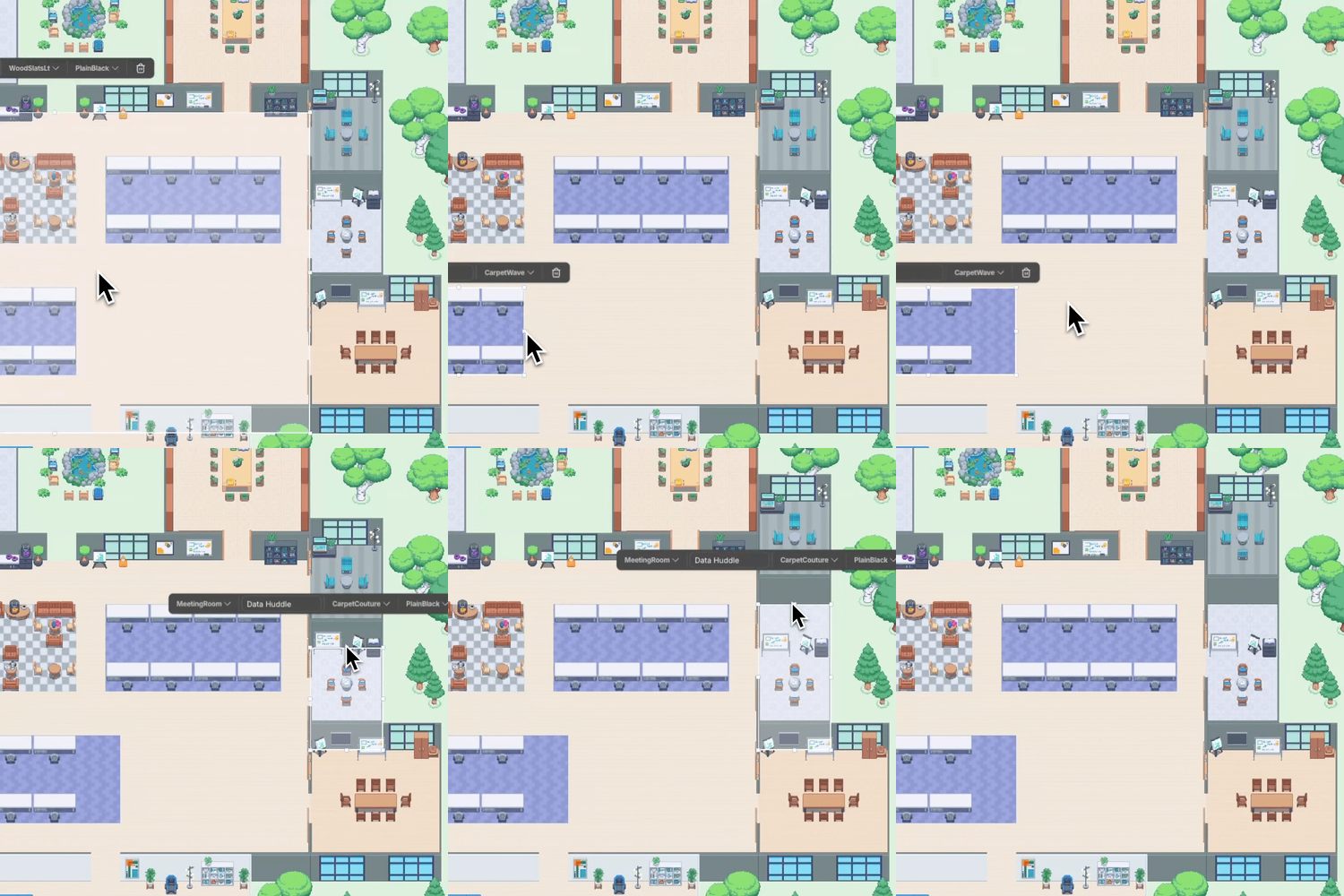
If an adjacent area shifts in a way you don’t like, you can either click and drag it to a better spot or Undo to reset it: ⌘ + Z for Macs or Ctrl + Z for Windows
Adding a Single Desk Area
To add a new claimable desk in your office, you need to copy an existing desk area (not just the desk object).
Copy/paste a desk area currently in your office
⌘ + Cand⌘ + Vfor MacsCtrl + CandCtrl + Vfor Windows
Click to place it in the desired location
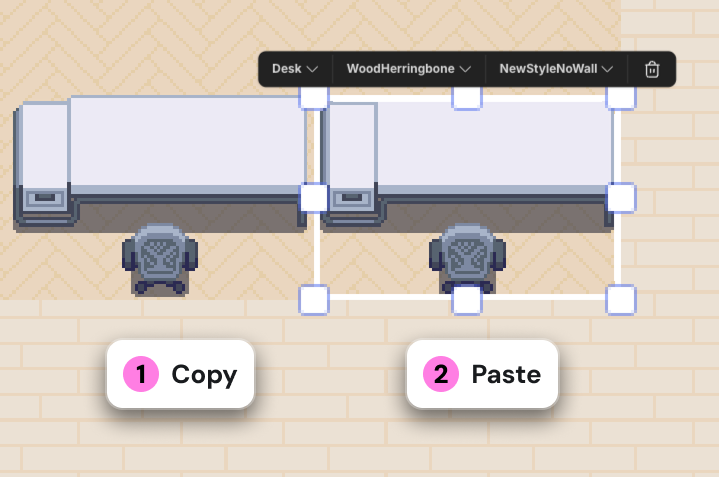
After you hit publish, your teammates can either claim the desk themselves or you can assign it to someone using the Desk Manager.
Adding a Team Area
Copy/paste a Team Area currently in your office
⌘ + Cand⌘ + Vfor MacsCtrl + CandCtrl + Vfor Windows
Click to place it in the desired location
Edit the Team name to reflect the group of people who will sit there
(Optional) Change the carpet style or edit the individual objects within the area to make it unique
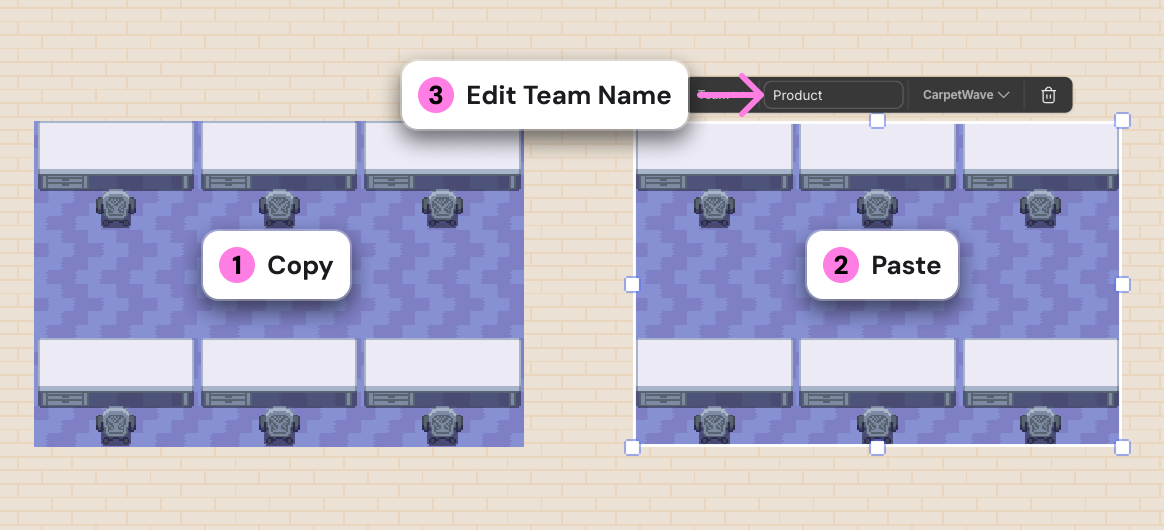
After you hit publish, your teammates can either claim the desks themselves or you can assign them using the Desk Manager.
Adding a Meeting Room
Copy/paste a Meeting Room currently in your office
⌘ + Cand⌘ + Vfor MacsCtrl + CandCtrl + Vfor Windows
Click to place it in the desired location
Edit the Area name so people know which Meeting Room this is
(Optional) Change the carpet style, walls, or edit the individual objects within the room to make it unique
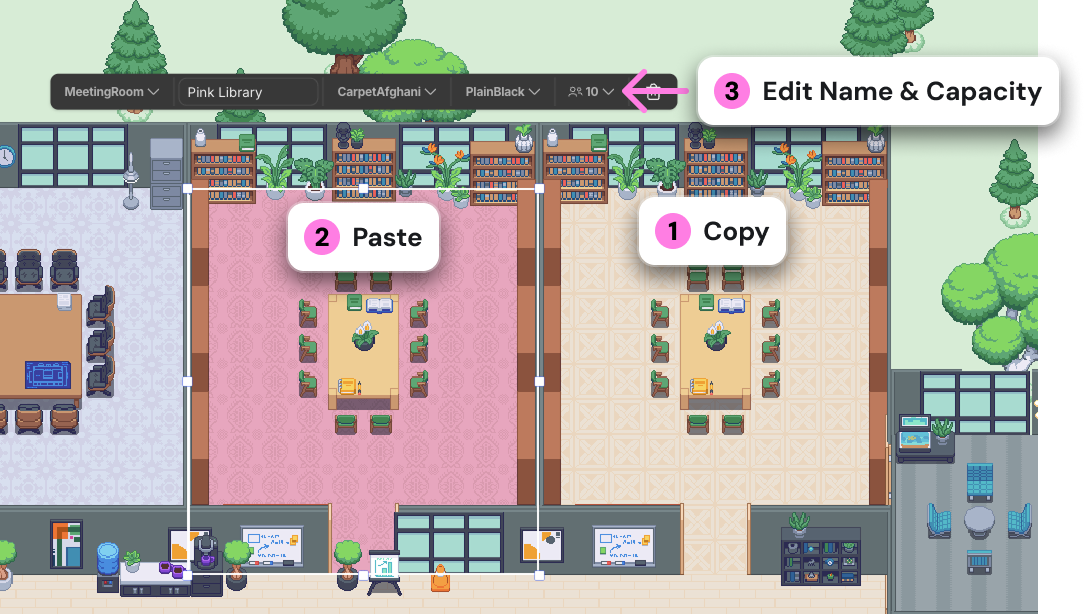
In order to book meetings in this room with the Gather Chrome Extension, it needs to have a name and capacity set. The extension uses the room capacity you set in Studio to match meeting attendee counts with appropriately sized rooms.
Best Practices
Have each department or individual team sit in a Team Area together. (A group of desks.)
Name each Team Area so everyone else knows who sits there at a glance.
Arrange teams so they sit near other departments they commonly interact with.
For example, the Engineering Team Area should be near the Product Team Area.
Use a template size that matches the number of members in your office. (Too big will feel empty, and too small will feel crowded.)
When you add or resize rooms, make sure there are no objects blocking the doorways. If there are, you can remove them.
Need a different theme, layout, or size? Change the office template. Learn more: 📄 Office Overview
FAQs
Can I add my company logo or brand colors?
Not at this time, but we're working on new ways for you to customize your office even further. To share your feedback, send us an email at support@gather.town.
Can I change the size of my office?
Yes, Admins can change the office size with Gather Studio.
Click Edit office template
In the window that pops up, select the new size
Click Update to return to Gather Studio
Click Publish when you're finished with all changes
Read the full guide: 📄 Office Overview
Can I upload my own objects?
Not at this time. Looking for something specific? Shoot us an email at support@gather.town — we’d love your feedback!
To submit a bug report or share feedback:
Open the Main Menu and select ‘Report an issue’
Or email support@gather.town