Decorating Your Office
Last updated: September 4, 2026
Customize your office to reflect your team’s unique culture. With the easy in-office Decorator, you can:
Add or remove objects (including furniture, decorations, trees, etc.)
Change the color or type of objects
Rotate objects to change their orientation
Personalize your desk
You must be a Member or Admin to customize your office with the Decorator. Guests cannot edit objects in your office.
How it works
To start decorating, open the Main Menu and select Decorate desk. The Decorator window will open on the right.
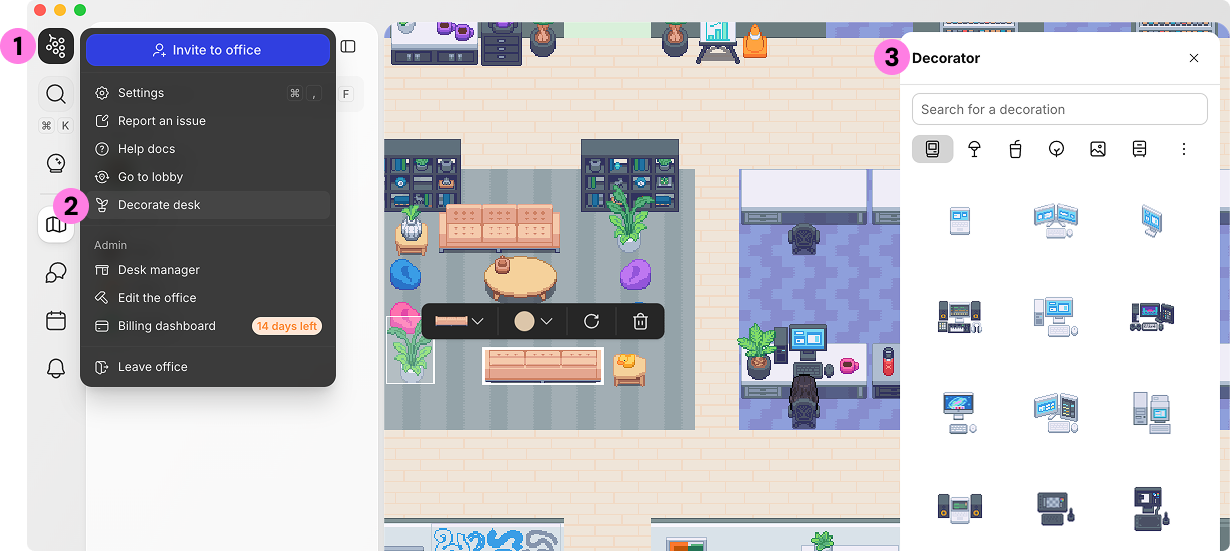
Place a New Object
Select the object in the Decorator window
Click to place it in your office
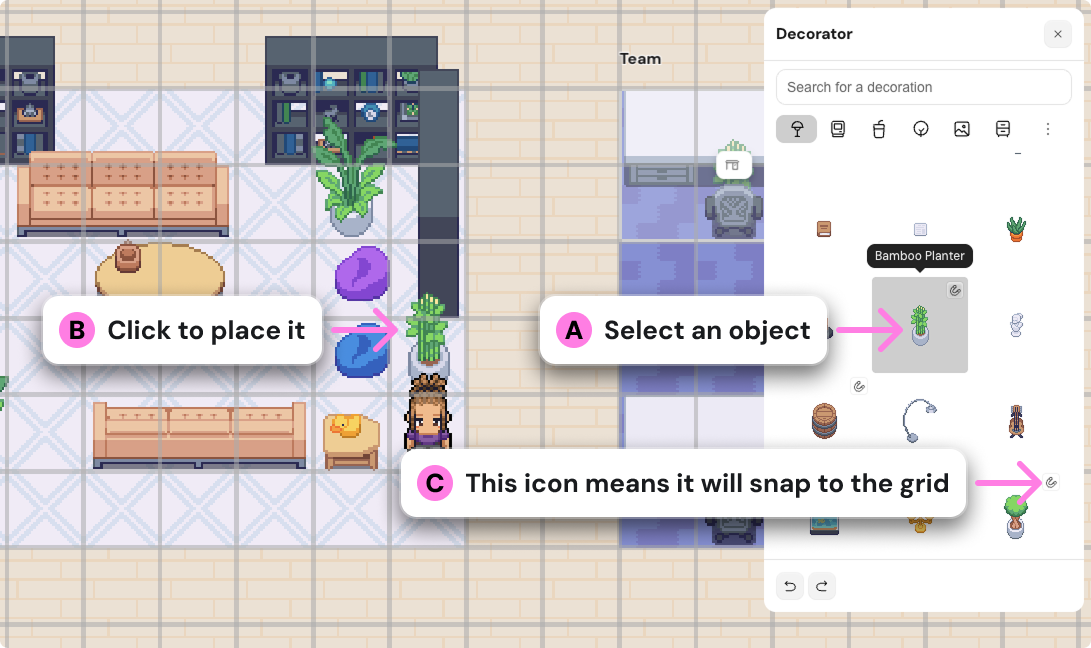
Objects with the magnet tile in the corner will automatically snap to the grid so you can effortlessly align them and walk around them.
Change or Remove an Object
Select the object
Use the settings to change the type, color, or orientation
Click Delete to remove an object
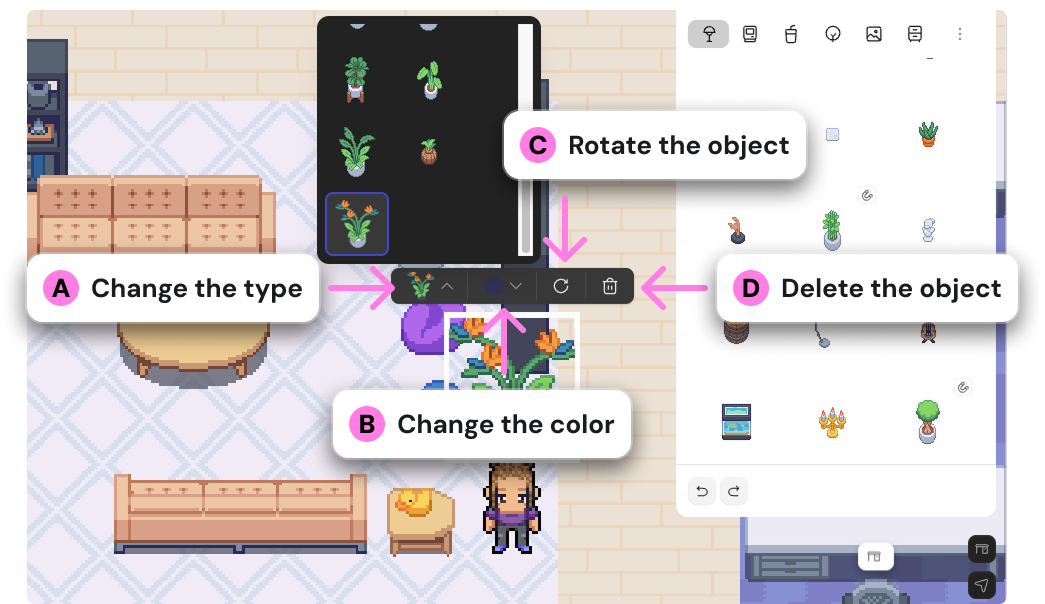
To undo your last action, use the Undo/Redo buttons at the bottom of the Decorator, or use the shortcut ⌘ + Z on Macs or Ctrl + Z on Windows
FAQs
How do I add/remove desk areas, meeting rooms, etc?
To make changes that alter your floor plan like adding desk areas, resizing rooms, etc. Admins can use Gather Studio: our advanced office editing tool.
Can I upload my own objects?
Not at this time. Looking for something specific? Shoot us an email at support@gather.town — we’d love your feedback!
To submit a bug report or share feedback:
Open the Main Menu and select ‘Report an issue’
Or email support@gather.town