Office Overview
Last updated: October 14, 2025
When you first create your workspace, you'll select the office layout, theme, and size.
The Layout changes what type of desks are in your office. (Open, Private, or both.)
The Theme changes the vibe of the office with different objects and color schemes.
The Size changes how large your office is and how many desks are included.
Admins can change the office layout, theme, or size at any time with Gather Studio. (See instructions below.)
Office Layouts
There are three layouts available:
Hybrid: A workspace with a blend of Open and Private Desks. Perfect for teams that thrive on collaboration and those that need focused space.
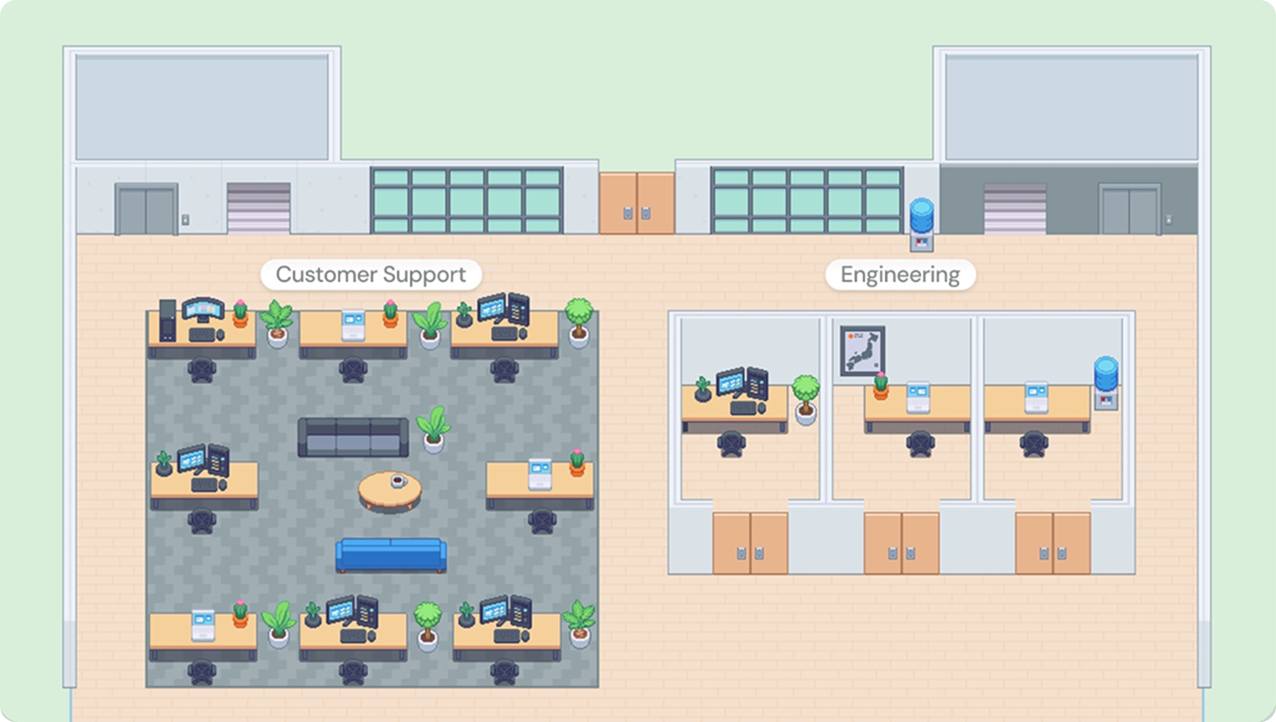
A Hybrid layout with an Open Desk Pod on the left and three Private Desks on the right. Open: A workspace with all Open Desks, designed to encourage seamless collaboration and communication among teams.
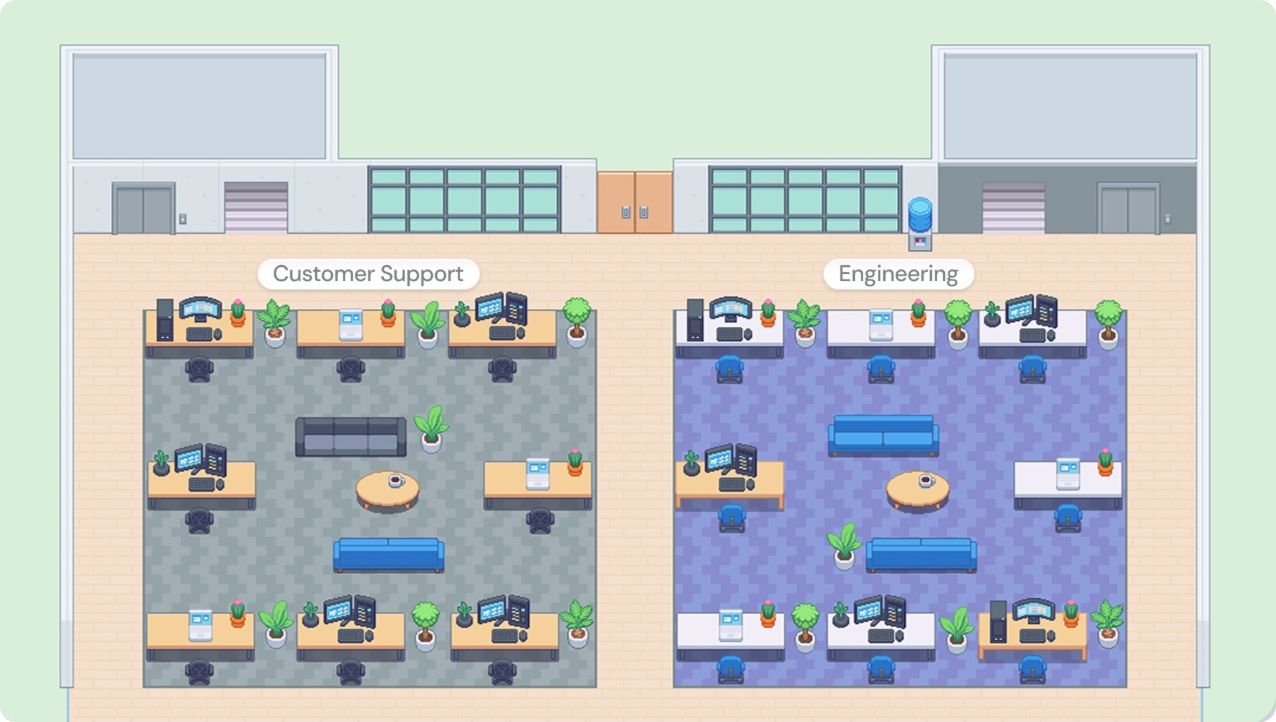
An Open layout with two Open Desk Pods. By default, team members can overhear public conversations happening near their desk. Private: A workspace tailored for deep focus, with all Private Desks for individual work.
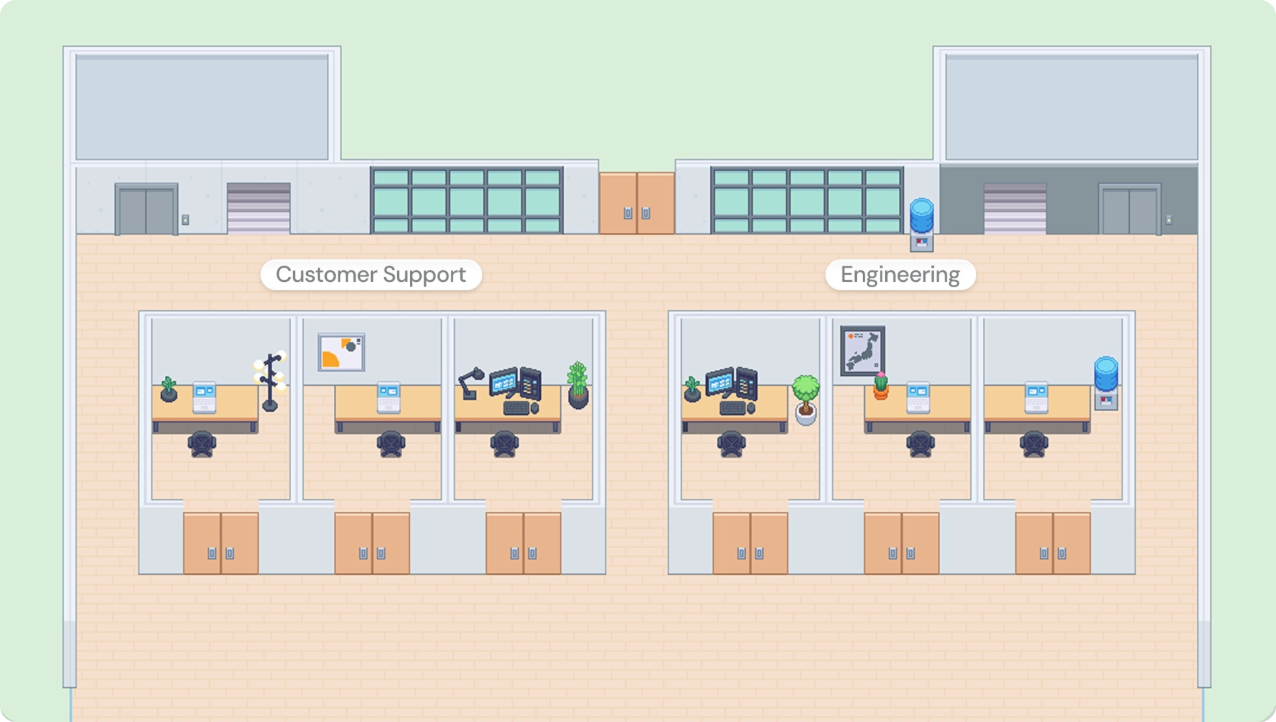
A Private layout with two Private Desk Pods. By default, team members will not overhear conversations at nearby desks.
Open Desks default to open conversations. When you start talking at an Open Desk, people nearby can listen or easily join in.
Private Desks default to private conversations. When you start talking at a Private Desk, only the people in that desk area can hear each other.
Learn more: 📄 Desk Overview
Office Themes
There are four themes available: Startup, Antique, Zen, and Eco. Themes are purely cosmetic; they only change the object types and colors of your office without affecting functionality.
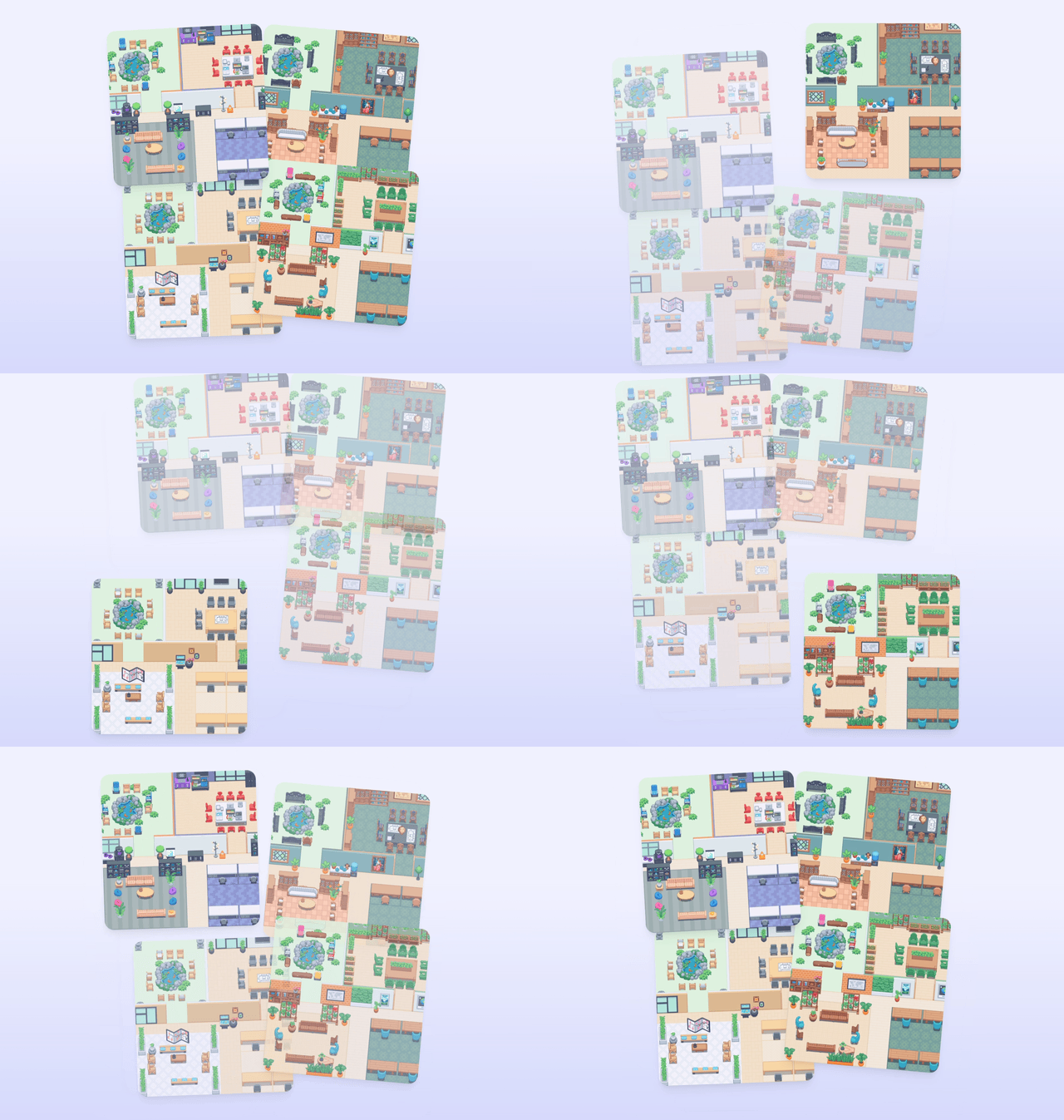
No matter what theme you choose, you can customize the office even more with the Decorator or Gather Studio.
Office Size
The office size sets the initial number of desks and meeting rooms in your workspace.
We recommend you match this to the size of your team in Gather. An office that's much larger than your team can feel empty, whereas an office that's much smaller can feel crowded.
As your team grows, you can either adjust the office size or add individual desks or meeting rooms with Gather Studio.
Learn more: 📄 Studio Overview: Editing Your Office
Change Office Layout, Theme, or Size (Admins only)
When you change the office template, theme, or size, desk assignments and decorations will be cleared. Members of your workspace will need to reclaim a desk, or Admins will need to re-assign desks.
Learn more:📄 Managing Desks & Where People Sit
Open the Main Menu and click Edit the office to open Gather Studio
First time using Studio? Start here:📄 Studio Overview: Editing Your Office
In the left sidebar, click the button to Edit office template
In the window that pops up, you can change the layout, theme, and size.
When you're happy with the preview, click Update.
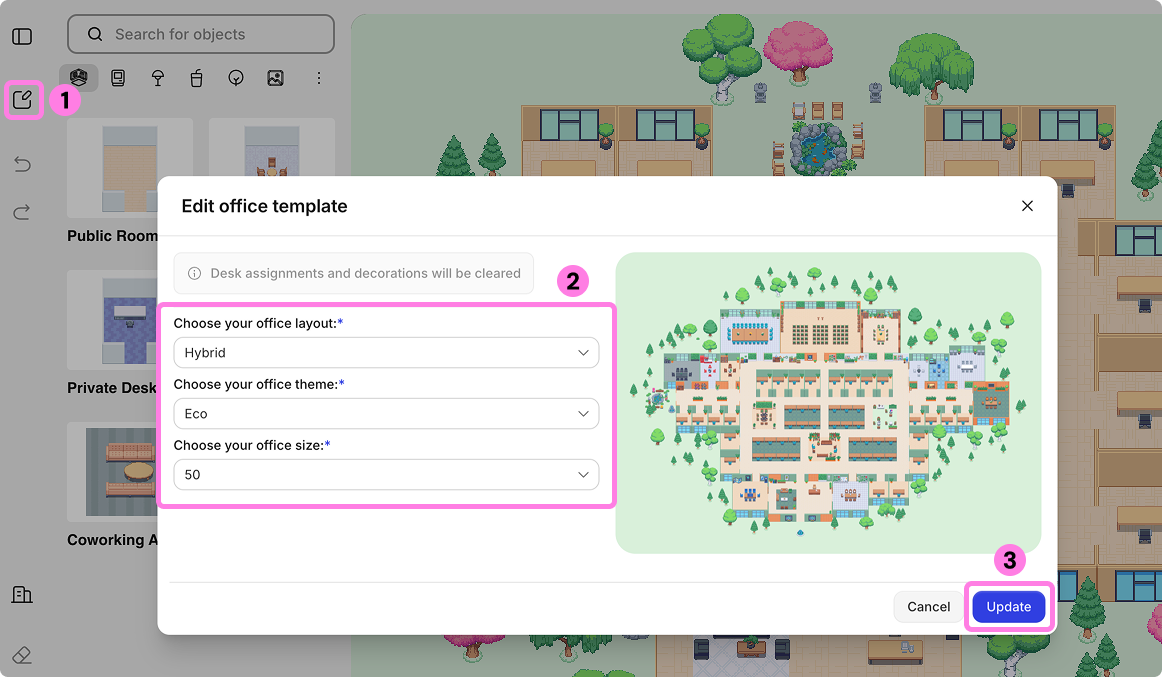
You'll return to Gather Studio, where you can continue making changes to your new office if needed.
When you're done with all changes, click Publish.
To submit a bug report or share feedback:
Open the Main Menu and select ‘Report an issue’
Or email support@gather.town