Interactive Objects
Last updated: March 11, 2026
Overview
Interactive objects are special items that you can place in your office for anyone to interact with. Walk up to them or click on them to discover their features.
To view all interactive objects:
Open the Main Menu and click Decorate Desk. Click the right arrow to navigate to the Interactive category.
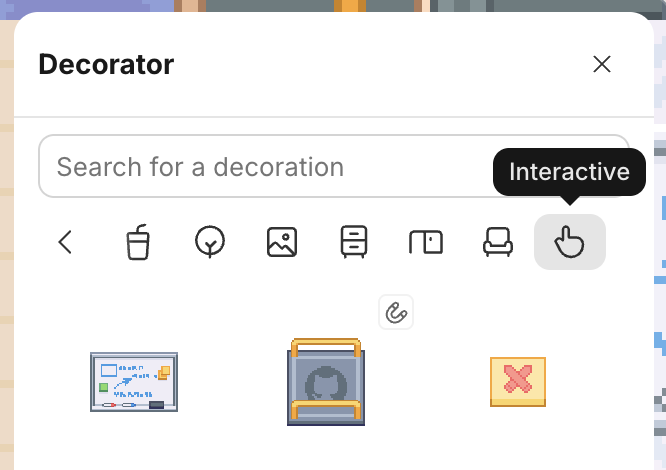
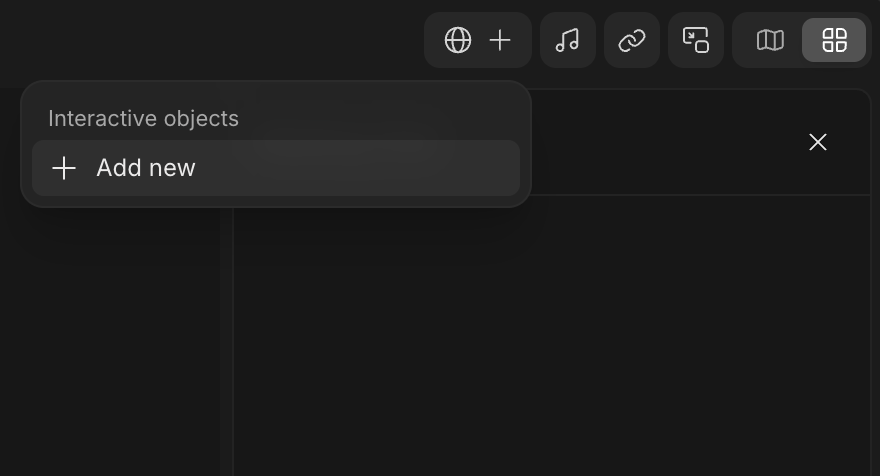
To add Interactive Objects during a meeting:
Navigate to the top bar, click the globe icon, then select Add new to open the Decorator.
All interactive objects in a meeting room appear listed at the top.
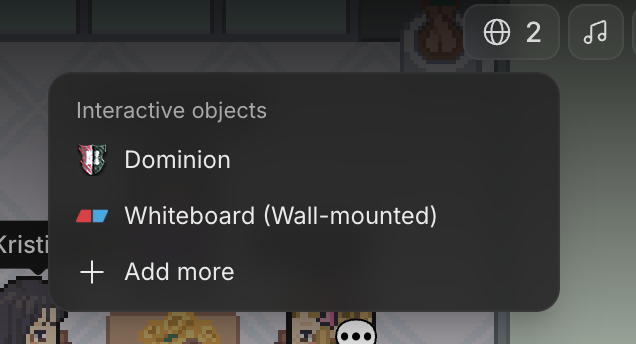
Click an object name for more options like copying the link, minimizing the object window, and seeing who's viewing the object.
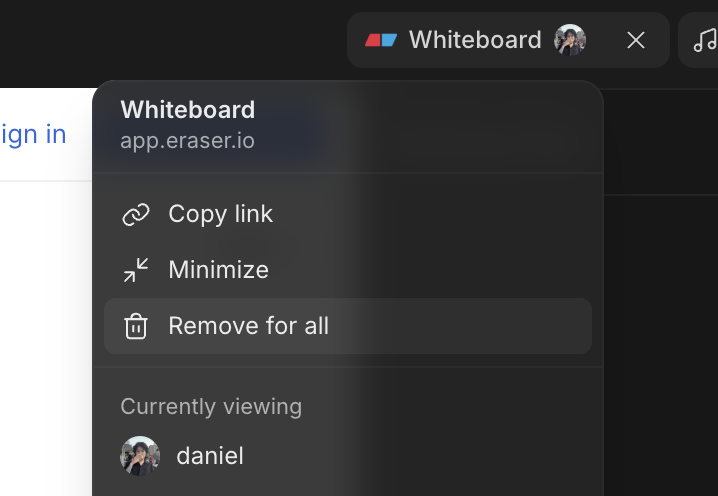
To remove interactive objects during a meeting:
Navigate to the top bar, select the interactive object, then click Remove for all.
Learn more about the Decorator: 📄 Decorating Your Office
List of Interactive Objects
Games
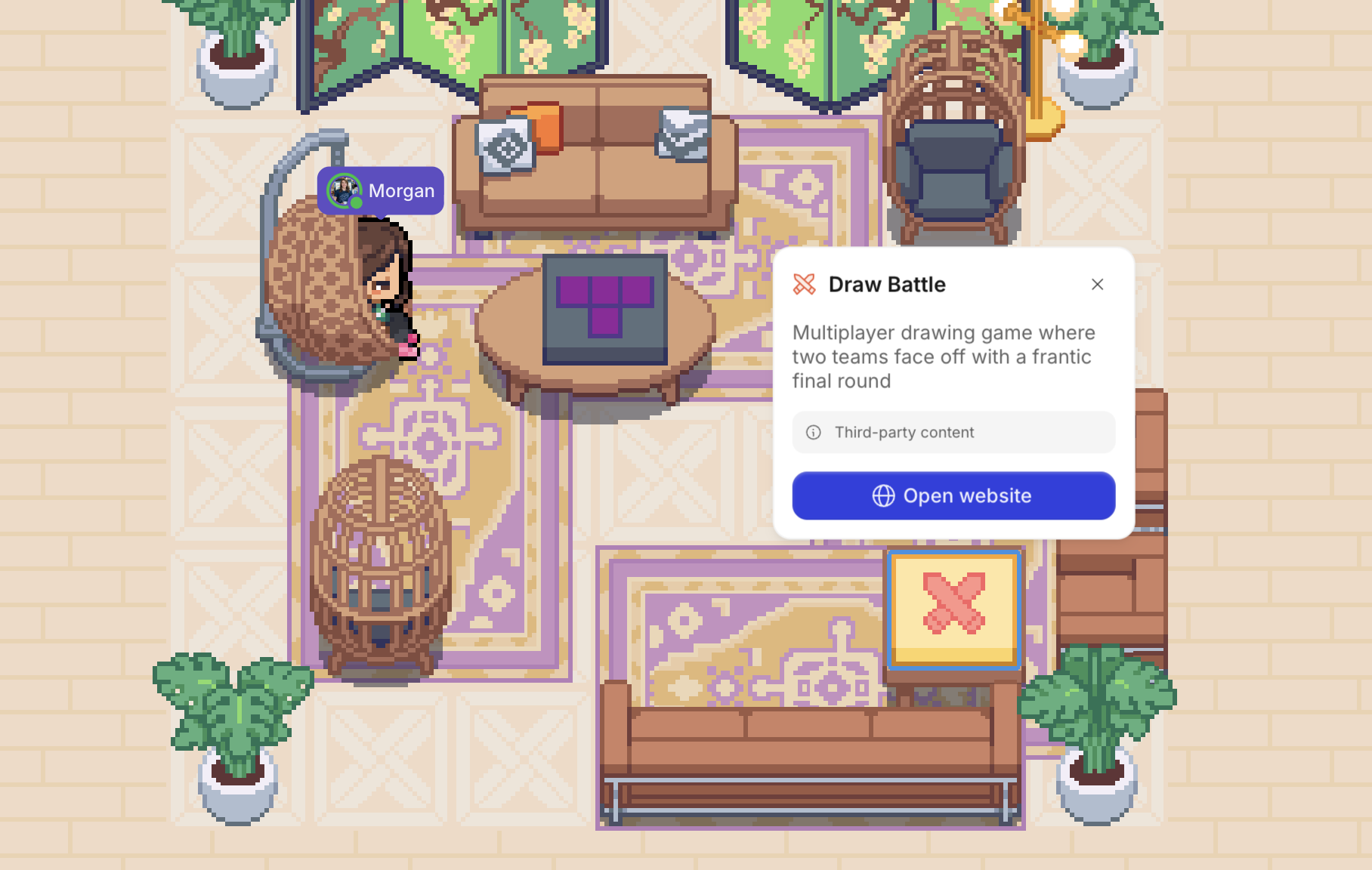
Need a quick icebreaker or social activity? Play an embedded board game! These interactive objects load web-based games you can play with your teammates.
Available games:
Codenames
Dominion
Draw Battle
Golf
Guess Me
One Night Werewolf
Set
Tetris
Top 4
Learn more about embedded board games: 📄 Play Embedded Games
GitHub Dock
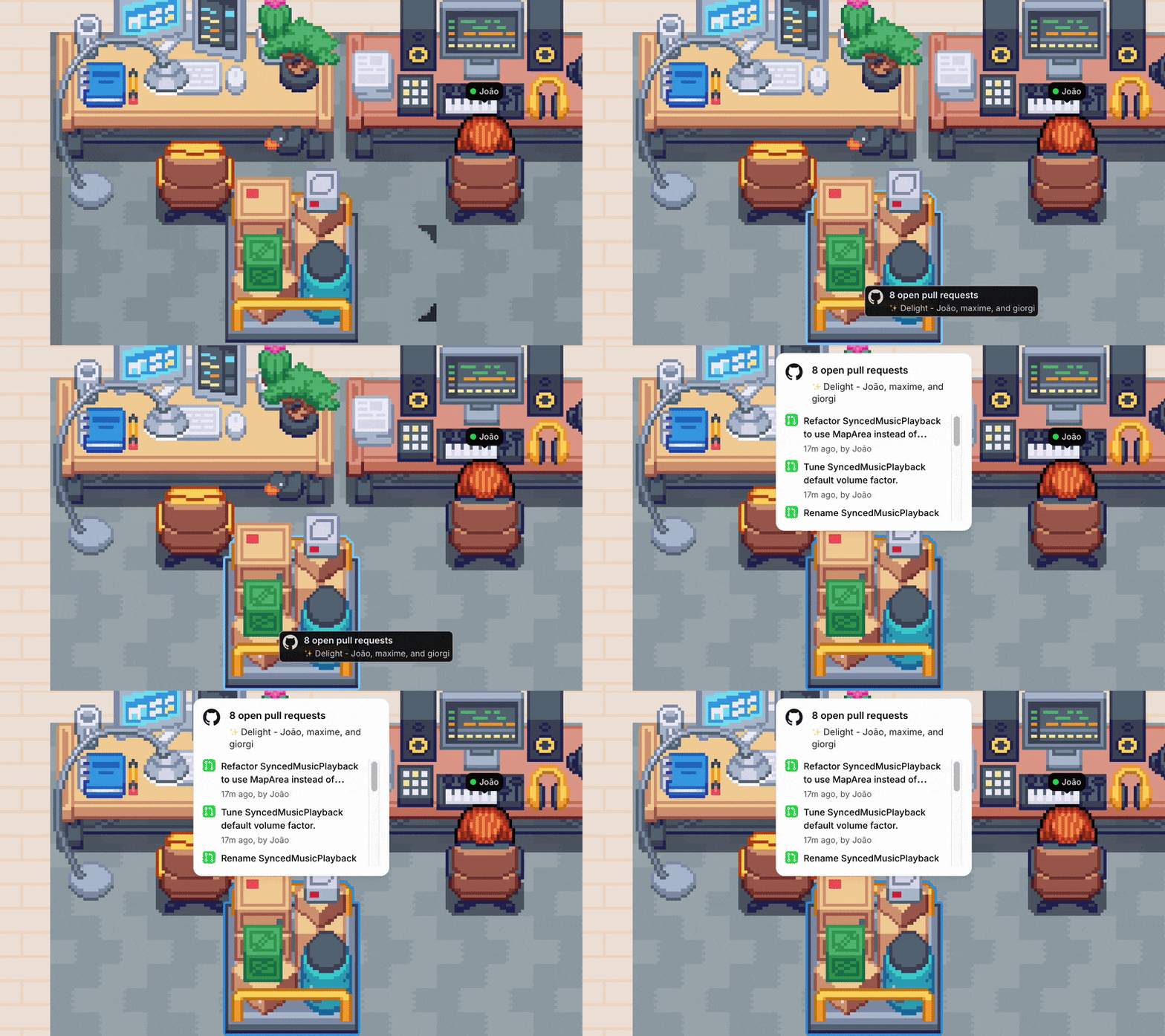
Easily see what your engineering team is shipping with the GitHub Dock. Hovering over this interactive object shows a preview of recent pull requests, and clicking it provides even more details so you can encourage collaboration and keep work moving.
Learn more about the GitHub integration: 📄 GitHub Integration
Gong
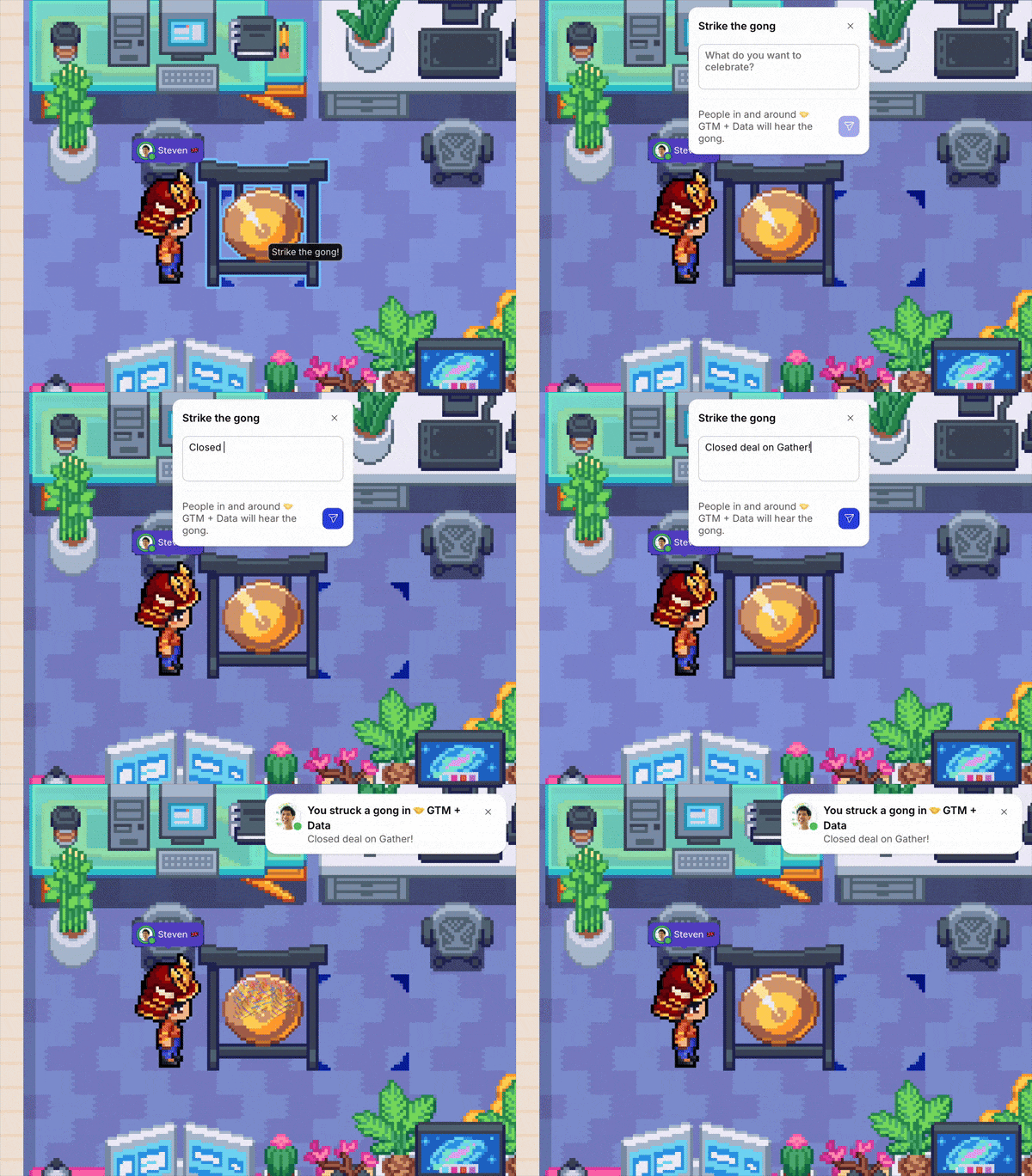
Celebrate your wins with teammates in your area. When you strike the Gong, nearby colleagues will hear the sound and receive a notification so they can easily join the celebration.
Whiteboards
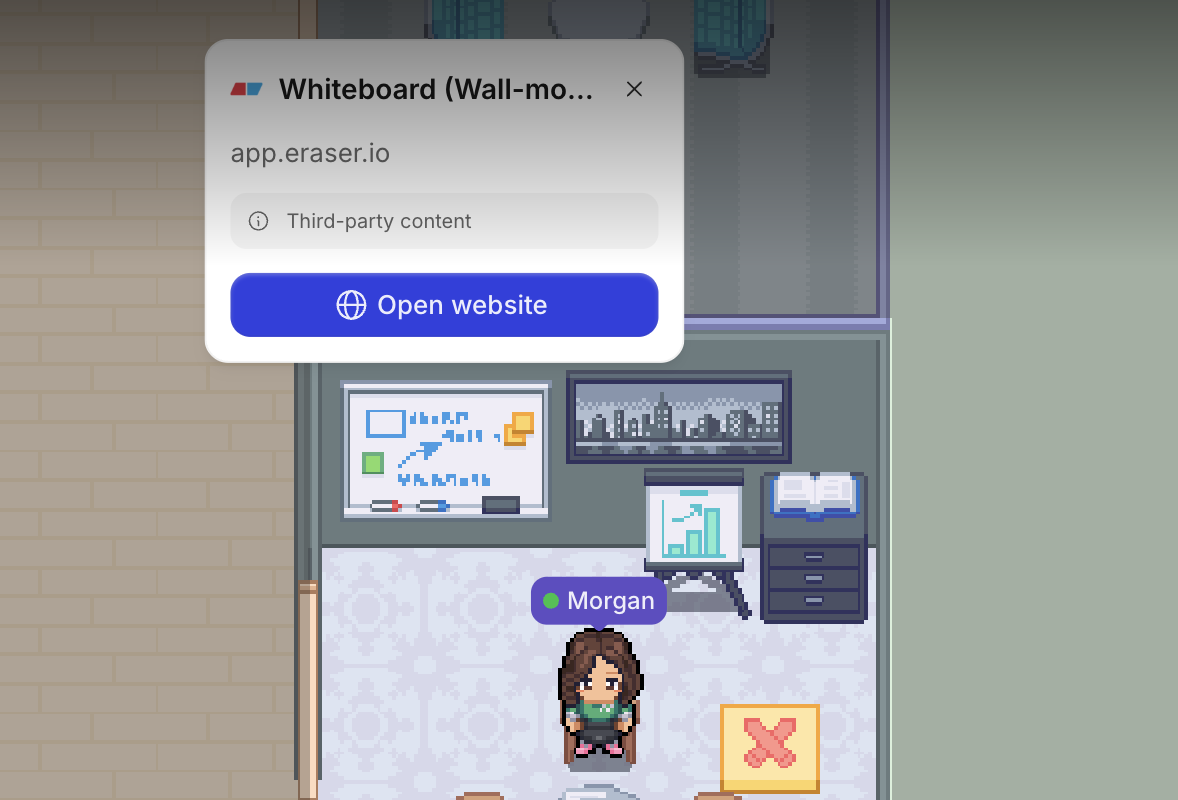
Brainstorm together on a shared whiteboard. Powered by Eraser, these interactive objects make it easy to document, draw, and doodle together. Prefer a different whiteboard app? Just swap out the URL!
Learn more about whiteboards: 📄 Collaborate on Whiteboards
Embed a Custom URL
Have your own idea of a web page to open within Gather? Create your own interactive object by embedding a custom URL into a Whiteboard or Game Object (something that links out to a web page) and replace the URL with your own.
Open the Main Menu and click Decorate desk
Click on an existing Whiteboard or Game Object, or place a new one
Select it and click the link icon to edit the URL
Click Checkmark icon
Now, anyone in your office can walk up and open the embedded URL!
Note: For a web page to load successfully in Gather, it must support embedding in an iframe. To test if it’ll work, you can use an iframe tester.
To submit a bug report or share feedback:
Open the Main Menu and select ‘Report an issue’
Or email support@gather.town