Performance Settings
Last updated: October 2, 2025
Overview
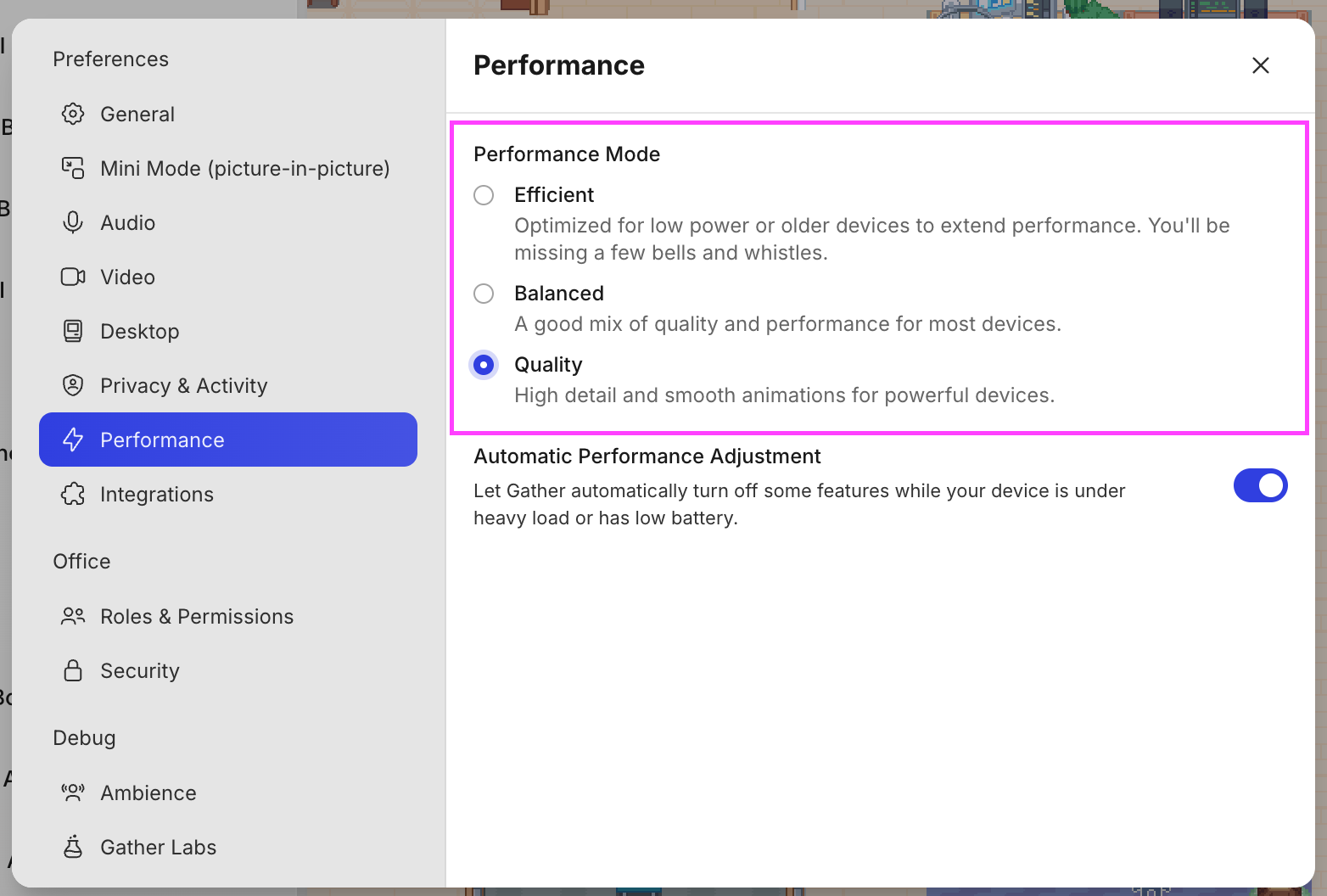
Performance Mode
Gather offers three Performance Modes designed to provide the best experience for your device: Quality, Balanced, and Efficient.
The table below shows which features are impacted, enabled ✅, or disabled ❌ for each mode.
Feature | Quality | Balanced | Efficient |
Office View framerate cap (FPS) | 60 | 30 | 25 |
Maximum people displayed in Meeting View | 25 | 25 | 9 |
Nametag auto hiding (all nametags are shown when disabled) | ✅ | ✅ | ❌ |
Touch up my appearance (beta) | - | - | ❌ |
Ambient reverb audio effect | ✅ | ✅ | ❌ |
Application UI animations | ✅ | ✅ | ❌ |
Microphone animation when talking on AV controls | ✅ | ✅ | ❌ |
HD Video in calls (capped at 360p when disabled) | ✅ | ✅ | ❌ |
HD Screenshare in calls (capped at 1080p when disabled) | ✅ | ✅ | ❌ |
Animated video tiles during calls | ✅ | ❌ | ❌ |
Player footsteps sounds when walking | ✅ | ❌ | ❌ |
Office View transition fade effect when zooming in/out | ✅ | ❌ | ❌ |
This table is subject to change as we continue to develop Gather
To change your performance mode:
Open the Main Menu (Gather logo) in the left sidebar
Go to Settings > Performance
Select the Performance Mode you want to use
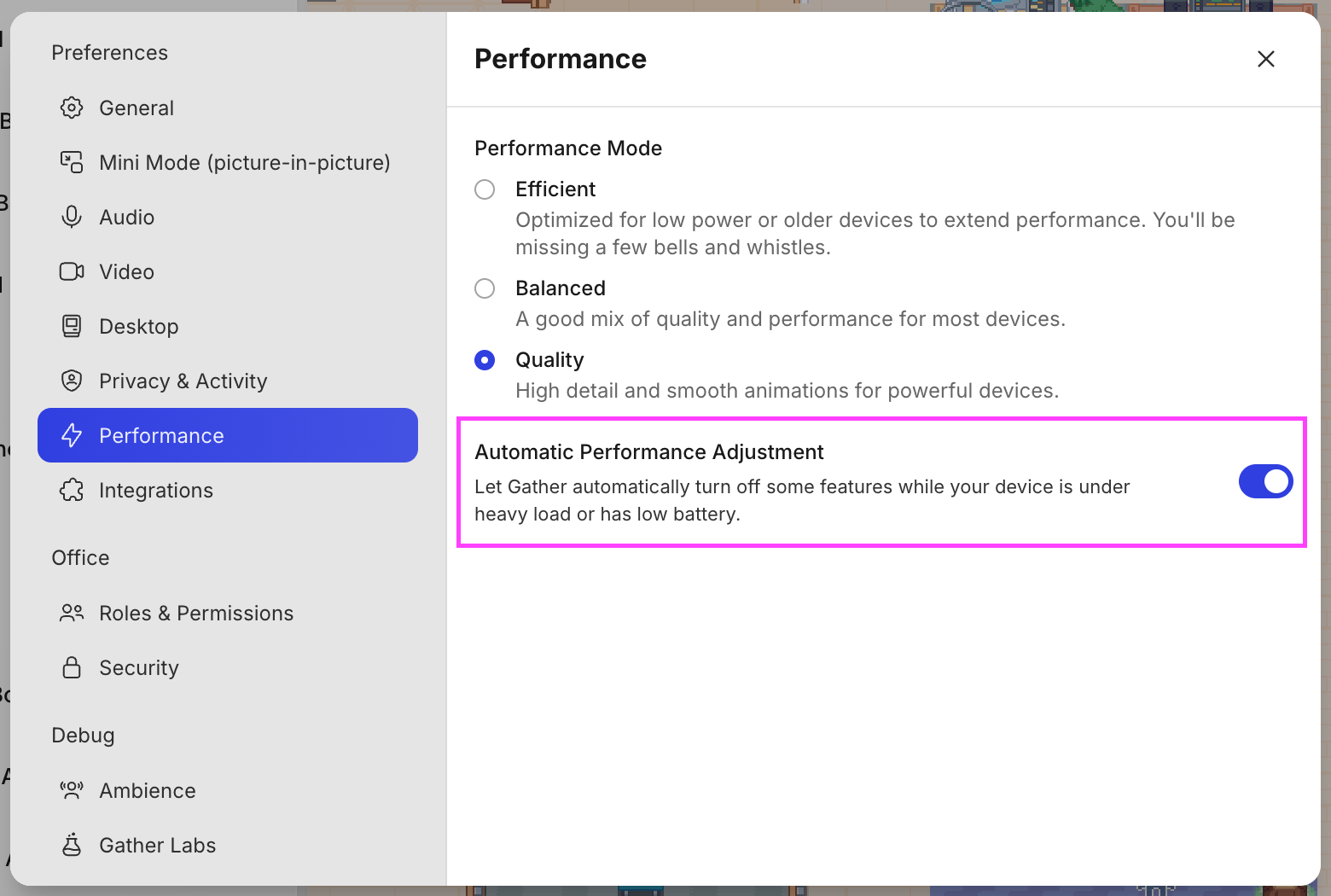
Automatic Performance Adjustment
When enabled, Gather will automatically switch between Performance Modes to keep your experience running smoothly if we detect a situation with your device such as:
High CPU usage from running intensive apps
Low battery
Disable this feature if you prefer to have full control of features in Gather.
To submit a bug report or share feedback:
Open the Main Menu and select ‘Report an issue’
Or email support@gather.town