Google Calendar Integration & Chrome Extension
Last updated: June 17, 2026
To easily schedule and join meetings in Gather:
Connect your Google Calendar to Gather
Install the Gather Meetings v2 Chrome Extension
If you're switching from Gather 1.0 to Gather 2.0, make sure you uninstall the original Gather Meetings Extension before installing the new one.
Google Calendar Integration
What it does:
View upcoming events in the Calendar tab
Receive in-app reminders so you never miss a meeting
One-click walk to meetings to easily join
Display upcoming meetings in your profile card, so others know when it’s a good time to reach out to you
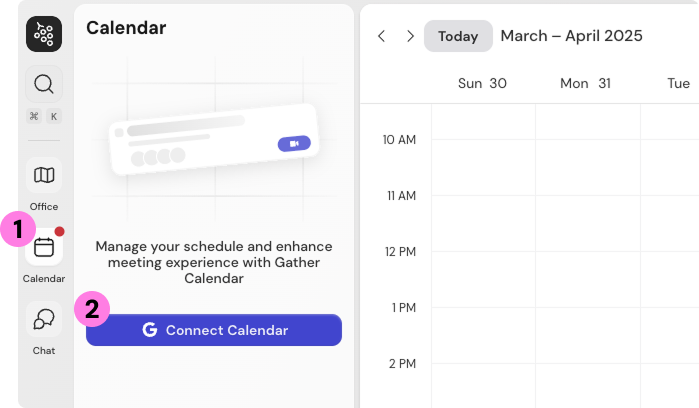
To connect your Google calendar:
Open the Calendar tab in the left sidebar
Click Connect Google Calendar
Sign in to the account you want to connect
Gather Meetings v2 Chrome Extension
What it does:
Automatically add a Gather meeting link to the calendar event
Allow meeting attendees to instantly join the meeting in the correct room in Gather
Automatically select a meeting room in your Gather office with the right capacity
To install the Chrome Extension:
If you’ve previously used the original Gather Meetings Extension, you’ll need to uninstall it by clicking Remove From Chrome.
Once the original extension has been removed, you can follow the steps below to install the new version: Gather Meetings v2.
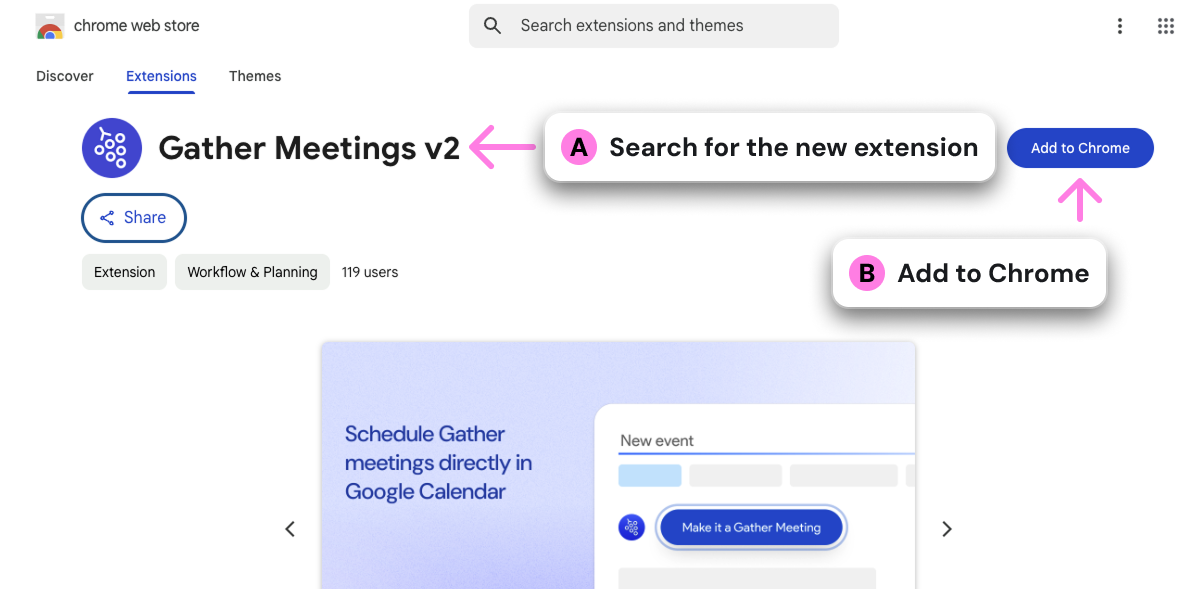
In the Chrome Web Store, search for Gather Meetings v2
Click Add to Chrome
It will automatically connect to the office you’re logged into
Currently, you can only connect the extension to a single office. To change the space it’s connected to:
Click the Gather Meetings v2 Extension icon in the Chrome Extension Bar
Click Settings > Change Space
Select the new office you want to schedule meetings in
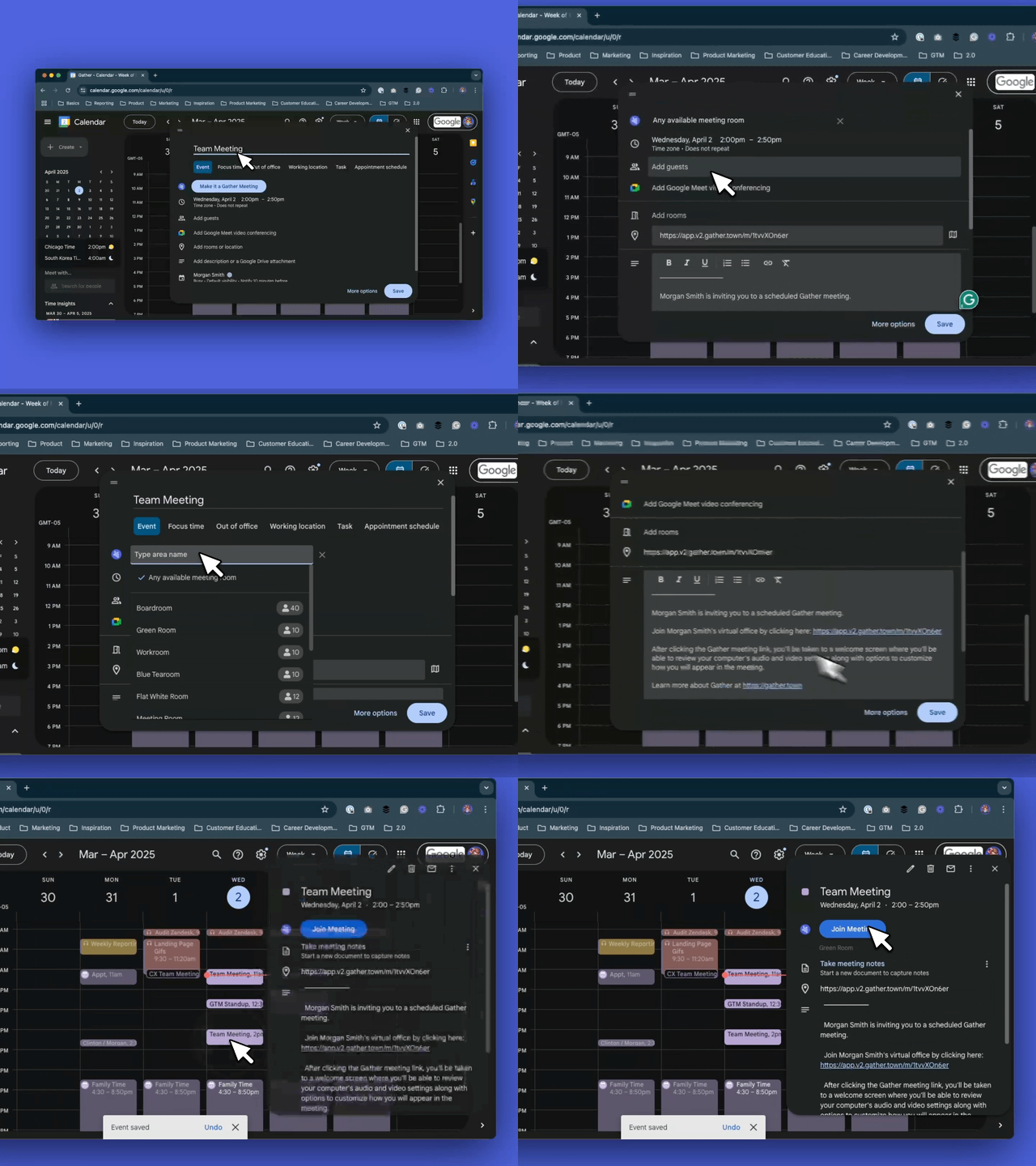
To schedule a meeting with the Chrome extension:
In Google Calendar, create a new calendar event
Click Make it Gather Meeting to automatically generate a link to any available room
To select a specific room, click the link and select an option from the dropdown
Save the meeting
Clicking the link will automatically bring attendees to the correct meeting room in Gather
Learn more about meetings on Gather: 📄 Overview of Meetings
Permissions (permissions)
Permission | Used For | Data Categories |
| ||
| None | |
| None | |
| Runs a background job every 15 minutes to refresh extension configuration (Google Calendar DOM selectors) from the Gather API. | None |
| ||
|
Host Permissions (host_permissions)
Host | Used For | Data Categories |
| ||
| Listed in the manifest but not actively used. Flagged for removal in our next update. | None |
To submit a bug report or share feedback:
Open the Main Menu and select ‘Report an issue’
Or email support@gather.town