Meeting Overview
Last updated: October 6, 2025
Overview
With Gather, you can hold regular meetings like Zoom or Google Meet or instantly talk to people around you for quicker chats. Watch this video for a quick one-minute overview.
Audio & Video Controls
Turn your mic & camera on/off at any time with the buttons on the bottom
Use the toggles to change devices or adjust background effects
The mini map shows nearby teammates who will be able to hear you if you un-mute
Your Mic and Camera are always off by default. You must turn them on in order for someone to see/hear you.
To quickly turn both the mic and camera on, use the shortcut:
⌘ + Shift + Dfor MacsCtrl + Shift + Dfor Windows
Video Views
While talking to others in Gather, there are two video views you can toggle between to optimize your experience: Meeting View and Office View. Use the arrows in the upper right corner of the screen to toggle between these views.
Meeting View
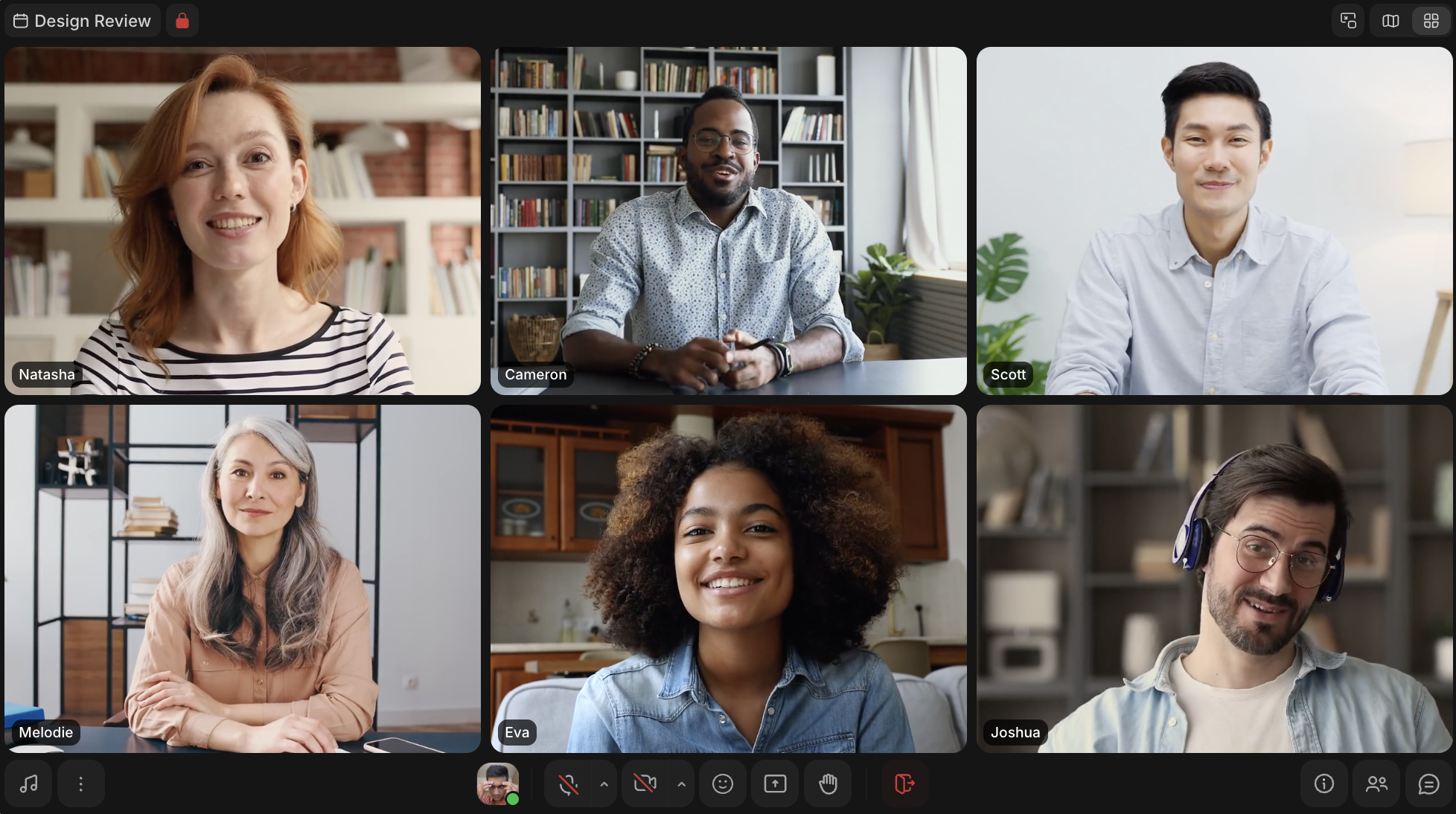
Similar to a traditional video call, Meeting View focuses entirely on the people you’re talking to. Best for meetings and formal conversations.
Office View
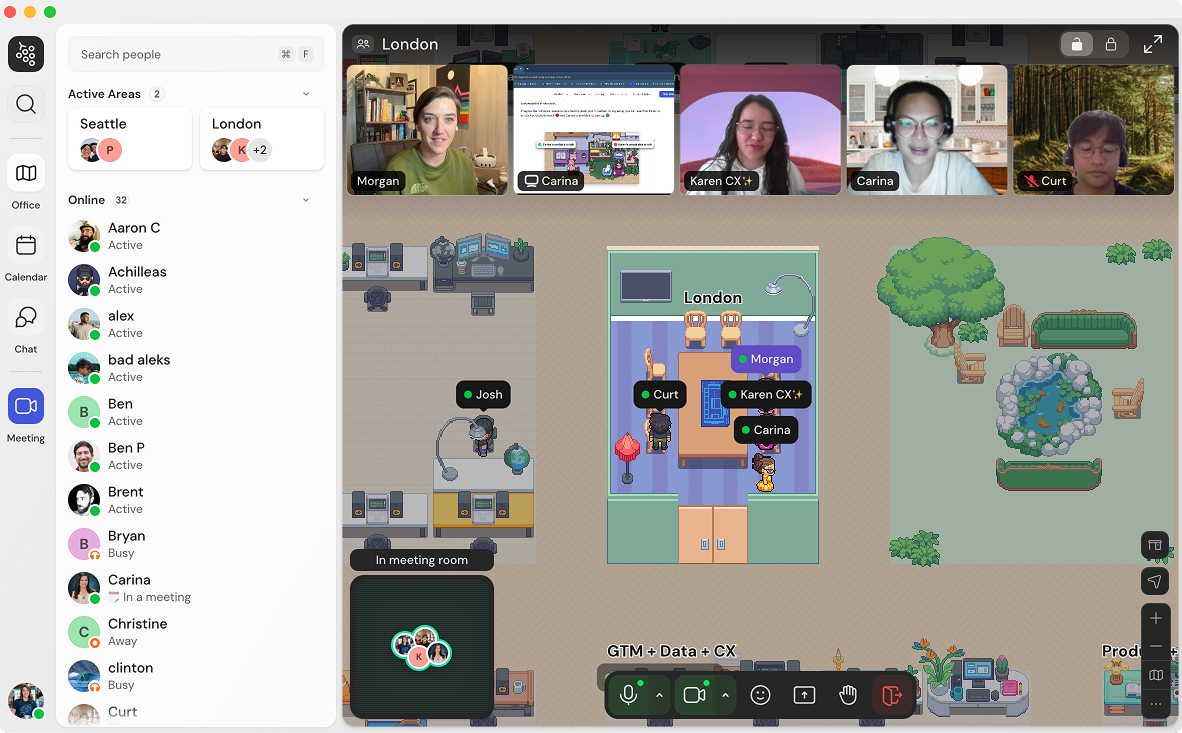
Office View lets you talk to others while the activity of your office is still visible. Best for quick conversations or casually coworking with others.
Screen Sharing
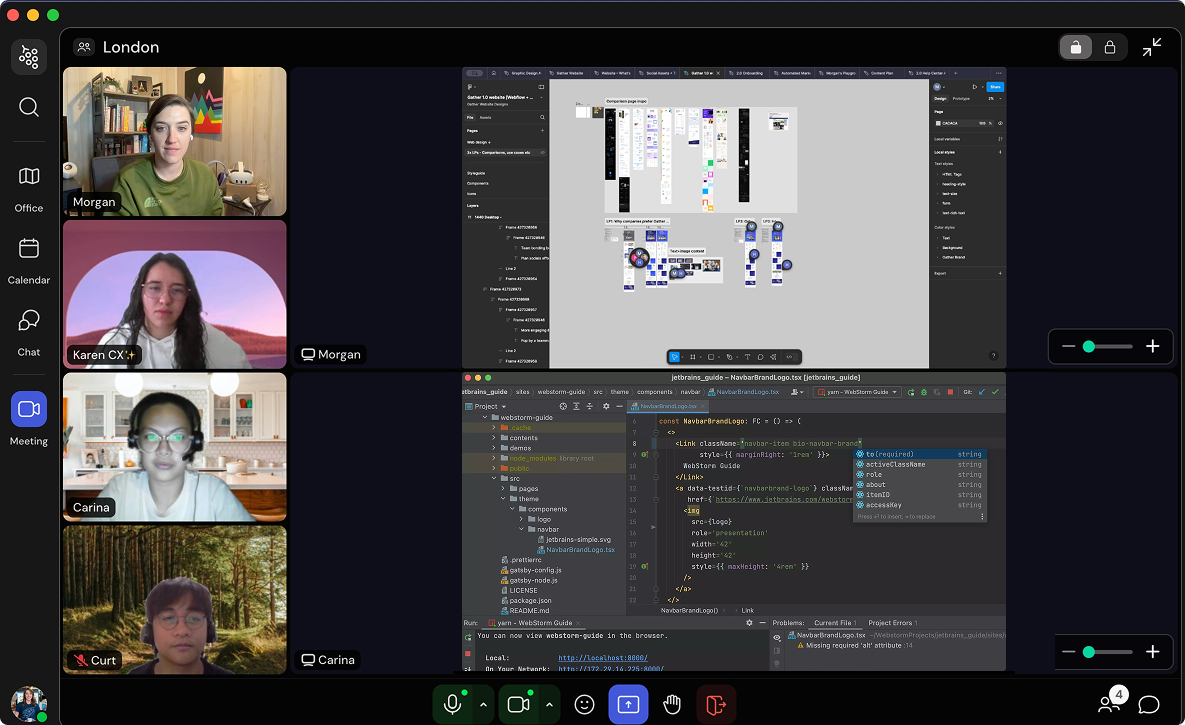
Multiple people can share screens at the same time so you can easily jump between them. Click on a screen to enlarge it, and use the + and - buttons on the right to zoom in and out.
Inviting People to Meetings
Scheduling in Advance
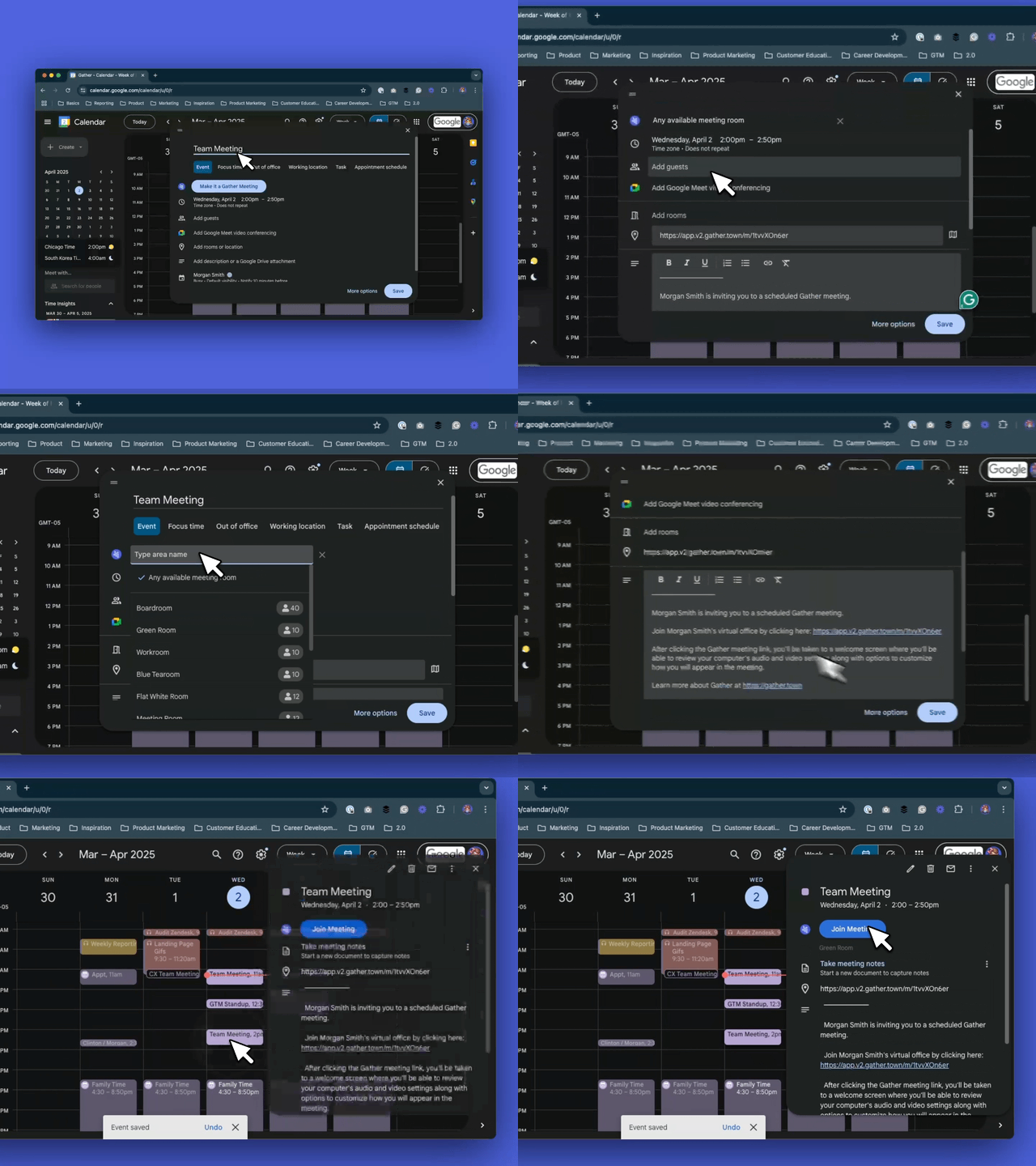
Install the Gather Meetings v2 Chrome extension
Open your Google Calendar & create a meeting
Click Make it Gather Meeting to automatically generate a link to any available room
To select a specific room, click the link and select an option from the dropdown
Save the meeting
Clicking the link will automatically bring attendees to the correct meeting room in Gather
Learn more: 📄 Google Calendar Integration & Chrome Extension
Adding Someone During a Conversation
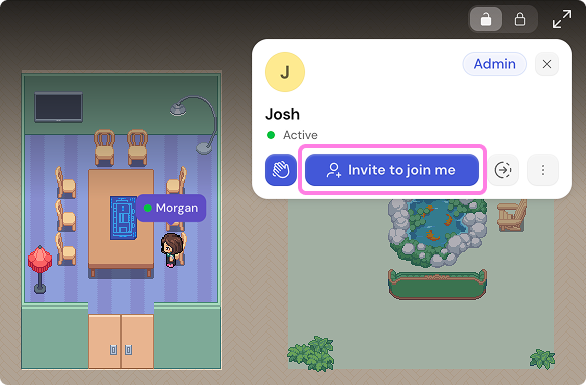
To invite someone currently in your Gather office:
Click on their name or avatar
Click Invite to join me
They’ll receive a notification in Gather
If they accept, they’ll automatically walk over
To invite someone not currently in your Gather office:
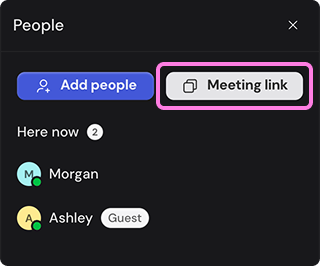
While in Meeting View, click the People List icon in the lower right-hand corner
At the top of the panel, click Meeting Link to automatically copy the link
Share this with the person you want to invite
They can choose to sign in or enter as a Guest
They’ll automatically join your meeting room without needing to move around the office
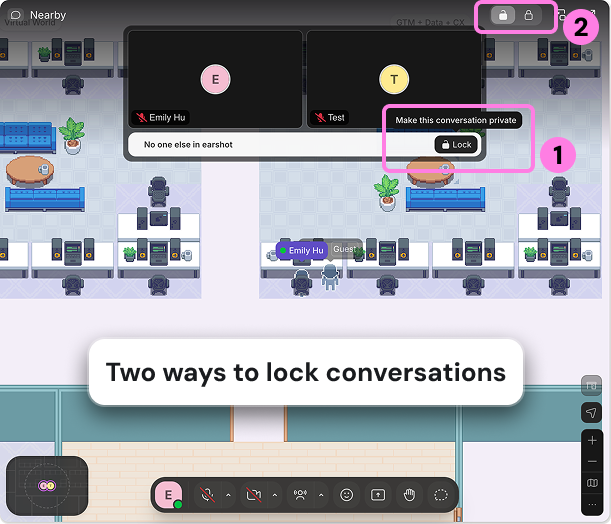
Talk Privately
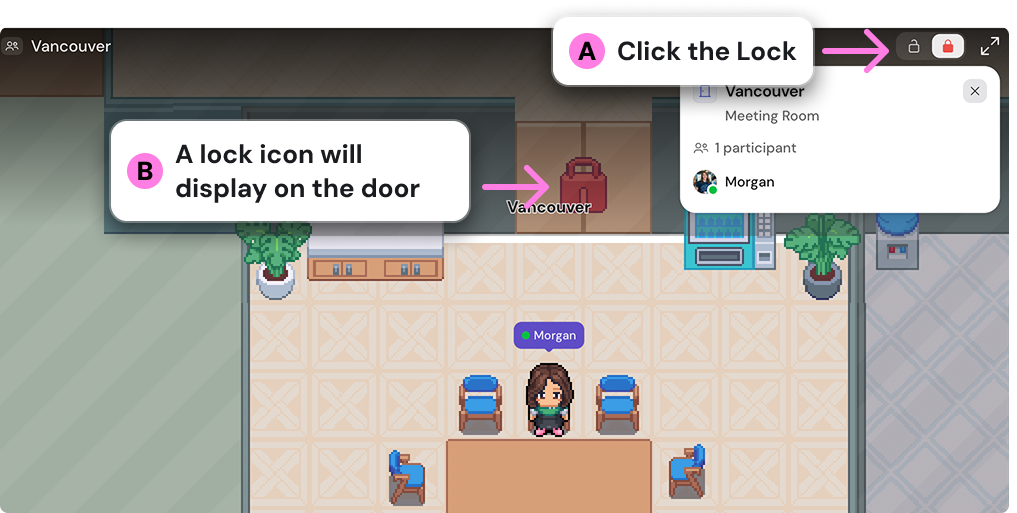
Enter a Meeting Room
Click the Lock button in the top right
No one else will be able to enter the room without permission
If you Lock a scheduled meeting, anyone listed on the calendar event will be able to enter automatically.
Play Music
Need some background noise? Play music in your meeting area while waiting for others to join or during focused sessions.
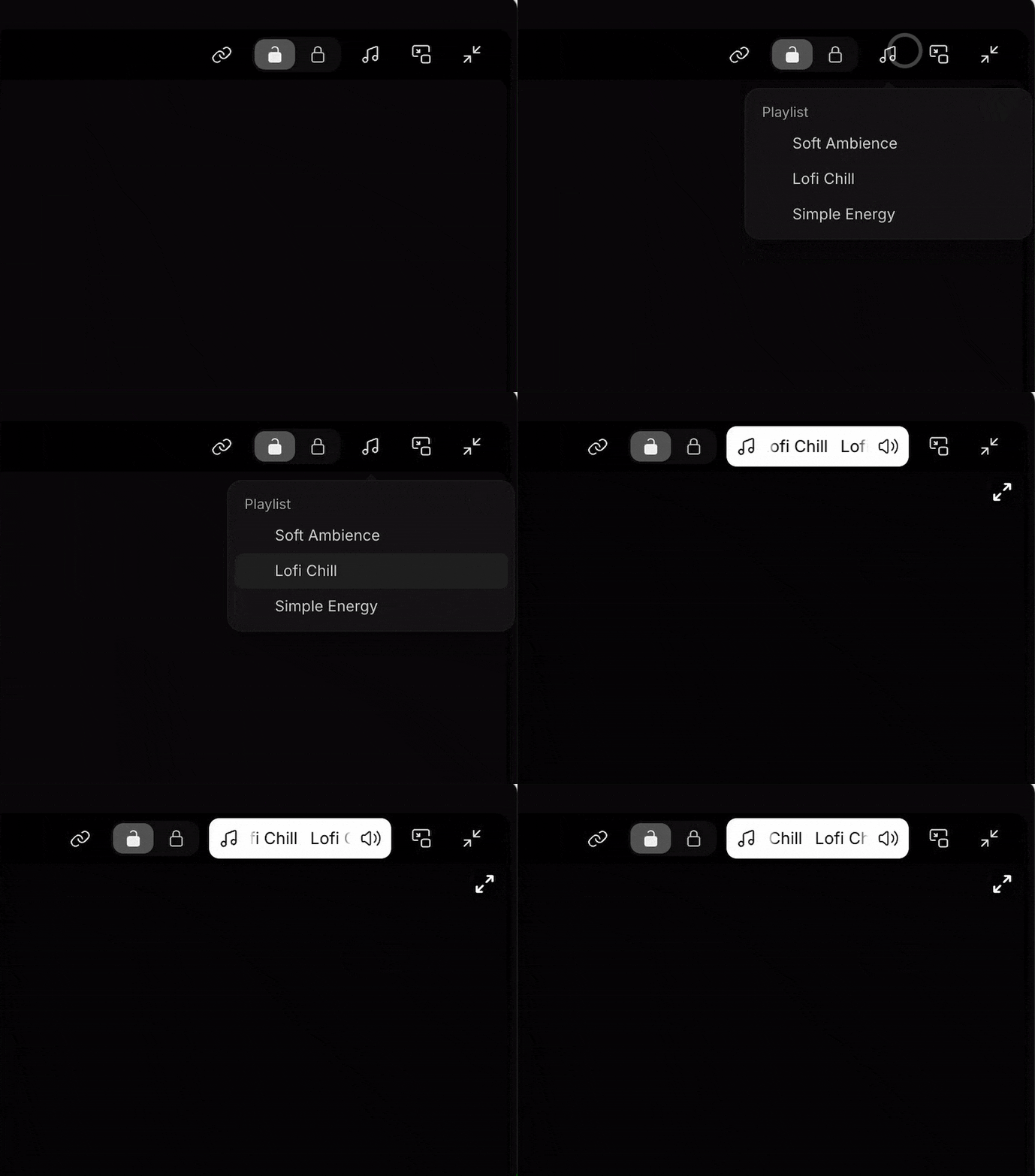
To play music:
While in a meeting area, click the music note in the top right corner
Select your playlist: Soft Ambience, Lofi Chill, or Simple Energy
Everyone in the room will be able to hear the music
Use the slider to adjust the volume or click Stop to end the playlist
Best practices
For quick conversations, don’t worry about scheduling a meeting. You’ll see when your teammates are free so you can find 5 quick minutes to chat instead of putting a 30-minute block on both your calendars.
If it’s not a private conversation, have it at your desk so others around you can hear, too. This makes it easy for others to join in and share ideas without it being a big scheduled production.
If it is a private conversation, Lock it so no one can join without explicit permission. You can also walk into a meeting room for extra privacy.
To submit a bug report or share feedback:
Open the Main Menu and select ‘Report an issue’
Or email support@gather.town