Smart Objects (Webhook Objects)
Last updated: September 14, 2026
Smart Objects connect Gather to other tools, so you can see live updates right in your virtual office. Watch an inbox fill up as PRs stack up, see a status light turn red when an incident occurs, or check your bot monitor for AI agent status.
Anyone in your space can see Smart Objects, giving everyone a shared pulse on the tools and workflows that matter most.
Overview
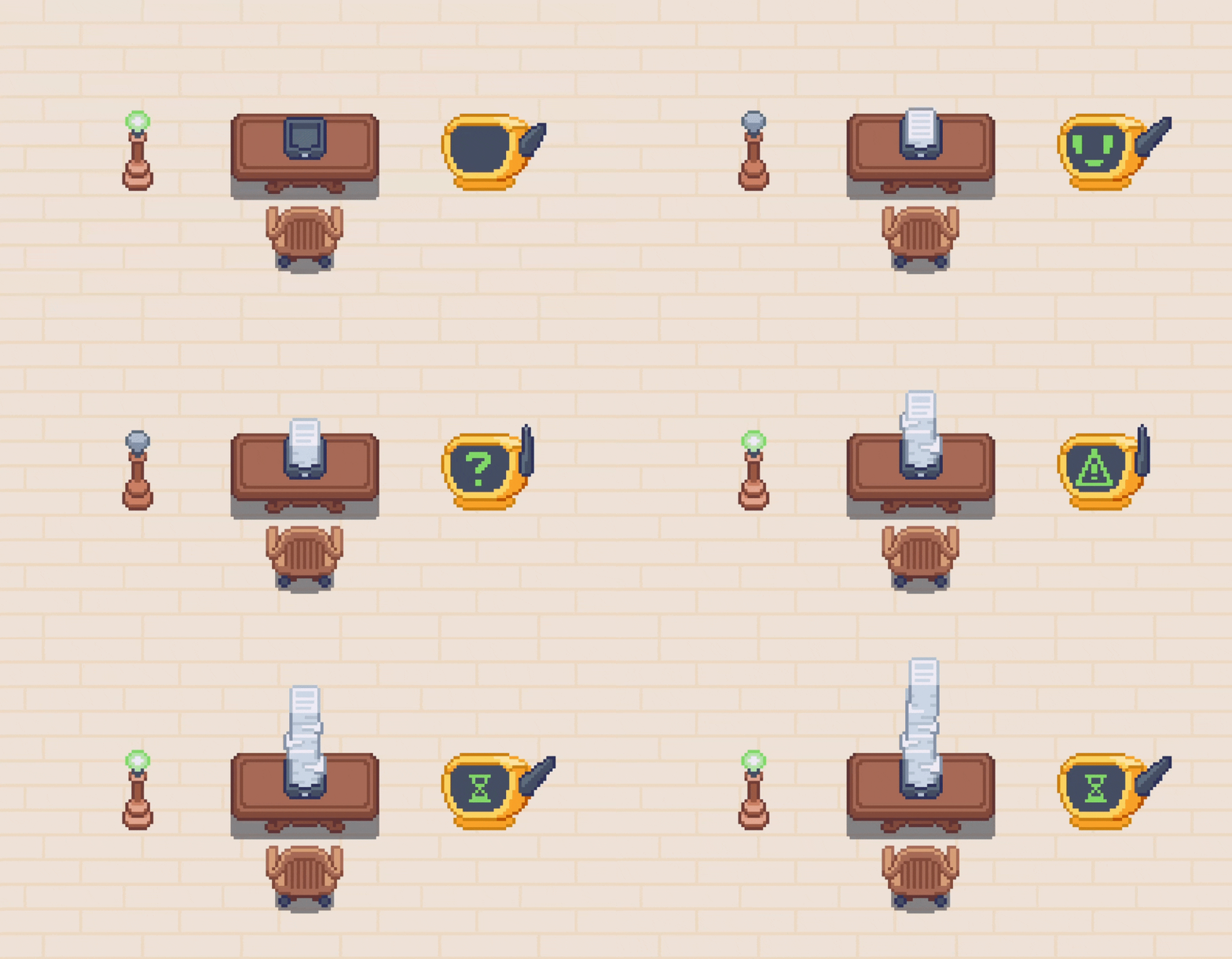
Smart Objects are Gather map objects whose state is set by signed HTTP webhooks via @gathertown/webhook-object-sdk. For the full model (presets, capabilities, and every event with its arguments), see the Smart Objects reference.
There are currently three Smart Objects:
A Lightbulb that turns on/off and changes colors
An Inbox that stacks paper
A Bot Status Monitor that displays different symbols
When you click on a Smart Object, you’ll see an activity feed for more context.
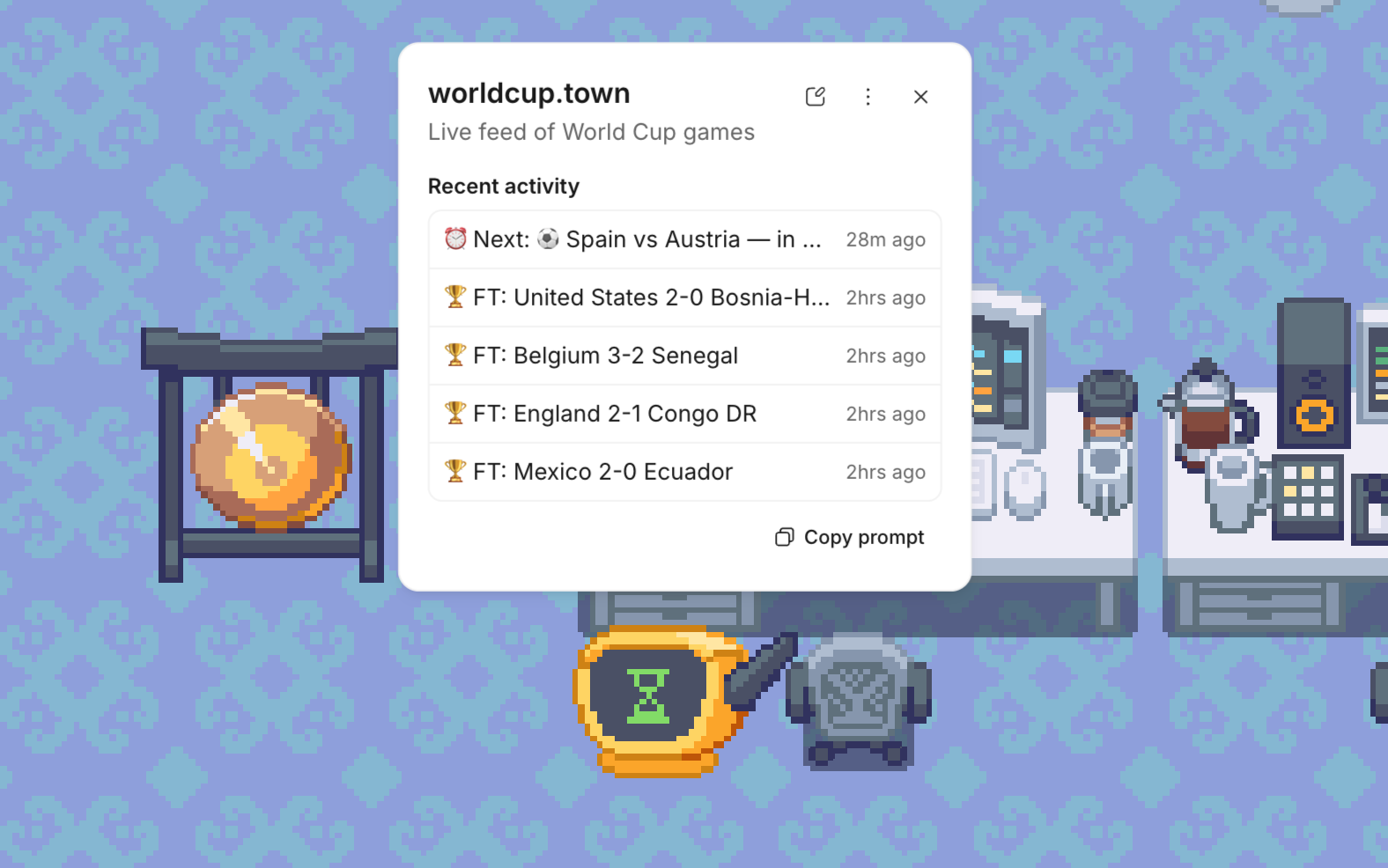
Heads up: All Members and Guests in your space can view Smart Object activity feeds. Avoid connecting anything that surfaces sensitive or confidential information.
To add a Smart Object
You must be a Member or Admin. Guests are not permitted to add Smart Objects.
Open the Main Menu and click Decorate Desk
Search for the object or go to the Smart Objects category
Select the Smart Object and click to place it on your desk or in the space
Give your Smart Object a relevant name
Copy the Webhook URL or generate an API key to enter into your desired tool
Resources
Example scripts (a public repo with working examples to help you get started)
Pro-tip: Use AI to set up Smart Objects
After you place a Smart Object, close the Decorator and click on it. Select "Copy prompt", then paste the instructions for your AI Agent to automate setup and start sending events.
Things to be aware of:
Rate limits apply to the entire space. If you have lots of Smart Objects in your office that update frequently, you may hit those limits. Be thoughtful about how often each object needs to refresh.
Keep your tokens secret. Treat them like a password, and don’t share them publicly or commit them to a public repo.
Use any language you want. The prompt is written in JavaScript/Node.js, but anything that can make an HTTP request will work just fine.
Ideas for using Smart Objects
Bot Status Monitor

The Bot Status Monitor has five states:
Blank screen
Smiley face
Question mark
Warning alert
Timer
Ideas include:
AI Agent Activity: The monitor can smile when your agent is running smoothly, show a question mark when it needs input, or switch to a warning when it encounters an error. Connect to tools like ChatGPT or Claude.
Scheduled Job Status: Display the timer when a nightly sync or batch job is in progress, a smiley when it completes successfully, and a warning if it fails. Connect to tools like Airflow or Prefect.
Deployment Bot: Show the timer while a deploy is running, a smiley when it ships, and a warning if it needs manual intervention. Connect to tools like GitHub Actions or CircleCI.
Data Sync Status: Show whether your CRM, warehouse, or reporting sync is pending, complete, or broken, without anyone having to check. Connect to tools like Snowflake, HubSpot, or Salesforce.
Inbox
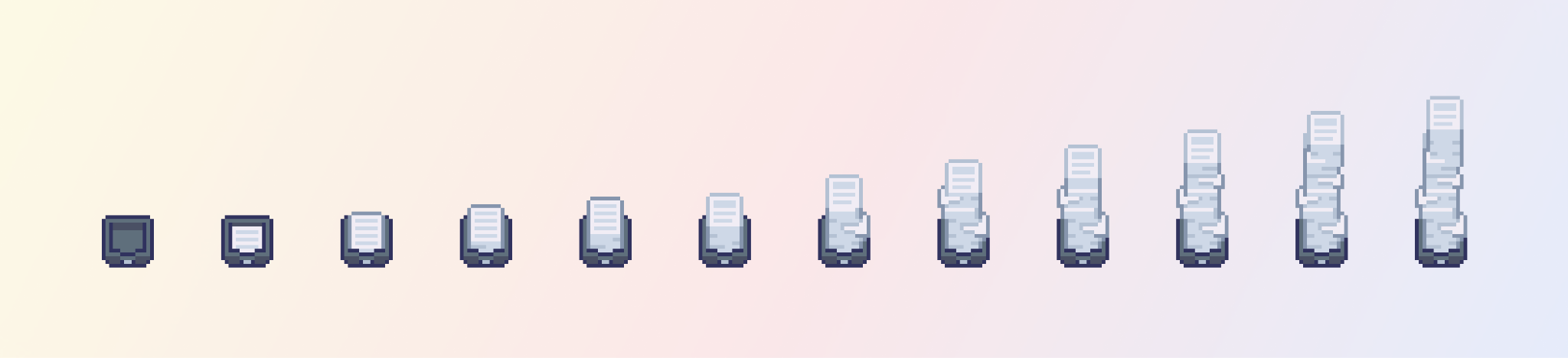
The Inbox has 12 states, ranging from empty to a full stack. The paper height gives you a visual clue about how many items are in the connected queue.
Ideas include:
PR Review Queue: Papers pile up as unreviewed PRs stack up, so managers know at a glance who’s buried in reviews. Connect to tools like GitHub or Linear.
Support Ticket Volume: The stack grows as open tickets increase, so support managers can see who’s buried in the queue. Connect to tools like Zendesk, HubSpot Help Desk, Intercom, or Pylon.
Inbound Leads: Papers stack up as new leads enter your CRM. A quick look at the sales area reflects how full the pipeline is. Connect to tools like HubSpot or Salesforce.
Open Tasks or Issues: The inbox reflects how many tasks are on someone’s plate, tied to a project board. Useful for workload visibility across the team. Connect to tools like Asana, Trello, or Basecamp.
Lightbulb

The Lightbulb has three variations (Green, Red, or Yellow), with two states: On/Off.
Ideas include:
Incident Status Light: The red light turns on when an incident is declared, then turns off when it's marked resolved. The whole team can see system health without opening another tab. Connect to tools like PagerDuty or Datadog.
CI/CD Pipeline: Flip on the green light whenever a build passes, so everyone can see it went through. Connect to tools like CircleCI.
On-Call Indicator: Place a lightbulb near your desk. Have it turn on when you're on call, off when someone else takes over. Connect to tools like PagerDuty.
Monthly Revenue Goal: The green light turns on when revenue is pacing to plan, and turns off when it gets off track. Drop it in all the All Hands room so the whole team stays connected to the goal. Connect to tools like Stripe or set up custom automation with Zapier.
For more ideas and Smart Object examples straight from customers, check out this guide.
Share feedback
Thanks for checking out Smart Objects, one of our newest features! We'd love to hear how your experience is going: the good, the bad, and the “What if it did this?!”
Please take this brief survey to share your thoughts. We're excited to keep improving Smart Objects so you can make your virtual office as dynamic as the work happening within it.
To submit a bug report or share feedback:
Open the Main Menu and select ‘Report an issue’
Or email support@gather.town