Inviting & Managing Guests
Last updated: February 6, 2026
It’s easy to meet with anyone in your Gather office, including Guests like clients, candidates, or colleagues from other teams.
Guests are required to check in with an online Member before entering an office, and they cannot claim their own desk or use features like meeting recording, team chat, or decorating.
Learn more: 📄 User Roles & Permissions
How Guest Hours Work
Guest Hours let you invite external collaborators into your Gather workspace. Each hour a guest is active in your workspace uses 1 Guest Hour.
Your Team's Monthly Allowance
Free trial: 20 guest hours
Paid plans: 3 guest hours per team member (minimum 30 hours)
Examples
5-person team = 30 guest hours (the minimum)
20-person team = 60 guest hours (20 × 3)
50-person team = 150 guest hours (50 × 3)
How to use guest hours
With 60 guest hours, you could host:
1 guest for a full workweek (40 hours)
2 contractors in weekly 2-hour meetings (16 hours total)
4 candidates for hour-long interviews (4 hours total)
Mix and match however works for your team!
The Guest Check-In Experience
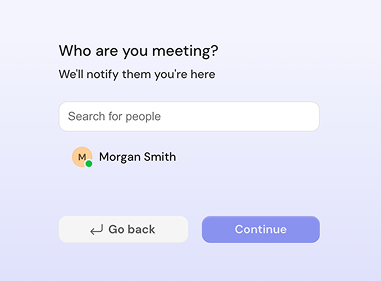
Guests need to notify an online member before entering your office. (Think of it like checking in at the front desk!) After that, you’ll instantly connect. Here’s what that experience looks like:
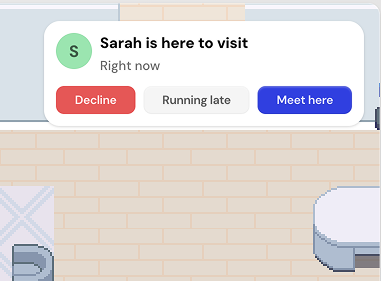
When you select “Meet here,” your guest will automatically be brought to your location, allowing you to instantly connect.
If you’re in a Meeting Room, they’ll enter in Meeting View (which feels similar to a traditional video call) so they don’t even have to worry about moving around.

Don’t forget to turn on your mic and/or camera so they can hear and see you! (And let them know they’ll need to do the same.)
To Invite Guests
You can either invite Guests directly to a meeting (just like any other traditional meeting tool), or you can invite them to the office (no meeting required).
Inviting via Google Calendar:
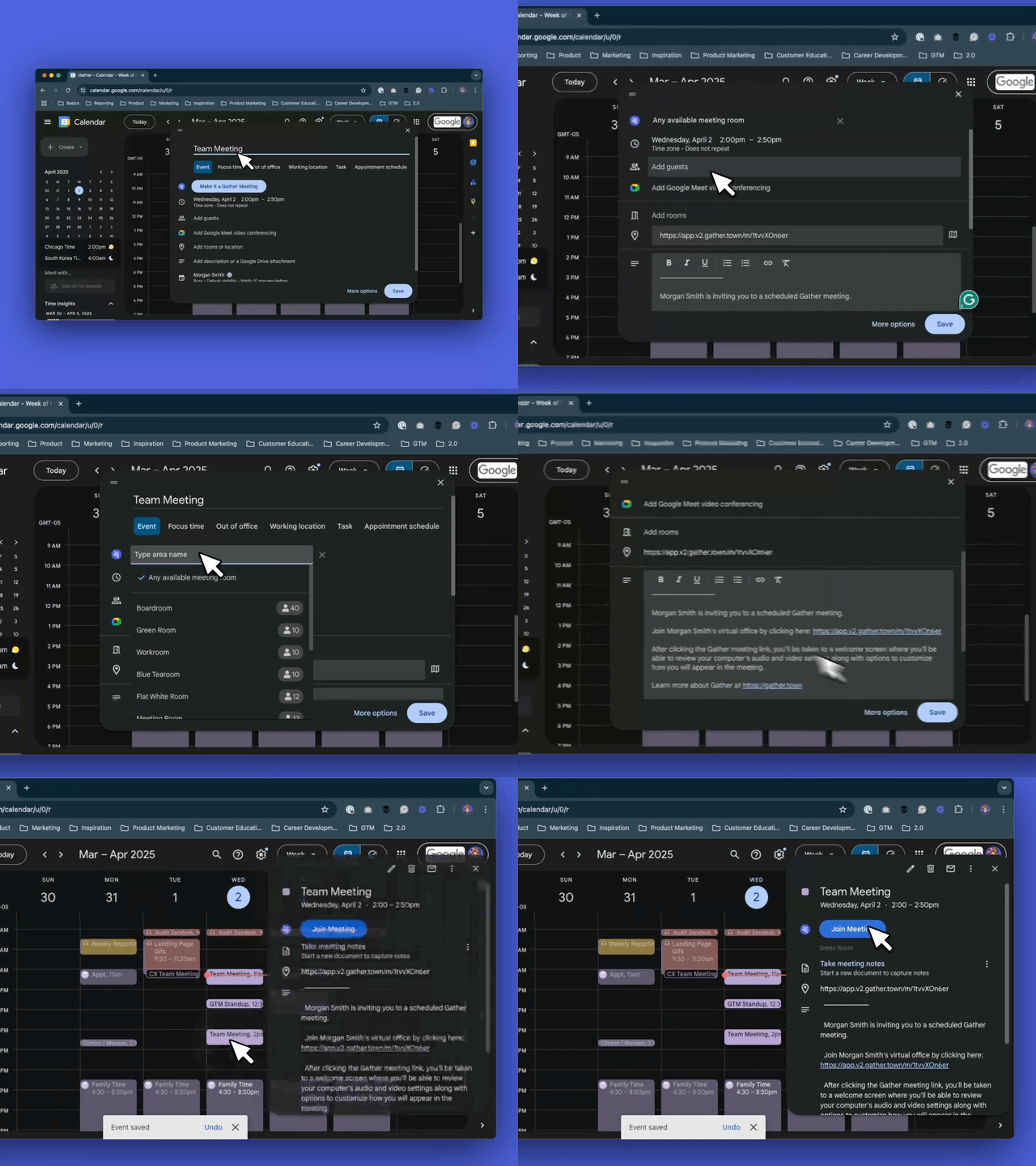
Make sure you’ve installed the Gather Meetings v2 Chrome extension
Schedule the meeting like normal from your Google calendar
When a guest clicks the link in the calendar event and checks in with you, they’ll instantly join the meeting.
Learn more about meetings on Gather: 📄 Overview of Meetings
Inviting via Meeting Scheduler (like Calendly, Hubspot, etc.)
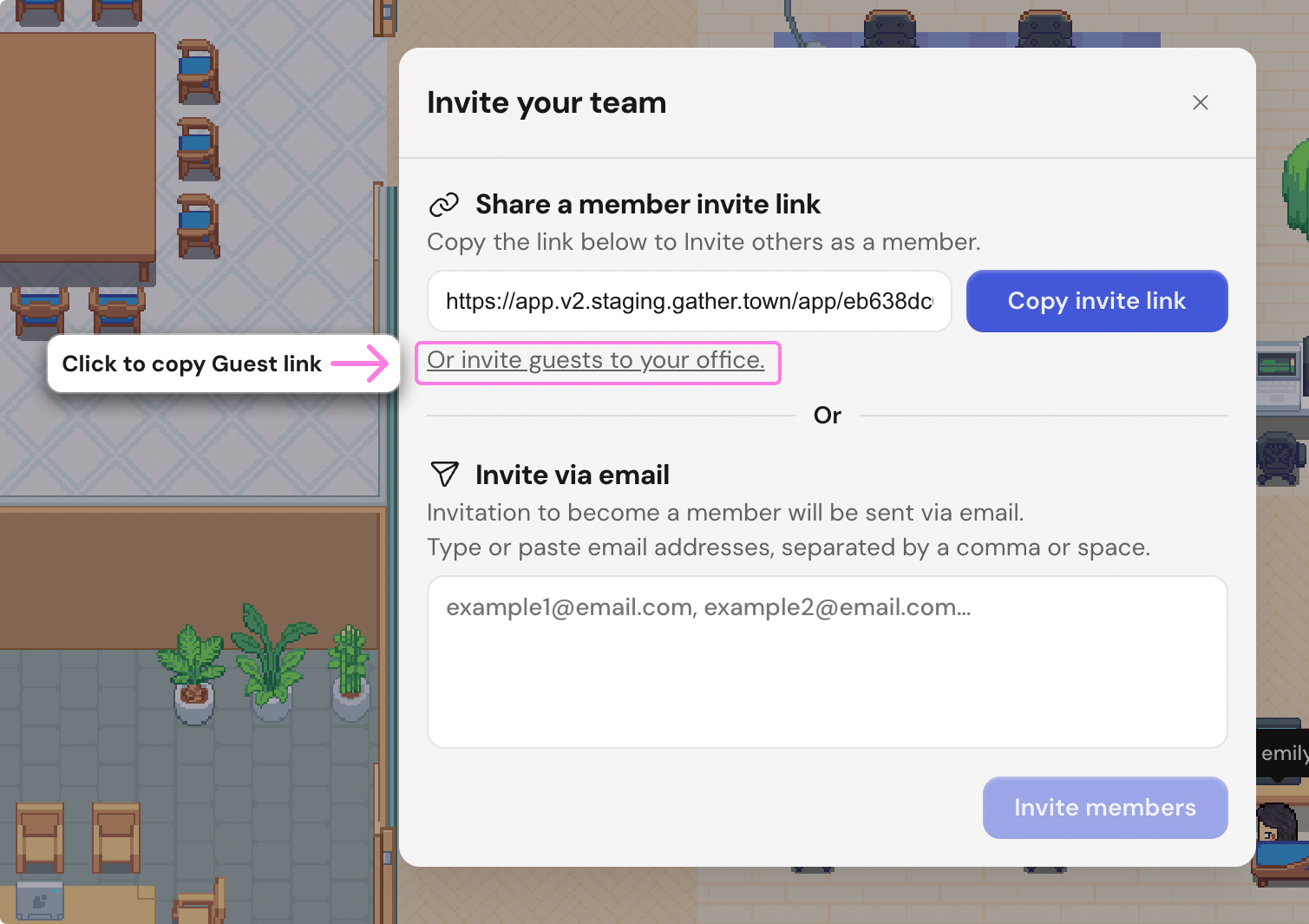
Open the Main Menu (Gather logo) in the left sidebar.
Click Invite to office.
Under the primary Member link, click “Or invite guests to your office” to automatically copy an invite URL.
Paste this in the Location field of your meeting scheduler.
When a guest clicks the link in the calendar event and checks in with you, they’ll instantly meet at your location.
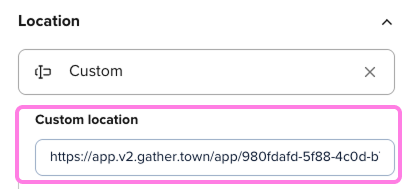
For the smoothest experience, walk into a meeting room before admitting your guest so they enter immediately in Meeting View.
Inviting during a Meeting:
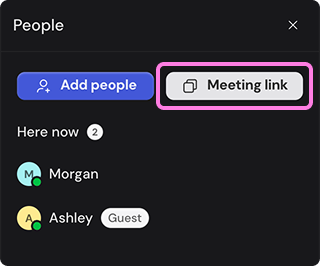
While in Meeting View, click the People List icon in the lower right-hand corner
At the top of the panel, click Meeting Link to automatically copy the link
Share this with the person you want to invite
When a guest clicks the link and checks in with you, they’ll instantly join the meeting.
Inviting to the Office (No Meeting Required)
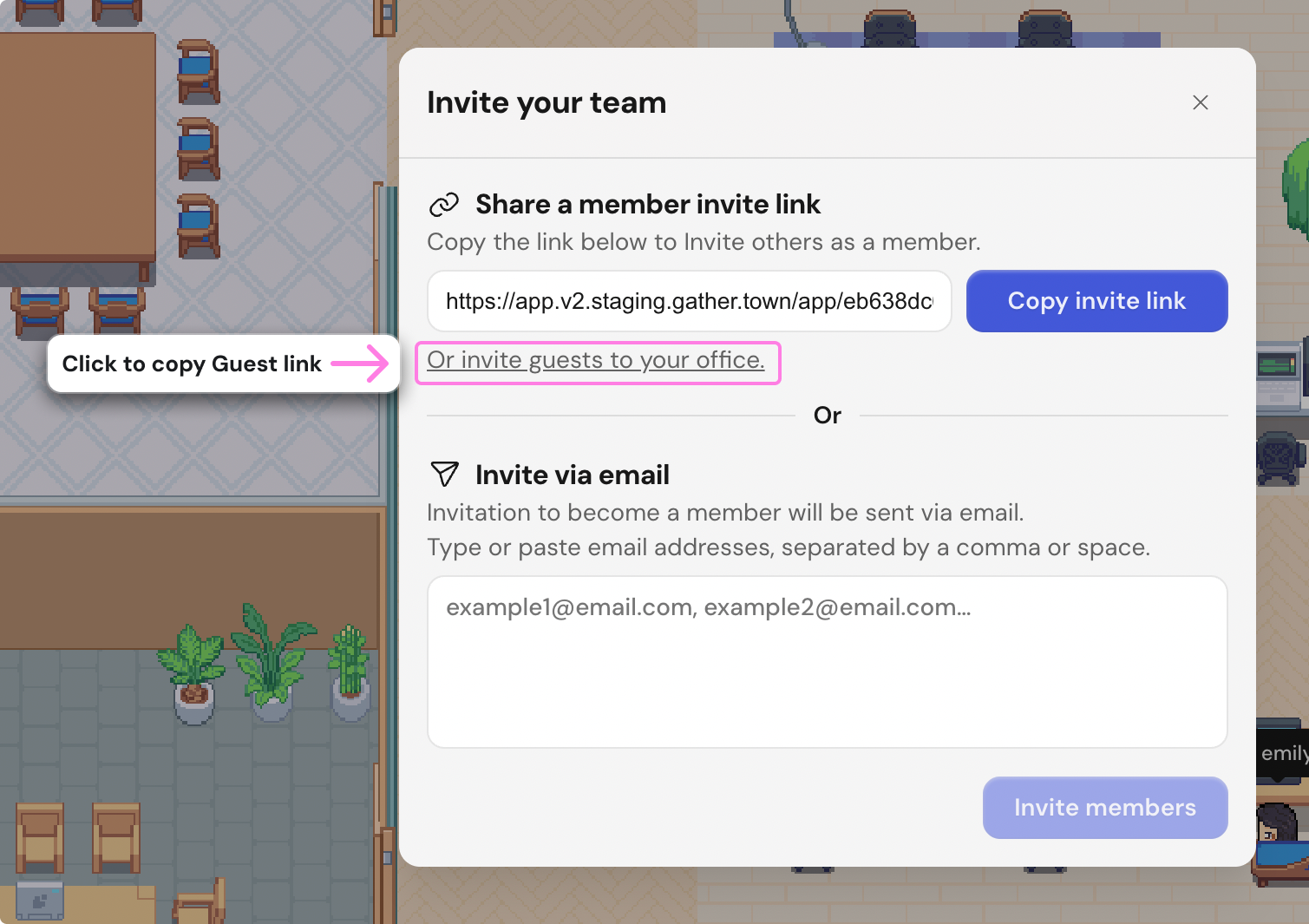
Open the Main Menu (Gather logo) in the left sidebar.
Click Invite to office.
Under the primary Member link, click “Or invite guests to your office” to automatically copy an invite URL.
Share it with your Guest.
When a guest clicks the link in the calendar event and checks in with you, they’ll instantly join you at your current location in the office.
Removing Guests
Guests can leave at any time by closing the Gather browser window or desktop app, or clicking the Leave Office button in the left sidebar.
To remove a guest:
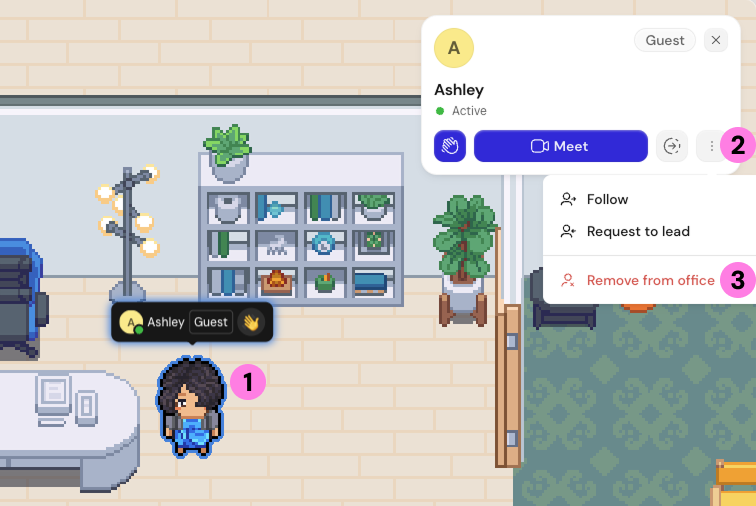
Click on their name or avatar.
In their Profile card, click the three dots to expand the menu.
Select Remove from office.
Confirm.
They’ll instantly be removed.
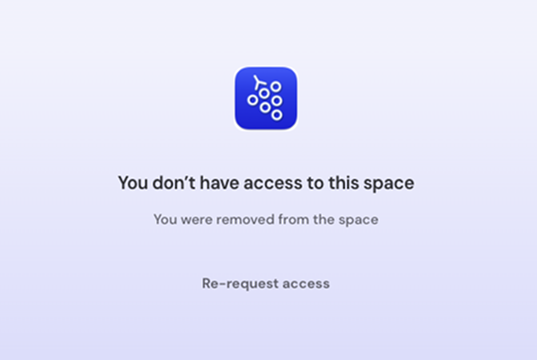
If they try to re-enter, they’ll be notified they no longer have access to this space. They may try to check-in as a Guest again.
FAQs
Are Guests required to create an account?
Nope! They’re required to check-in with an online member (so no one enters your office without permission), but they will not be required to create an account with Gather.
Can I use Gather with a meeting scheduler like Calendly, Hubspot, etc?
Yes! While we won’t have direct integrations, you can place a guest link in the Location field so people can book meetings with you in your Gather office. To do this, follow the directions above.
To submit a bug report or share feedback:
Open the Main Menu and select ‘Report an issue’
Or email support@gather.town