Managing Desks & Where People Sit
Last updated: October 8, 2025
Desks provide a place for people to sit between meetings, making it easy to look around, see who’s free, and strike up a conversation or join one happening nearby.
Where people sit highly impacts their experience with Gather, making a well-planned seating chart one key to success.
This guide covers best practices for seating arrangements and tools for admins to manage desks.
Who Should Sit Where?
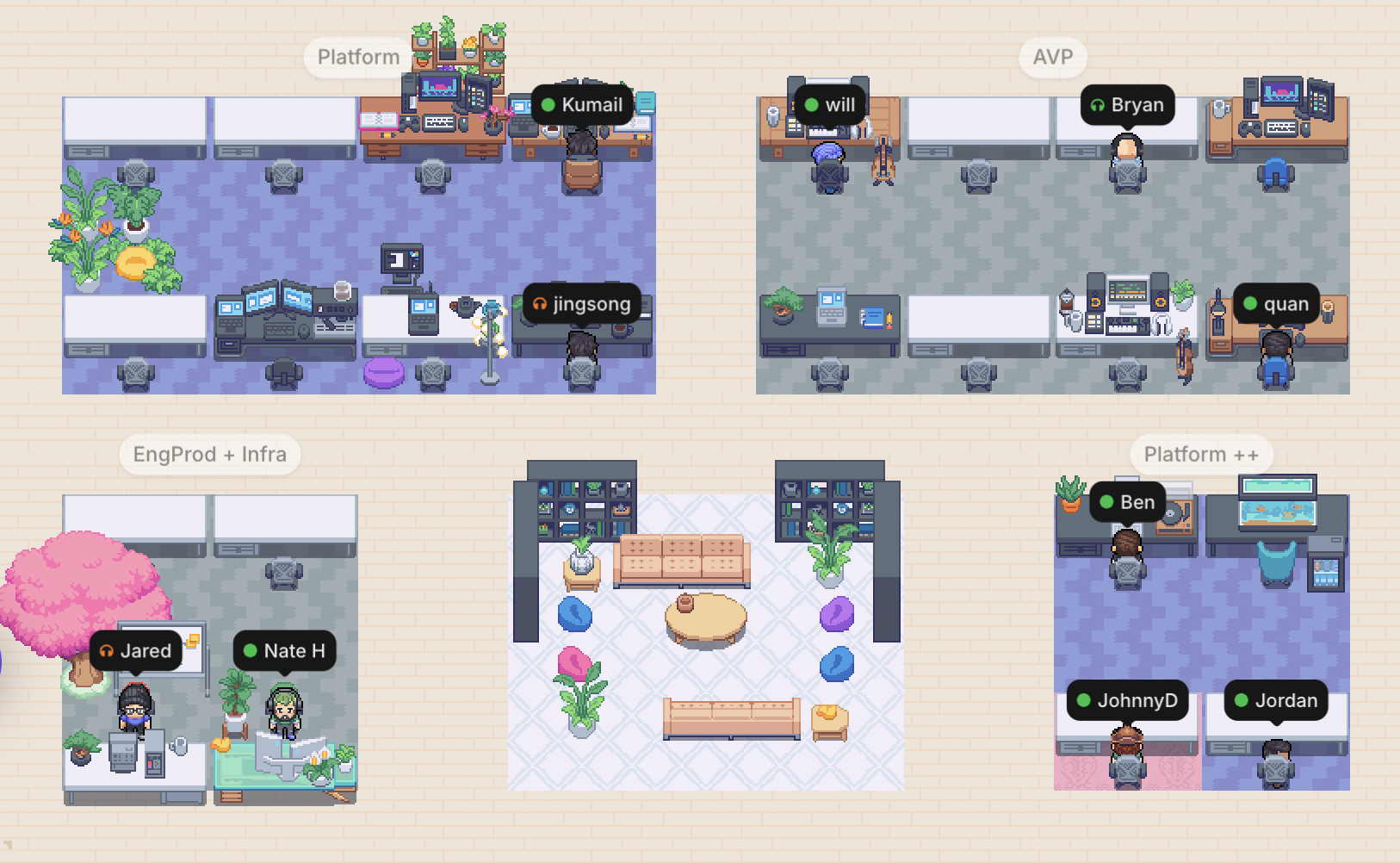
Arrange your office so people sit near teammates they frequently collaborate with. In the screenshot above, four of Gather’s engineering teams are seated near each other with a common area in the middle. This makes it easy for our engineers to pair up and overhear relevant conversations.
Best Practices
Assigning a desk to someone (or having them claim it themselves) should be one of the first actions for new Members in your office.
Have each department or individual team sit in a Team Area together. (A group of desks.)
Use Studio to name each Team Area so everyone else knows who sits there at a glance.
Learn more:📄 Studio Overview: Editing Your Office
Arrange teams so they sit near other departments they commonly interact with.
For example, the Engineering Team Area should be near the Product Team Area.
Managing Desks with the Desk Manager
Admins have access to the Desk Manager, a convenient tool that allows you to assign or un-assign other people’s desks. Examples for using this include:
Initial onboarding to Gather, to establish the initial seating chart of who sits where
New hire onboarding, to assign their desk on Day 1
Employee off-boarding, to remove someone from a desk
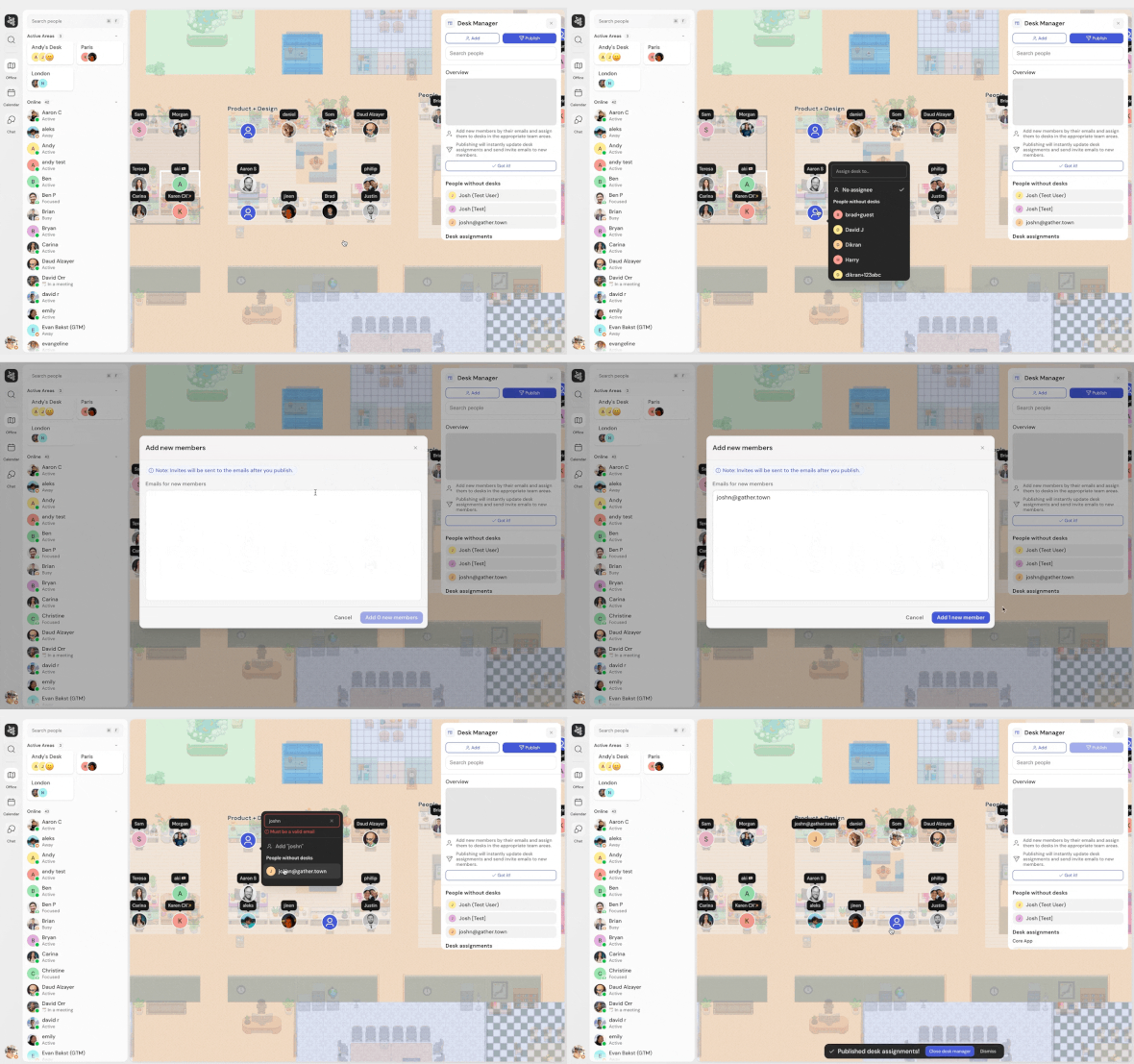
To Open the Desk Manager (Admins Only)
Open the Main Menu (Gather logo) in the left sidebar
Select Desk Manager
A window will display with the following warning. Click “Got It”
Heads up!
Your availability will be set to away, and you won't be connected to anyone while using Desk Manager.
No one will be able to edit or decorate the office while you're using Desk Manager.
No one will be able to claim a desk or unclaim their desk while you're using Desk Manager
To Assign a Desk to Existing Members
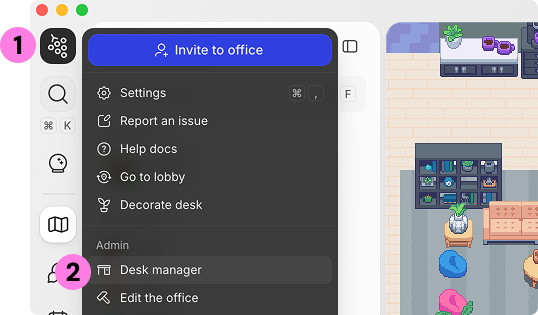
Click on a desk (the people icon).
Select the name of the person you want to assign it to.
Hit Publish to make your changes official.
Anyone with updated desk assignments will receive a notification in Gather.
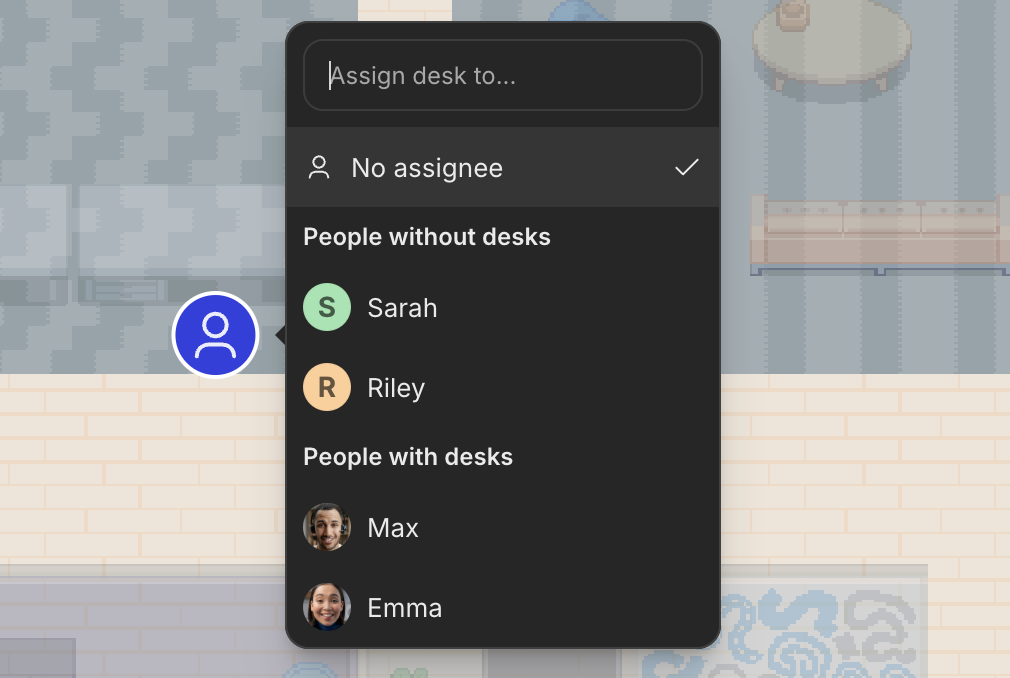
To Assign a Desk to New Members
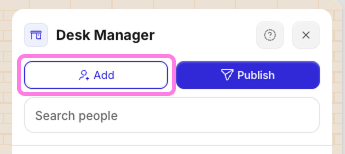
At the top of the Desk Manager window, click Add.
Enter the email(s) of the people you want to invite.
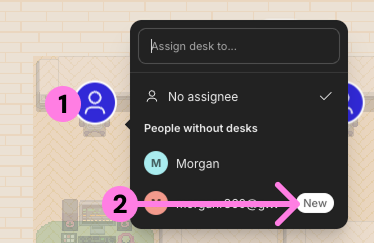
Click on a desk (the people icon).
The emails of the new member(s) you’ve invited will appear.
Select the name of the person you want to assign it to.
Hit Publish to make your changes official.
New Members will receive an email invite and their desk will be reserved until they accept and join your office.
To Un-Assign a Desk
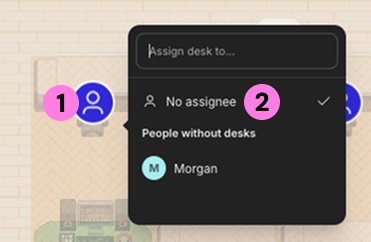
Click on a desk (the people icon).
Select No assignee (or someone else’s name).
Hit Publish to make your changes official.
Anyone with updated desk assignments will receive a notification in Gather.
To submit a bug report or share feedback:
Open the Main Menu and select ‘Report an issue’
Or email support@gather.town