Start a Coworking Session
Last updated: October 2, 2025
Overview
Easily invite teammates to cowork without cluttering everyone’s calendar with optional meetings. There are three types of coworking sessions:
Focused: Designed for deep work. Microphones are disabled to minimize distractions, but chat remains available. Sessions are timed to help structure your focus.
Pomodoro: Based on the Pomodoro Technique: Focused intervals followed by short breaks. Microphones are off during focus blocks and re-enabled during breaks.
Freeform: A casual, unstructured session with no rules or set duration. Perfect for working at your own pace, like a virtual working lunch.
Start a Coworking Session
Click on an empty coworking area
Look for couches and casual seating areas in Immersive View or the pink rooms in Simplified View
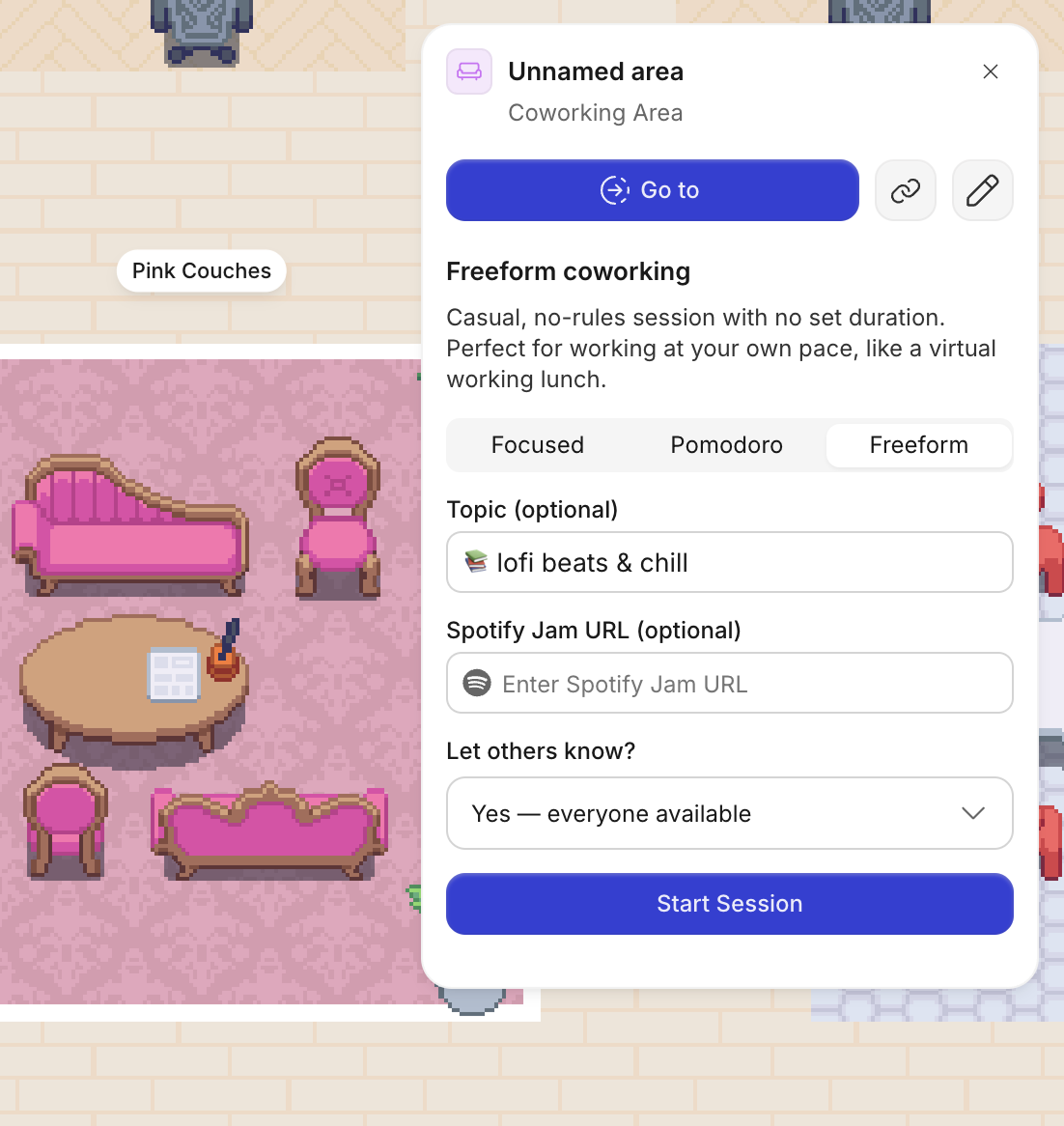
Select the type of coworking session you want to start: Focused, Pomodoro, or Freeform
Fill out the details, like adding a topic so teammates know the goal or vibe of the session
For Spotify users: Add a Spotify Jam URL to listen to music together
Last, choose if and who you want to notify about your coworking session
This sends a notification so others can instantly see that you’re coworking and can join you in a click
Choose to send to no one, everyone that’s Active 🟢, or everyone that sits in your Team Area
Join a Coworking Session
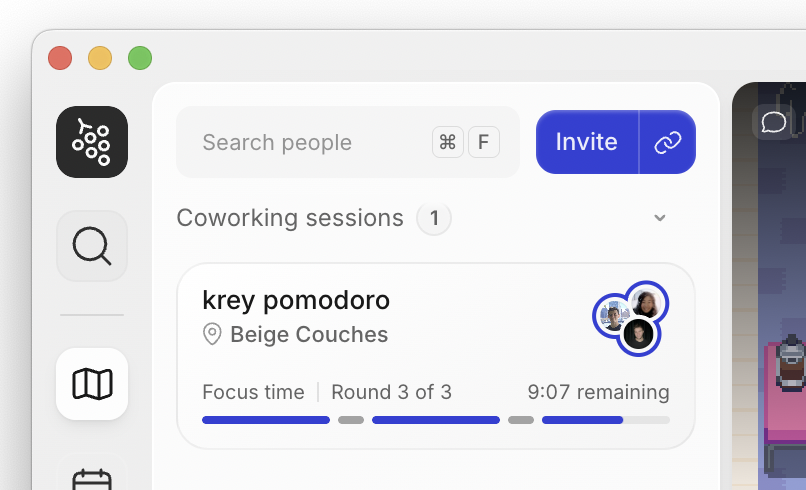
Active coworking sessions appear at the top of the Office Panel. Anyone can join or leave these sessions at any time, making it natural and effortless to drop in and work together.
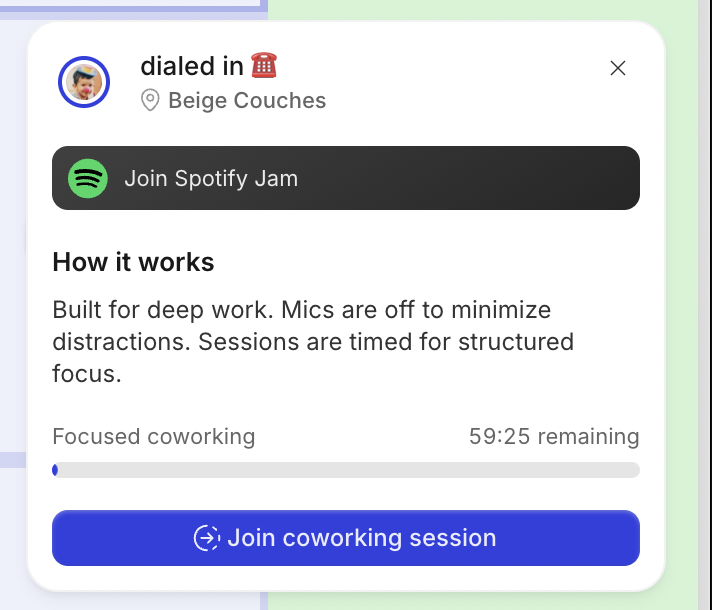
Clicking on a session will display more details, along with a button to instantly join.
To submit a bug report or share feedback:
Open the Main Menu and select ‘Report an issue’
Or email support@gather.town