Audio Settings
Last updated: October 16, 2025
There are many audio settings and features available to enhance your experience in Gather. This guide will explain options for your personal audio preferences, as well as choices for listening (or not listening) to others.
Personal Audio
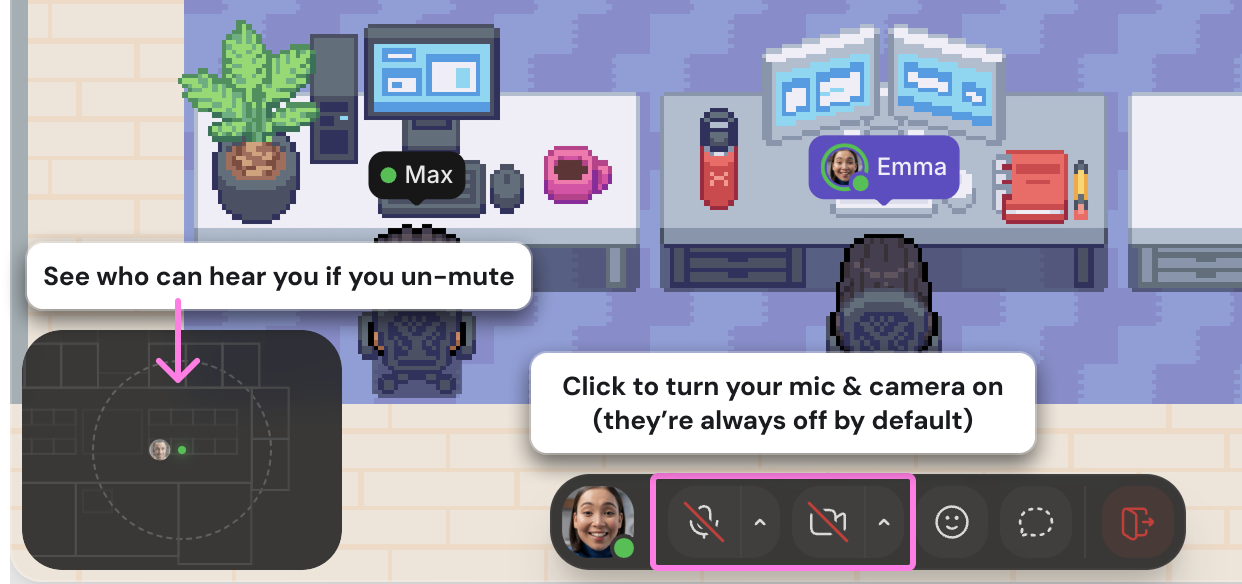
Your microphone is always off by default; you must turn it on in order to talk to someone.
To turn your microphone on/off, click the microphone button in the bottom bar, or use the shortcut ⌘ + Shift + D for Macs or Ctrl + Shift + D for Windows to turn your mic and camera on/off.
Device settings
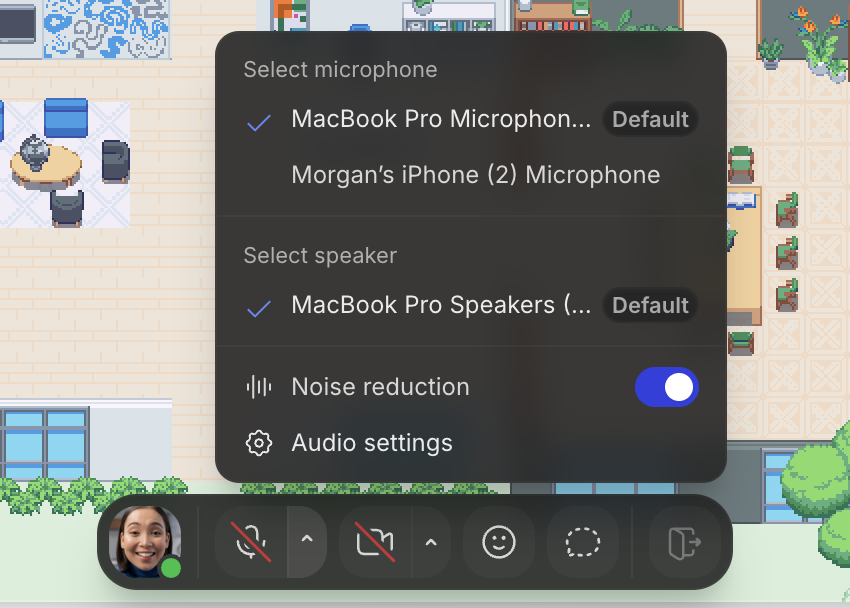
To make quick audio adjustments, click the toggle next to the microphone icon. You can change your microphone and speaker device, and turn background noise reduction on/off.
Advanced settings
To further customize your audio, click Audio Settings from that window or open the Main Menu and go to Settings > Audio.
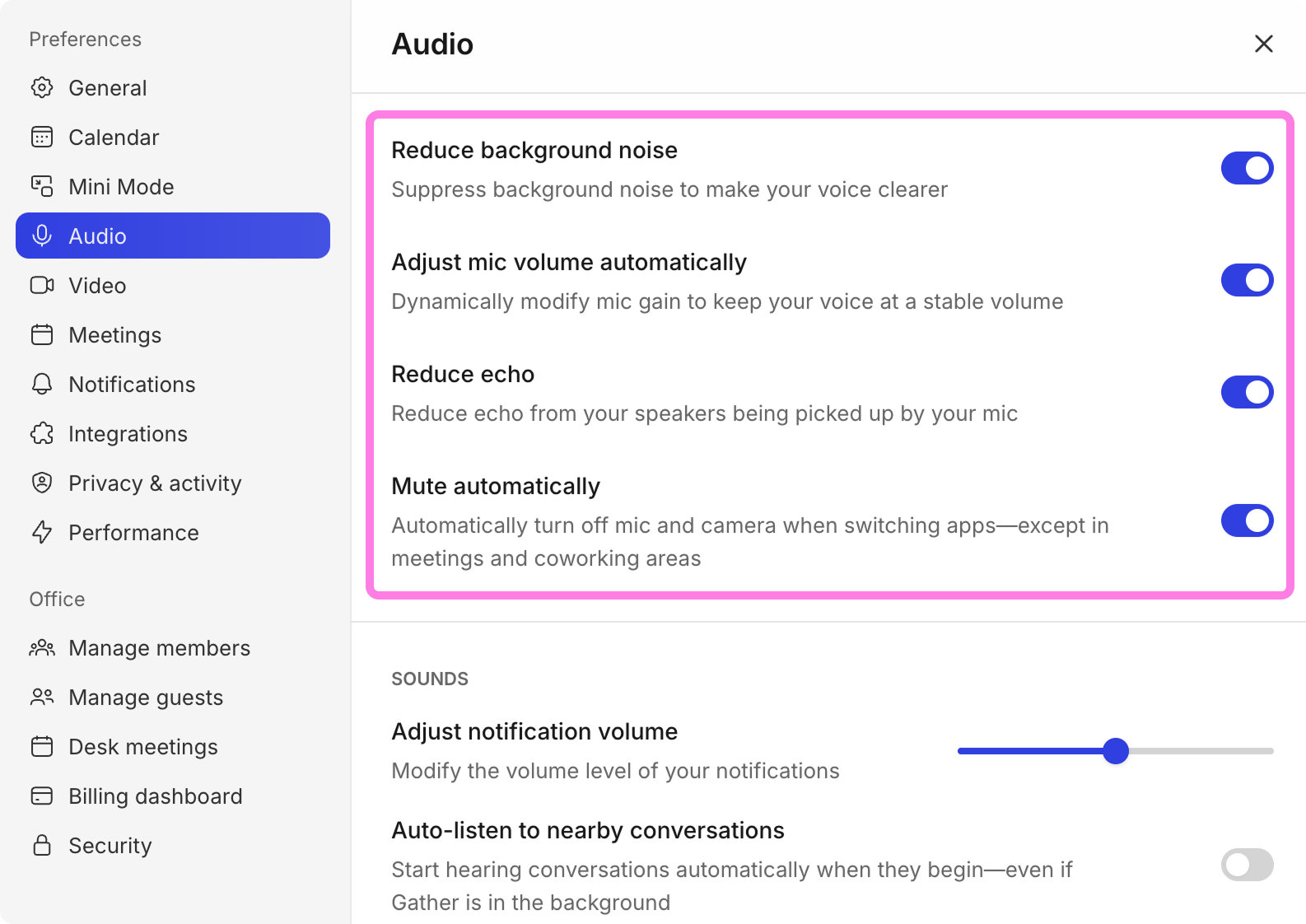
The first group of settings apply to your personal audio.
Reduce background noise: Suppress background noice to make your voice clearer
Adjust mic volume automatically: Let Gather dynamically modify mic gain to keep your voice at a stable volume
Reduce echo: Reduce echo from your speakers being picked up by your mic
Mute automatically: Automatically turn off your mic and camera when you switch apps, unless you're in a meeting or coworking areak
Desk audio
In addition to the quality of your audio, you can adjust the privacy of conversations at your desk.
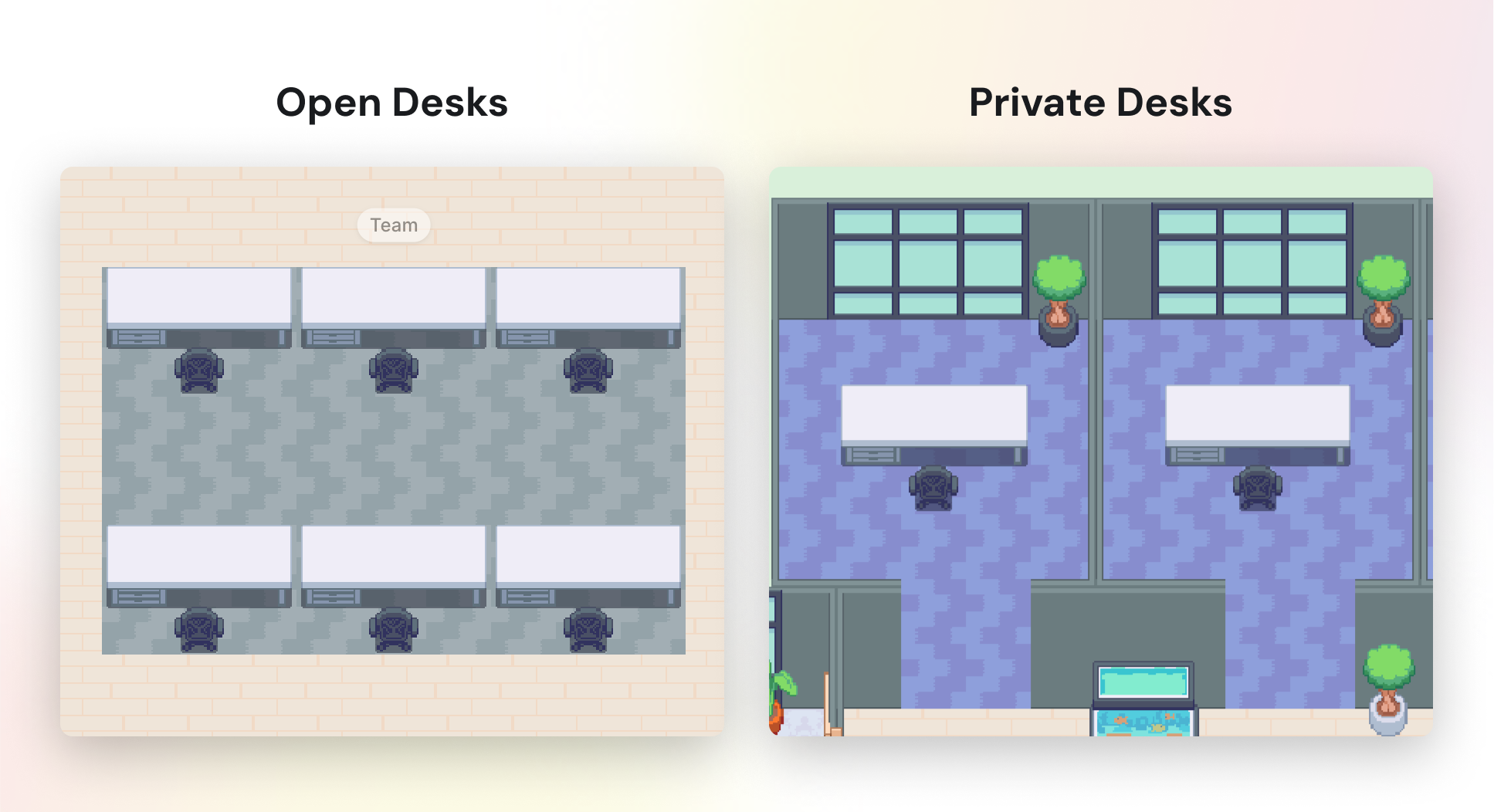
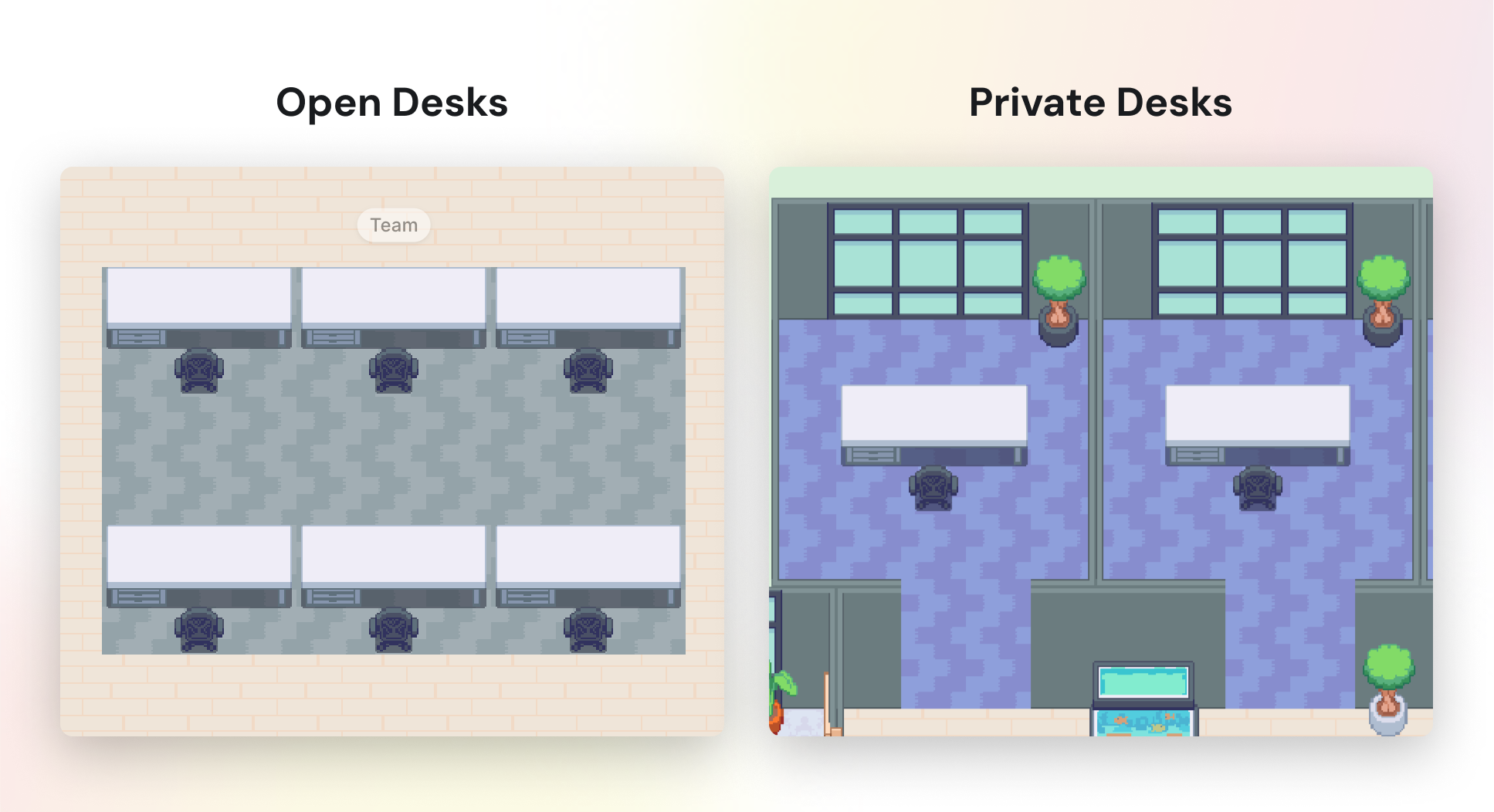
Open Desks default to open conversations. When you start talking at an Open Desk, people nearby can listen or easily join in.
Private Desks default to private conversations. When you start talking at a Private Desk, only the people in that desk area can hear each other.
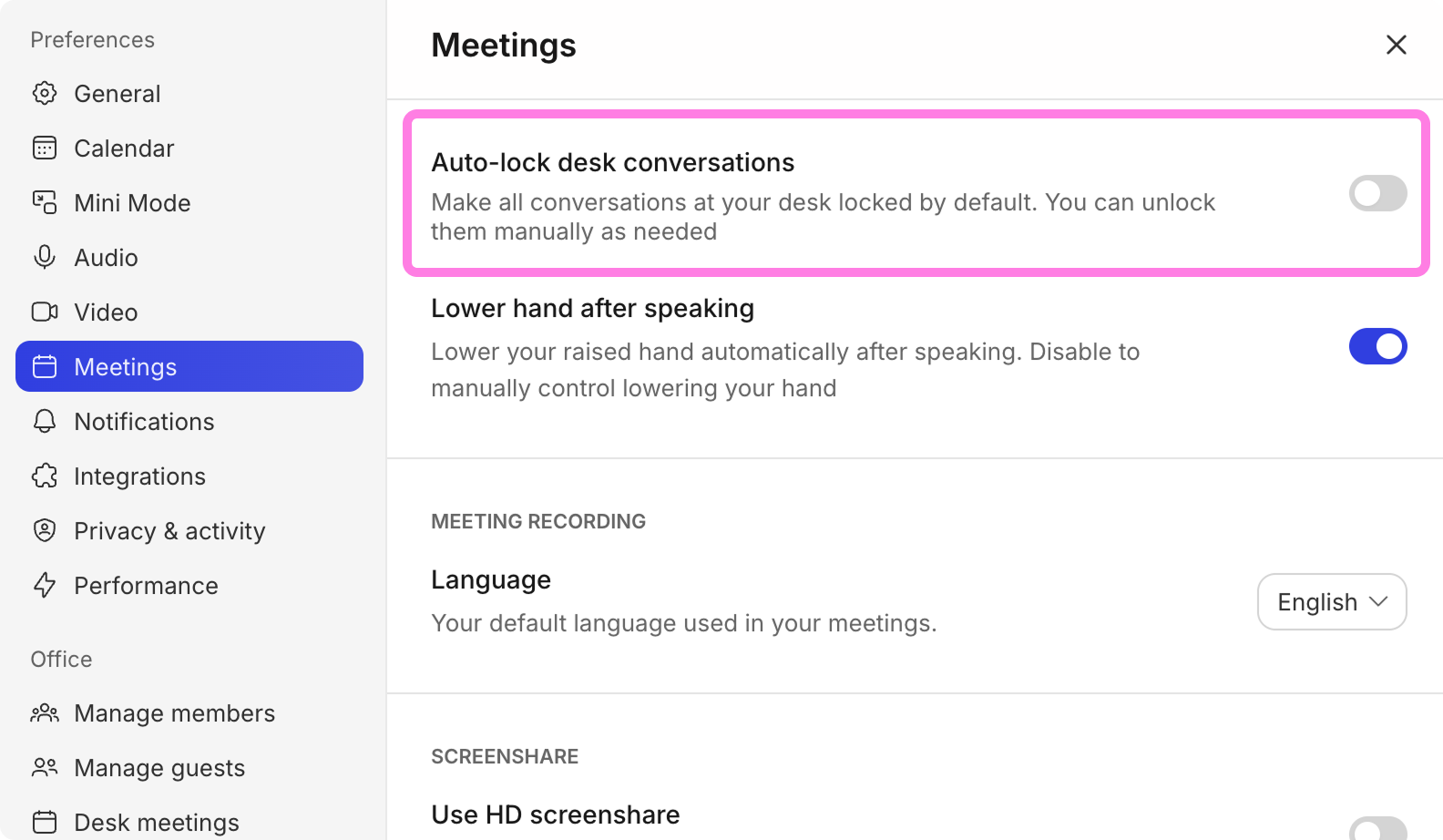
To adjust the behavior of your desk, go to Settings > Meetings > Auto-lock desk conversations.
For more privacy, turn this setting on to automatically lock conversations at your desk.
For more transparency, turn this setting off to hold open conversations at your desk.
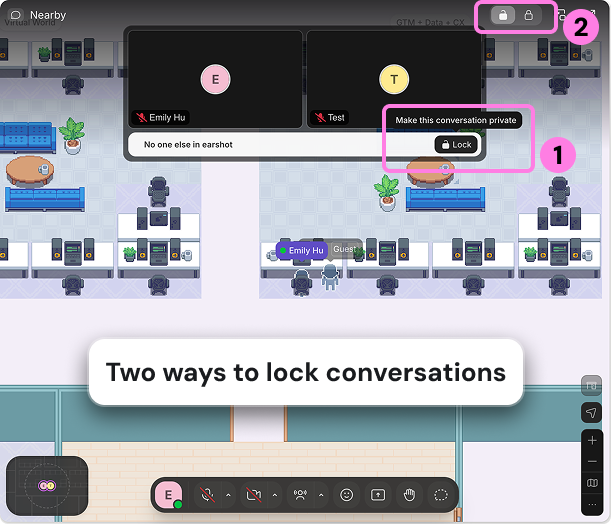
Regardless of the Auto-lock desk conversations setting, you can always lock or unlock a conversation at any time by clicking the lock icon.
Others' Audio
You have full control over what you hear, with several settings to customize how teammates' audio works.
Desk settings
If you're at an Open Desk, you'll hear open conversations around you by default.
If you're at a Private Desk, you'll see the conversation taking place but won't hear the audio unless you join in.
Learn more: 📄 Desk Overview
Nearby conversations
When open conversations start near you, you can listen in, join the conversation, or mute it to stay focused. Simply hover over the conversation for these options.
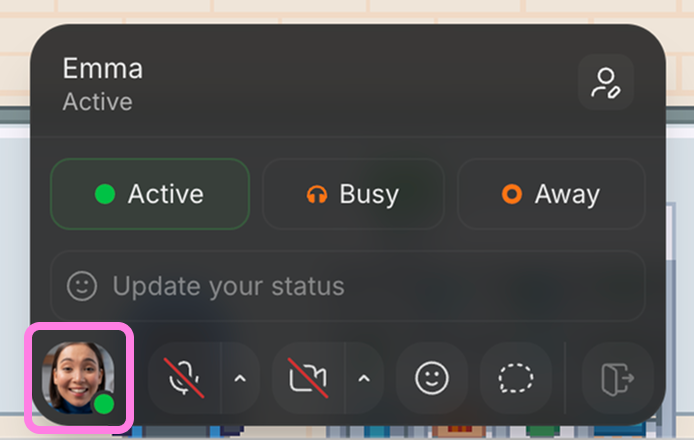
When you really need to focus, change your status to Busy to automatically mute all conversations near you and signal to others that you're busy.
Learn more: 📄 Set Status & Availability
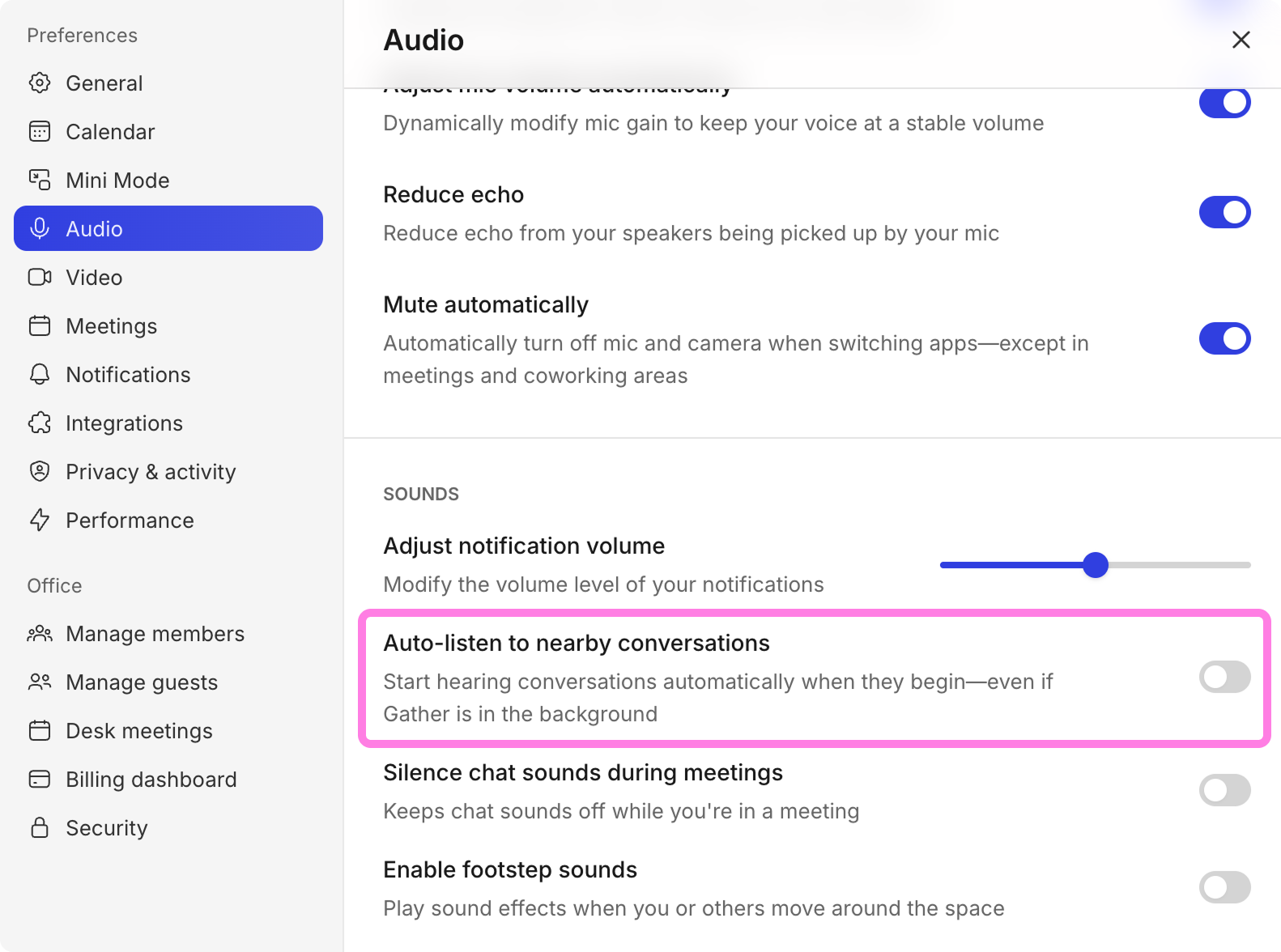
When you're tabbed away from Gather, you can choose whether you automatically hear nearby conversations or receive a notification instead. Open the Main Menu and go to Settings > Auto-listen to nearby conversations.
When enabled, you'll automatically hear public conversations taking place nearby.
When disabled, you'll hear a notification chime instead, giving you the option to listen or stay focused.
During meetings
Members can mute others' audio, just in case someone accidentally leaves their mic on or has loud background noise coming through. Simply hover over their video and click Mute for everyone.
To submit a bug report or share feedback:
Open the Main Menu and select ‘Report an issue’
Or email support@gather.town