User Roles & Permissions
Last updated: January 15, 2026
There are three user roles in Gather 2.0: Members, Admins, and Guests.
Member is best for most people in your workspace. Members can claim a desk and use all features, such as recording meetings, team chat, and decorating the space.
Admin is best for managers of your workspace. Admins can assign or unassign desks, change the floor plan of your office, and update billing information.
Guest is best for occasional collaborators like clients, candidates, or colleagues from other teams. Guests cannot use features like claiming desks, team chat, or recording, and must check in before entering the office.
Admins and Members count toward your monthly or annual subscription cost. Guests are free as long as you have available Guest Hours in the month.
Learn more:
List of Permissions
Feature | Admin | Member | Guest |
Manage workspace settings | ✅ | ❌ | ❌ |
Manage subscription | ✅ | ❌ | ❌ |
Add Members Invite new members and promote Guests to Member Role. | ✅ | ❌ | ❌ |
Add Guests Invite guests to the office and meetings | ✅ | ✅ | ❌ |
Use Desk Manager Assign or un-assign desks. | ✅ | ❌ | ❌ |
Use Gather Studio Add or re-size team areas and meeting rooms. Change office template. | ✅ | ❌ | ❌ |
Use Decorator Add and remove objects to customize the office. | ✅ | ✅ | ❌ |
Claim a desk Claim and decorate your own personal desk in the space. | ✅ | ✅ | ❌ |
Record meetings Start meeting recording, notes, and transcription | ✅ | ✅ | ❌ |
Mute others during meetings Turn off audio for everyone on the call | ✅ | ✅ | ❌ |
Access permanent chat Send messages in channels, groups, and DMs. | ✅ | ✅ | ❌ |
Change User Role
You must be an Admin to change someone's user role.
Manage Member Roles
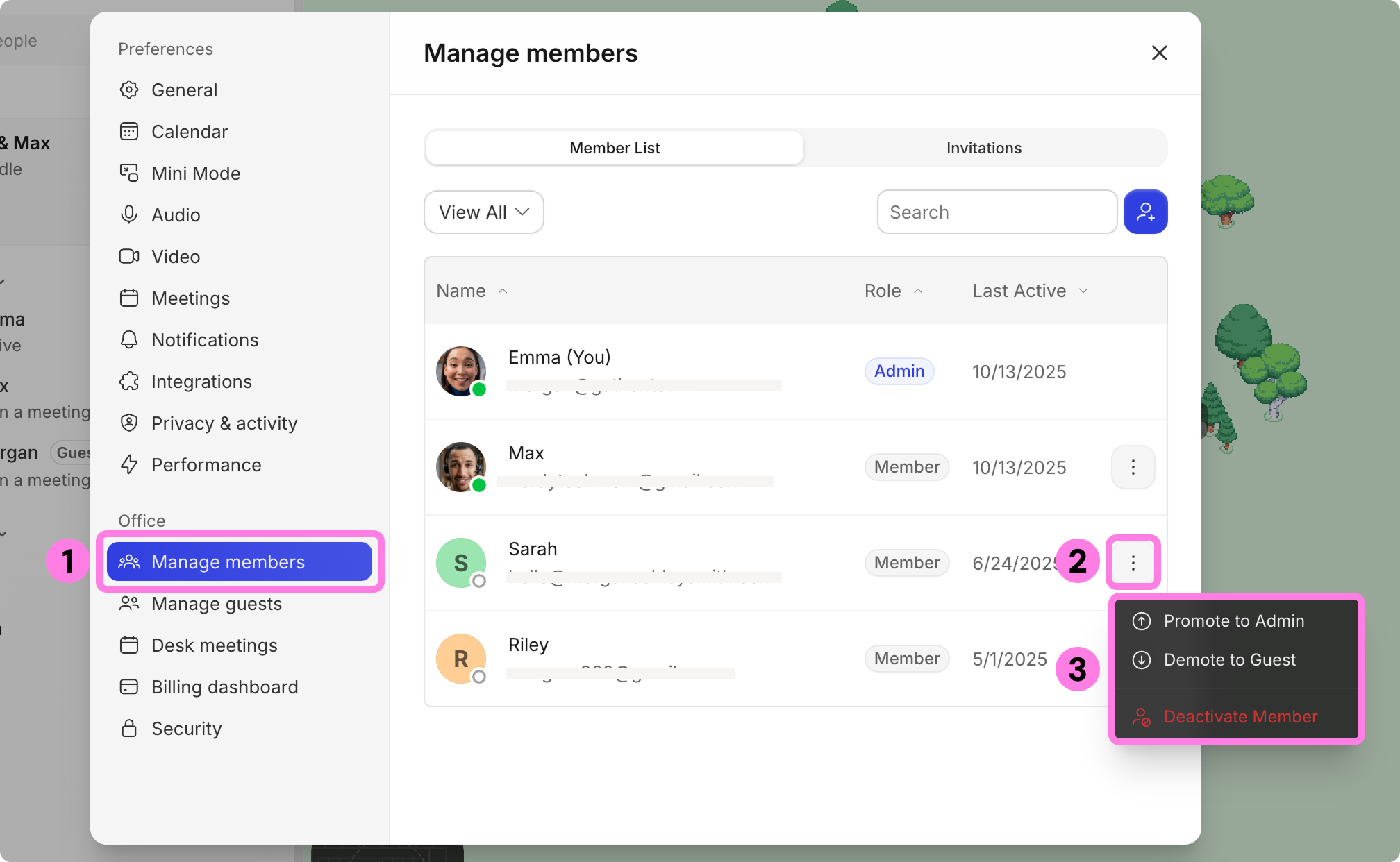
Open the Main Menu and go to Settings > Manage members
Find the Member whose role you want to edit
Click the three dots on the right for more option.
You can promote them to an Admin, demote them to a Guest, or deactivate them.
Upgrade a Guest to a Member
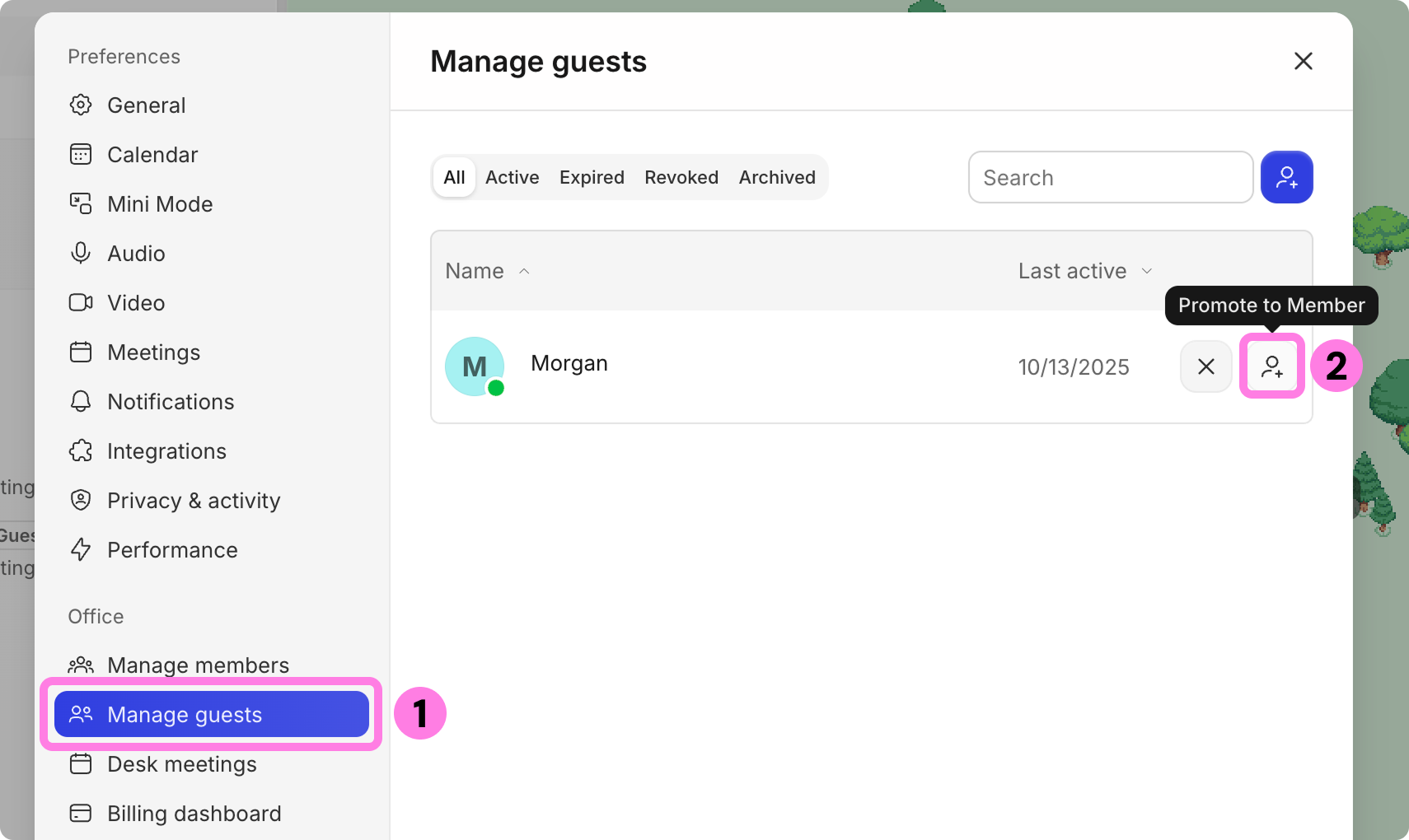
Open the Main Menu and go to Settings > Manage guests
Find the Guest you want to promote
Click the person icon to promote them to a Member
To submit a bug report or share feedback:
Open the Main Menu and select ‘Report an issue’
Or email support@gather.town