Adding & Removing Members
Last updated: October 2, 2025
Overview
Once your office is set up, it’s time to add the best part: The people! This doc will explain how to add and remove members. For a step-by-step guide for launching Gather in your organization, check out our Pilot Guide.
Overview of User Roles:
Members can claim desks, decorate, and freely enter/exit the office.
Guests are required to check in with an online Member before entering an office, and they cannot claim their own desk or decorate. Learn more about inviting and managing Guests here.
To Add Members
Open the Main Menu and click Invite to office
Make sure the Members tab is selected
Click Copy and share the link with your team to add them as Members
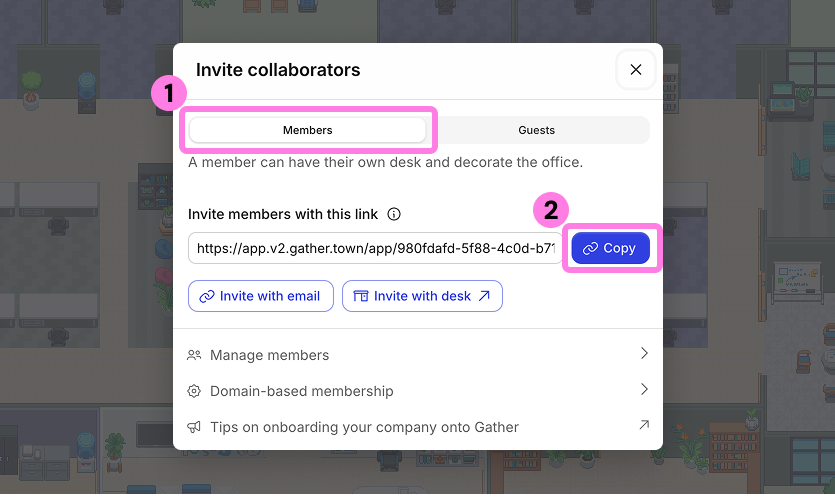
Admins also have the option to invite team members via email, or assign them directly to a desk via the Desk Manager.
Learn more: 📄 Managing Desks & Where People Sit
Add Members Based on Domain
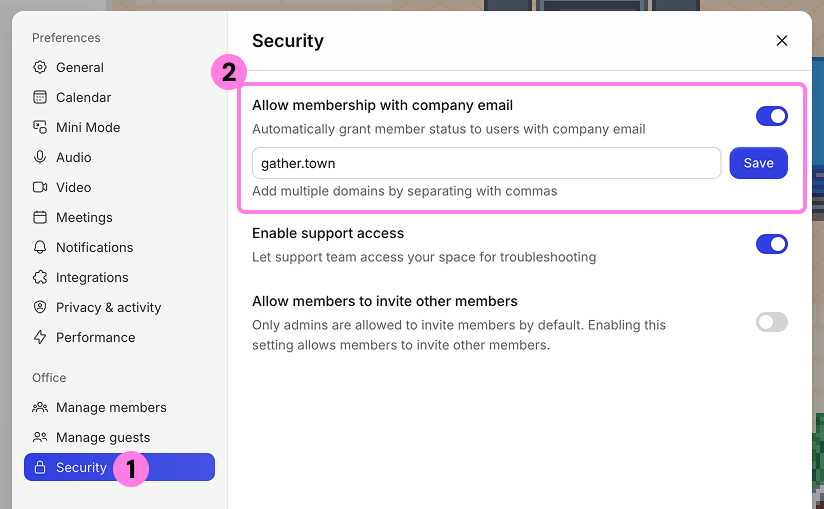
When someone enters your office through a Meeting Link or Guest Link, they can be automatically upgraded to a Member if their login email matches your company domain(s).
(Admins Only) To enable/disable this setting:
Open the Main Menu (Gather logo) in the left sidebar.
Go to Settings > Security.
Adjust the toggle to enable/disable this feature.
If enabling, enter the email domain(s) you want to automatically upgrade.
Trying Gather for the first time?
Follow our Pilot Guide for communication tips to explain what Gather is, your goals, and expectations for using it.
To Deactivate Members
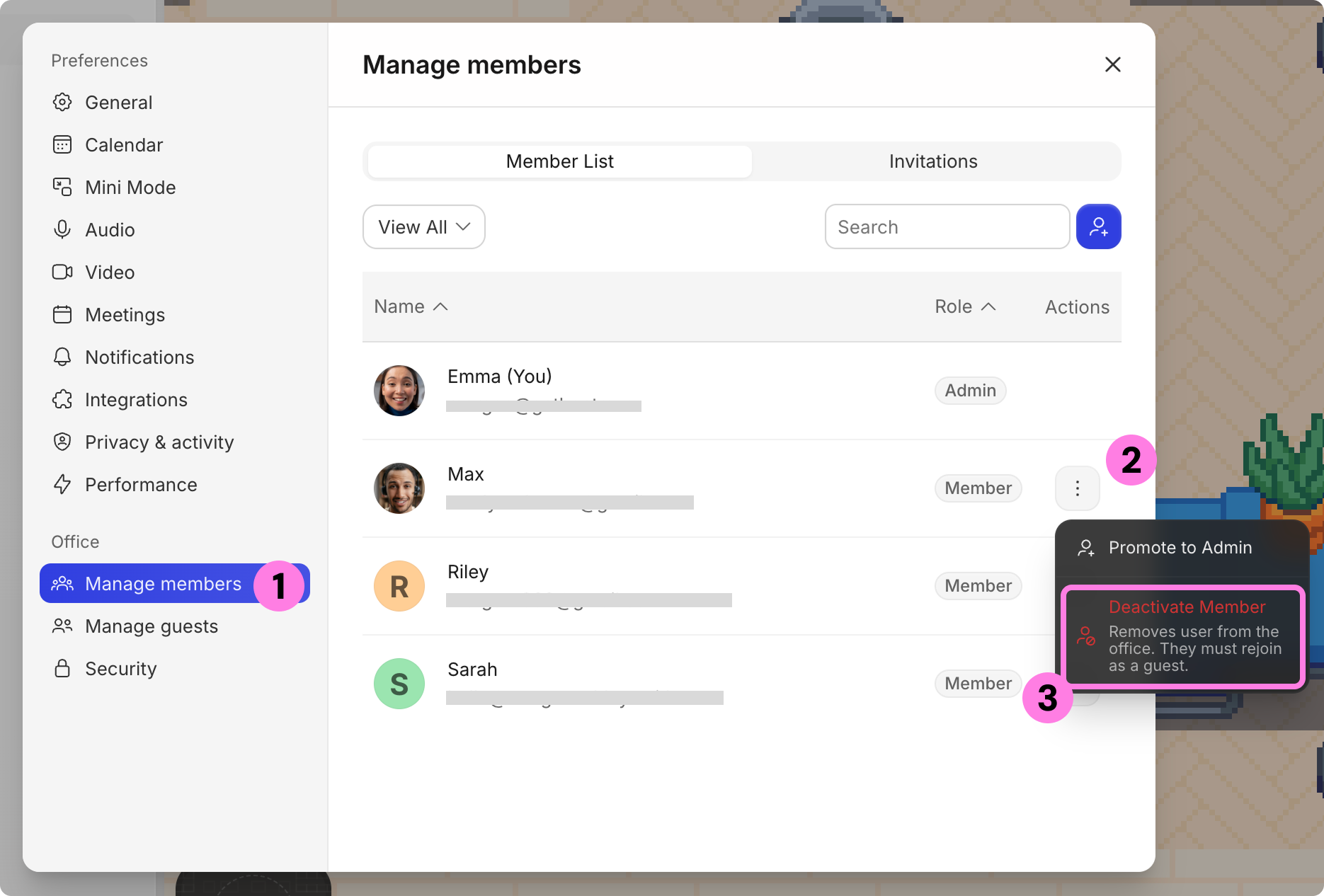
You must be an Admin in order to deactivate someone as a Member.
Open the Main Menu (Gather logo) in the left sidebar.
Go to Settings > Manage members.
Find the member you want to remove and click on the three dots.
Select Deactivate Member.
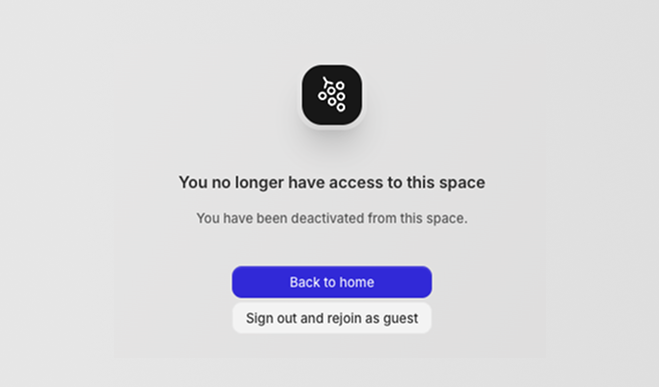
This instantly removes the user from the office and they’ll be notified they no longer have access to this space. They may try to check-in as a Guest.
Best Practices
The Member role is best for regular teammates so they can claim their own desk and immediately enter the office without checking in.
The Guest role is best for temporary visitors, such as clients or candidates, who may join for a meeting but don’t always need access.
Trying Gather for the first time?
Start with our Pilot Guide: A five-step plan for Admins to launch Gather for your team
Add members of a department or business unit at the same time so they can join together and immediately start collaborating.
Consider assigning desks to make sure people sit in the correct Team Area. Learn more:📄 Managing Desks & Where People Sit
Share the Getting Started Guide to new Members to help them learn the basics of Gather: 📄 Getting Started Guide
To submit a bug report or share feedback:
Open the Main Menu and select ‘Report an issue’
Or email support@gather.town