Desk Overview
Last updated: October 16, 2025
Your desk in Gather is your home base in the virtual office. It’s a spot where you can focus on work or chat with coworkers to collaborate on projects.
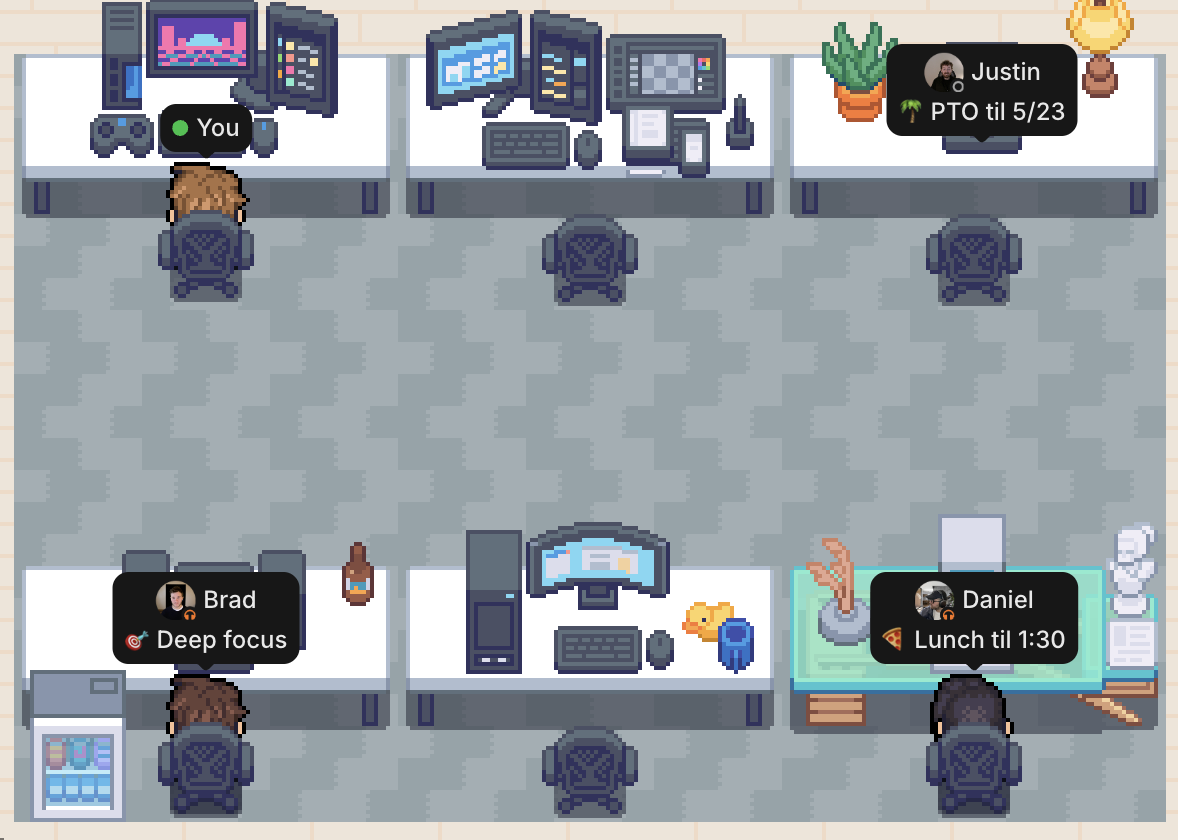
Most importantly, your desk is where coworkers will look for you when they want to chat. Being at or away from your desk is a way to communicate your availability — and also the perfect place to show off your personality at work.
This guide will cover how to claim, customize, and use your desk in Gather.
Claim a desk
Find an empty desk near people you frequently work with
This makes it easy to see when your closest teammates are free
Hover your mouse over the desk and click Claim
Your teammates will learn to look for you here, just like in a real office building
Use the shortcut
⌘ + Dfor Macs orCtrl + Dfor Windows to automatically return to your desk
Move desks
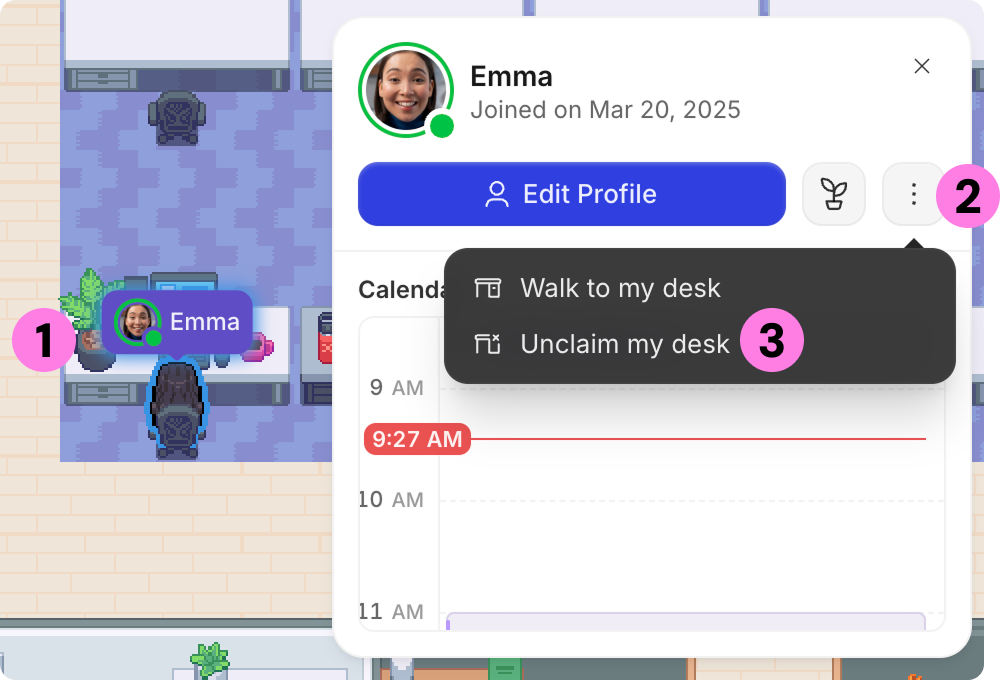
For Members: Unclaim your current desk and then claim an empty desk.
Click on your desk
In the window that open, click the three dots for More options
Select Unclaim my desk
For Admins: Use the Desk Manager to re-assign someone to a new desk. They'll be notified in Gather that they have a new seat.
Learn more: 📄 Managing Desks & Where People Sit
Customize your desk
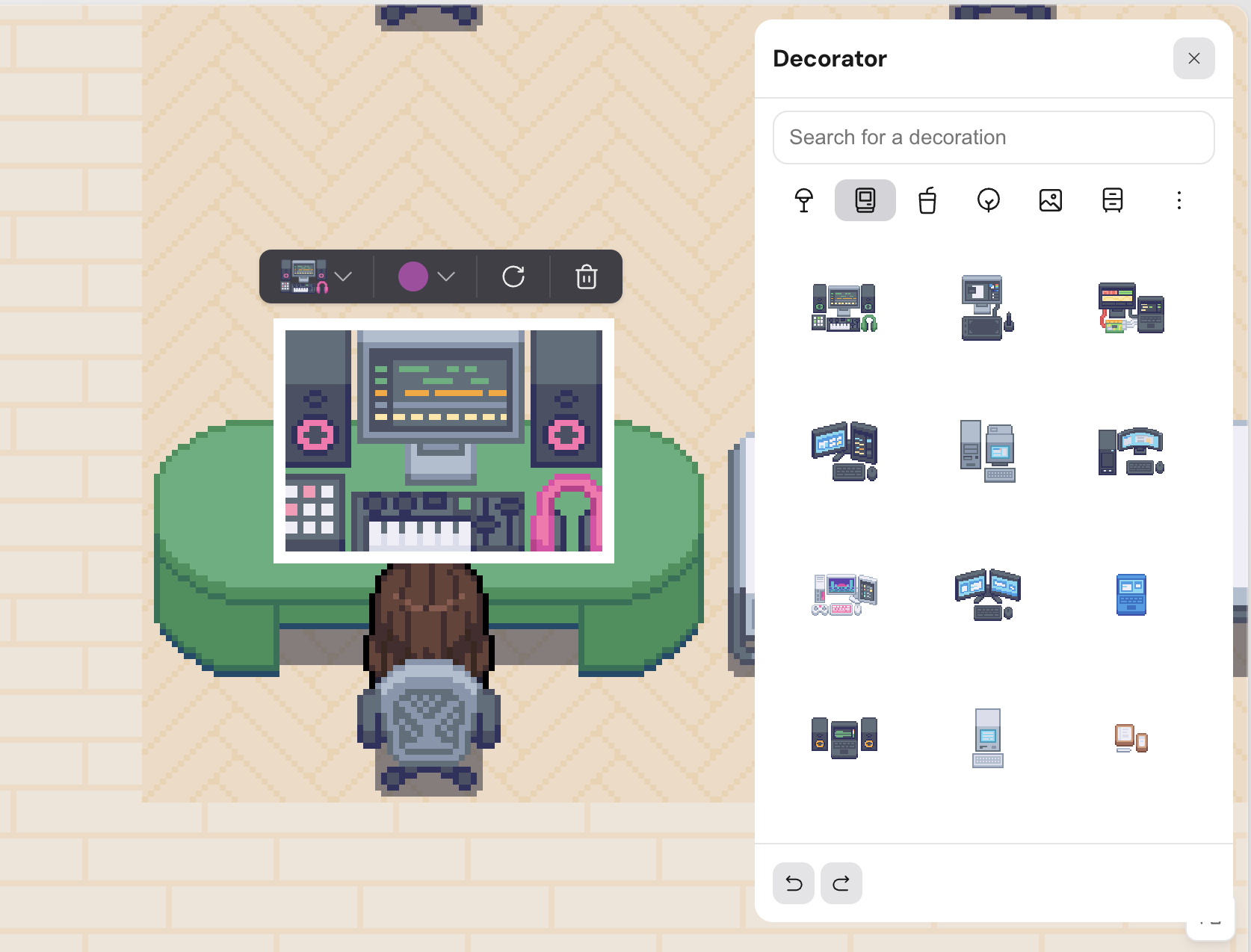
Decorate your desk to make it your own! Think of it like a virtual icebreaker.
Click on your desk and select the plant icon to decorate it
Add objects, change the colors, and make it unique to you
Talking at your desk
Several settings determine how conversations work at your desk. The first is the type of desk you have.
Open Desks default to open conversations. When you start talking at an Open Desk, people nearby can listen or easily join in.
Private Desks default to private conversations. When you start talking at a Private Desk, only the people in that desk area can hear each other.
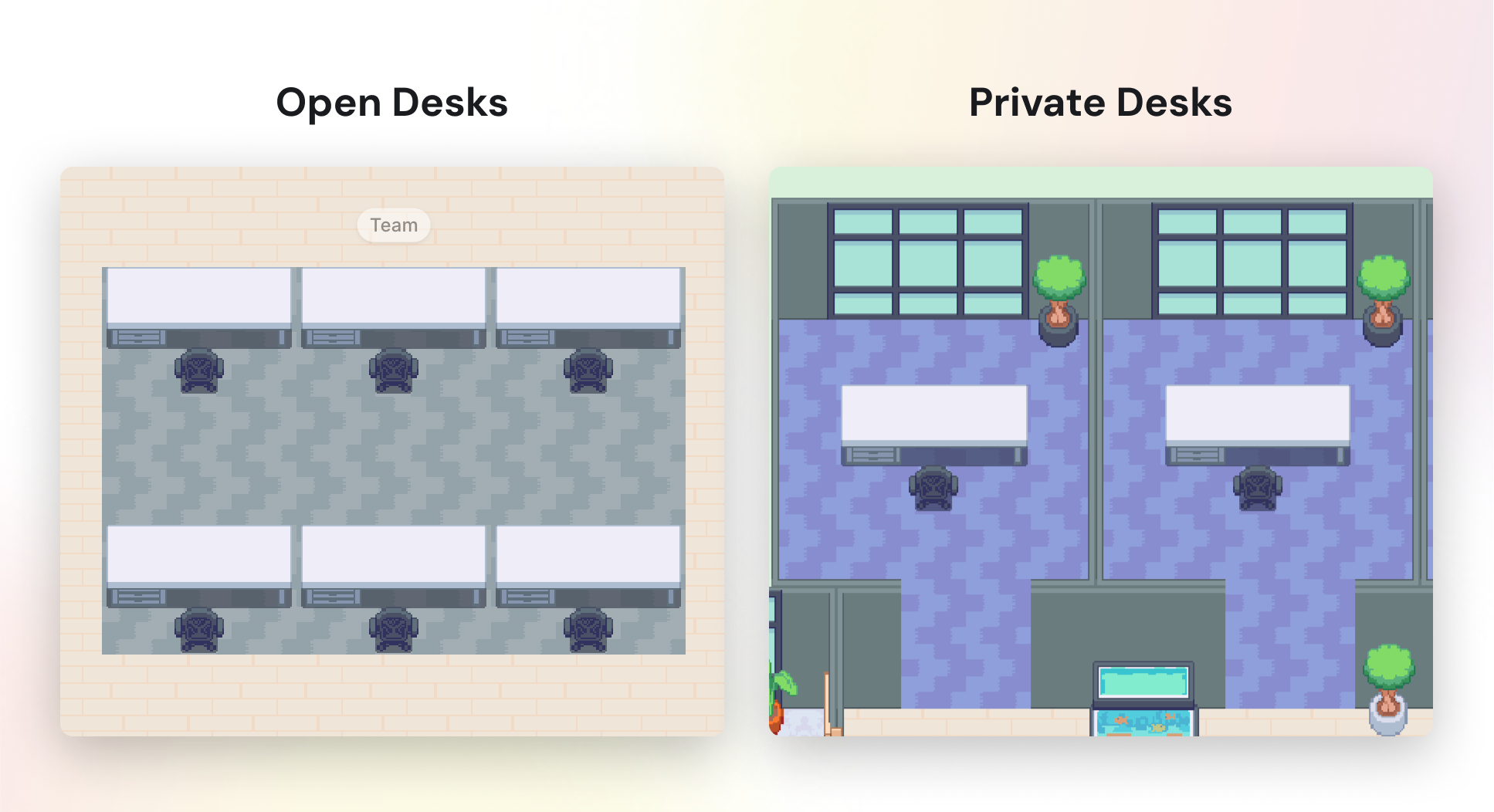
To change desk types, you need to unclaim your current desk and re-claim one of the other style. If there are none available in your office, an Admin will need to add more or change the office template with Gather Studio.
Learn more: 📄 Office Overview
You can also adjust certain settings to personalize your experience. Open the Main Menu and click Settings.
Audio > Auto-listen to nearby conversations: Enable to immediately hear open conversations around you, even if Gather is in the background. Disable to hear a chime instead, with the option to "Listen in."
Meetings > Auto-lock desk conversations: Enable this to automatically lock conversations at your desk, making them private. This prevents anyone from overhearing, and they must request access to join. Disable to allow others to overhear and join conversations at your desk by default. (You can still always lock individual conversations if you need to.)
(For Admins) Meeting Settings > Auto-lock desks for all users: Enable to automatically lock conversations at desks for everyone in your workspace.
Notifications > Nearby Conversations > Notify me about: Choose which conversations you want to be notified about while tabbed away from Gather.
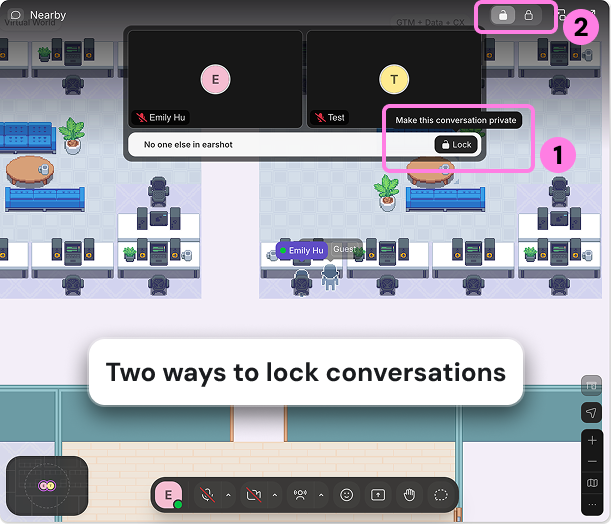
Regardless of your settings and desk type, you can always Lock conversations at your desk to make them private. To do that, click the Lock button under the videos or in the top navigation bar.
To submit a bug report or share feedback:
Open the Main Menu and select ‘Report an issue’
Or email support@gather.townbug