Getting Started Guide
Last updated: January 15, 2026
Overview
For the best experience:
Download the Gather 2.0 Desktop App
Connect your Google Calendar
Add the Google Chrome Extension
Uninstall the old Chrome extension if switching from Gather 1.0
Review Settings to customize your preferences. (Click the Gather logo in the left sidebar.)
For New Admins: Read the Pilot Guide, a proven six-step plan for launching Gather to your team
For 1.0 Admins moving to 2.0: Read the Migration Guide, everything you need to know to transfer your team from Gather 1.0 to 2.0
Shortcuts
To search people, areas, and more:
⌘ + Kfor MacsCtrl + Kfor Windows
To turn both your microphone & camera on/off:
⌘ + Shift + Dfor MacsCtrl + Shift + Dfor Windows
To return to your desk:
⌘ + Dfor MacsCtrl + Dfor Windows
To hop on a go kart:
Hold
Shiftwhile moving around
Navigate the Office
To Look Around & Switch Views
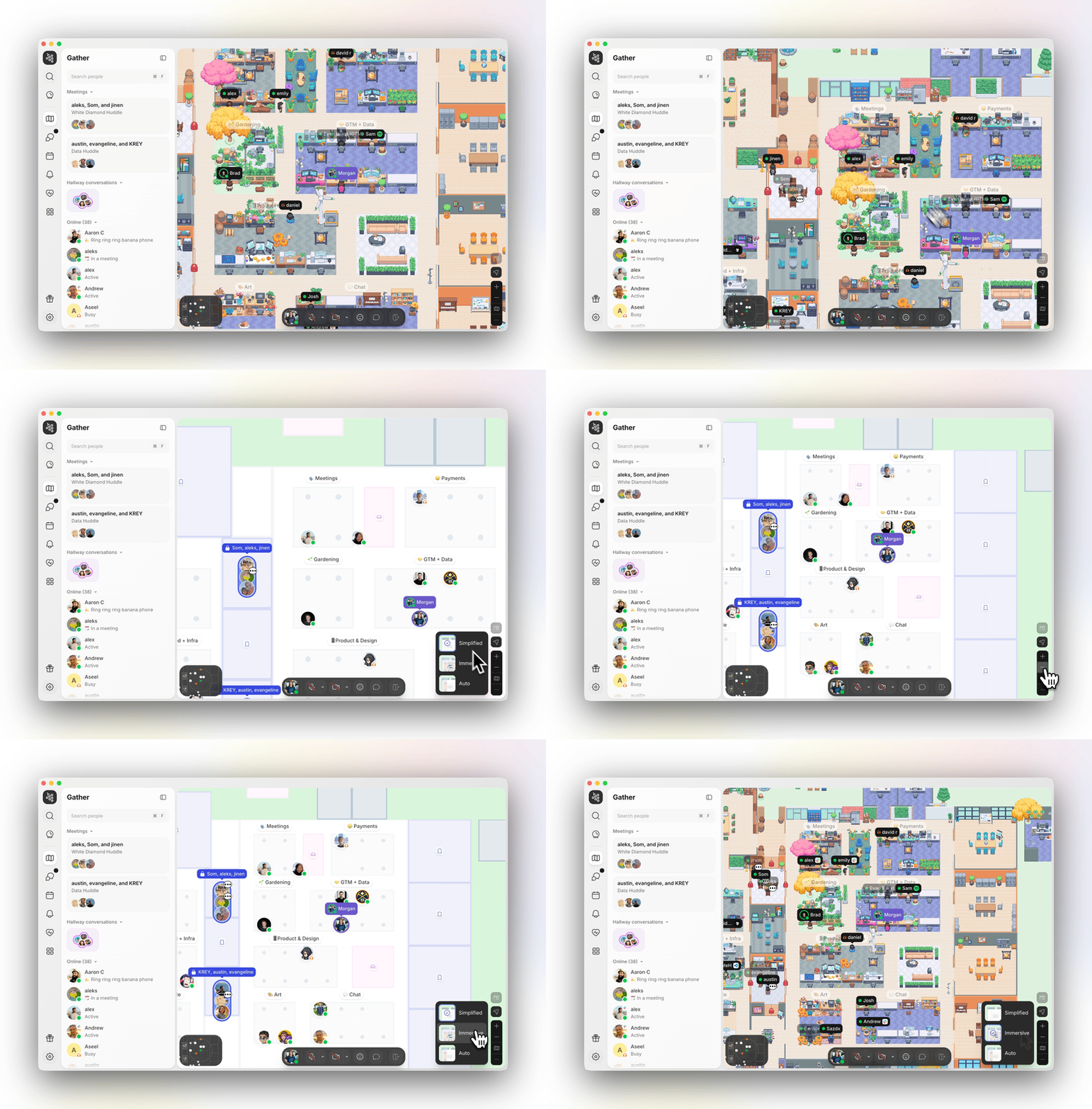
Click and drag to pan around the map or use the zoom controls in the lower right-hand corner. These settings also let you toggle between Office Views:
Simplified View: A minimal view so you can focus on the people and conversations taking place.
Immersive View: A detailed view to appreciate each and every object that makes your team’s office unique.
Auto View: Automatically switch to Immersive View when you zoom in, and Simplified View when you zoom out.
Prefer Dark Mode? Open the Main Menu and go to Settings > General > Color Mode.
To Move
Double-click your mouse on the spot you want to walk to.
Use your keyboard arrow keys.
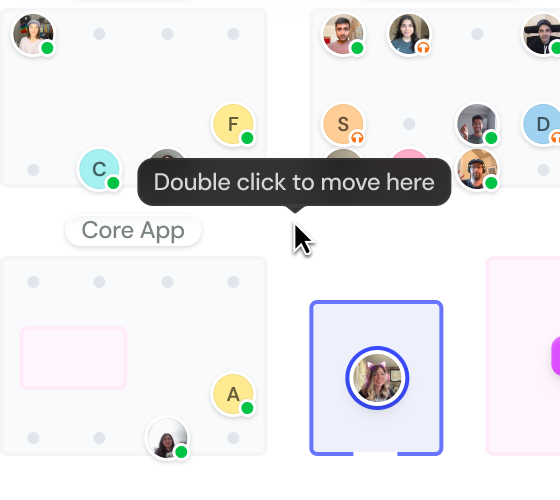
Pro-tip: To automatically return to your desk, use the shortcut ⌘ + D for Macs or Ctrl + D for Windows
Personalize Your Workspace
Customize Your Avatar
Your avatar is how you appear in the office. Personalize it so others begin to recognize you and see a bit of your personality!
Click on your avatar
Click Edit Profile
Click the image of your avatar to edit it

Claim & Decorate a Desk
Your desk is your home base in Gather, where you'll be when not in meetings. Decorate it to make it your own!
Hover your mouse over an empty desk and click ‘Claim’
Click the desk and select the plant icon to decorate it
Add objects, change the colors, and make it unique to you
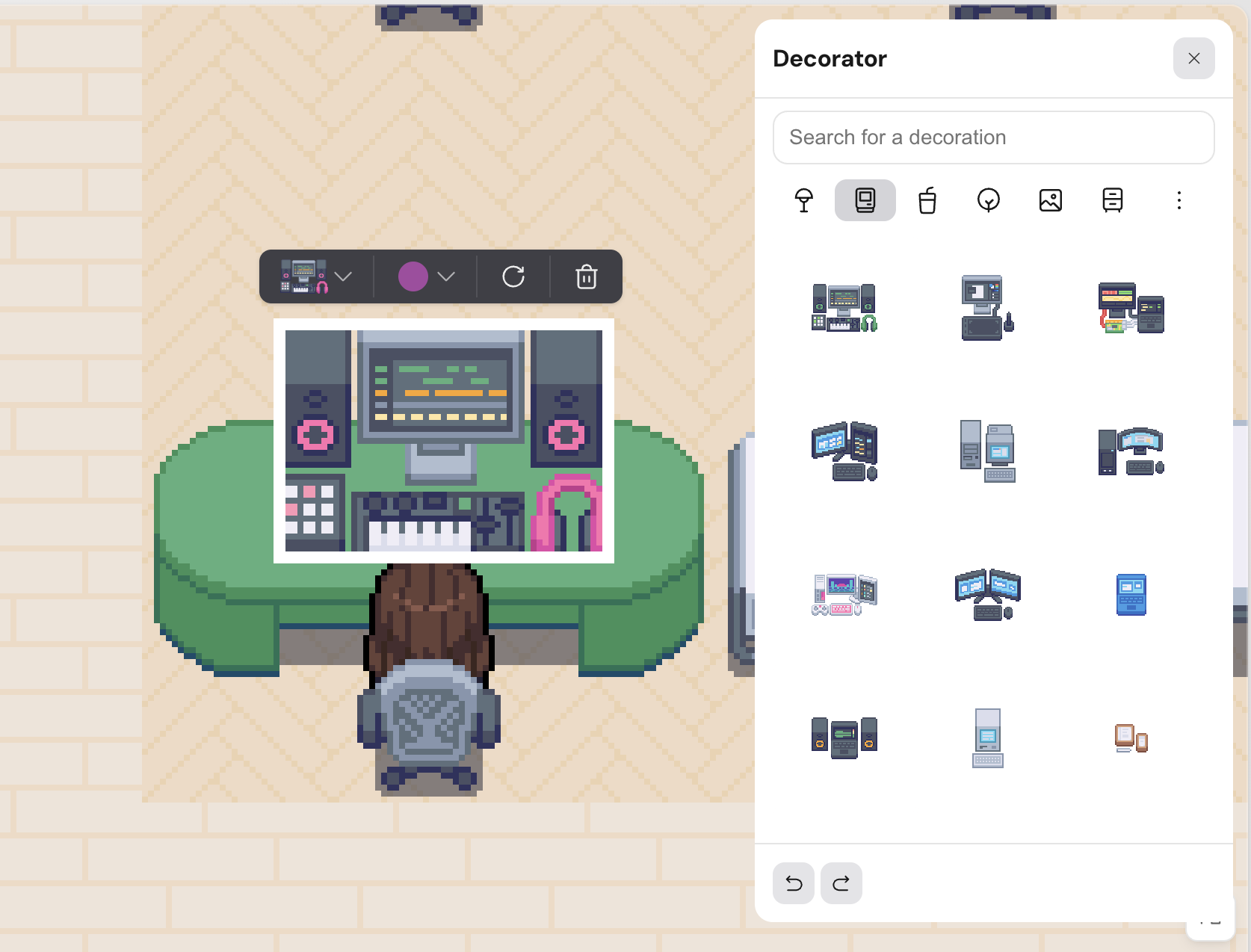
Learn more:📄 Decorating Your Office
Set Your Status & Availability
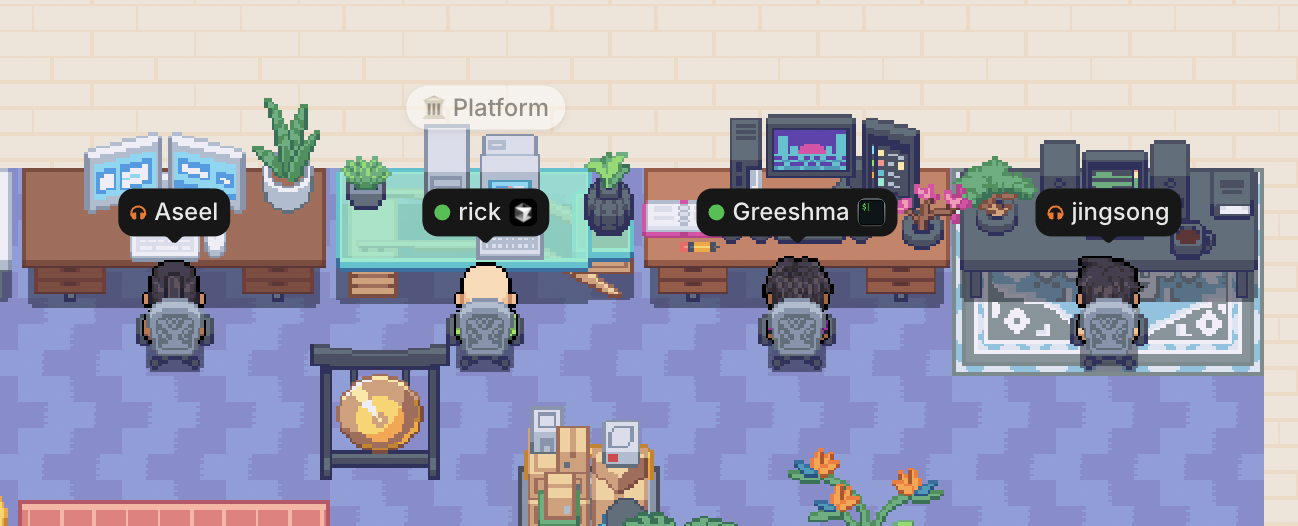
Your status in Gather is more than a green or gray dot. At a glance, your coworkers can know if you’re free to talk (Available 🟢), heads down focused (Busy 🎧), on a lunch break 🥗 or at an appointment 📅, or working in popular apps like Cursor, Notion or Figma.
To set your status:
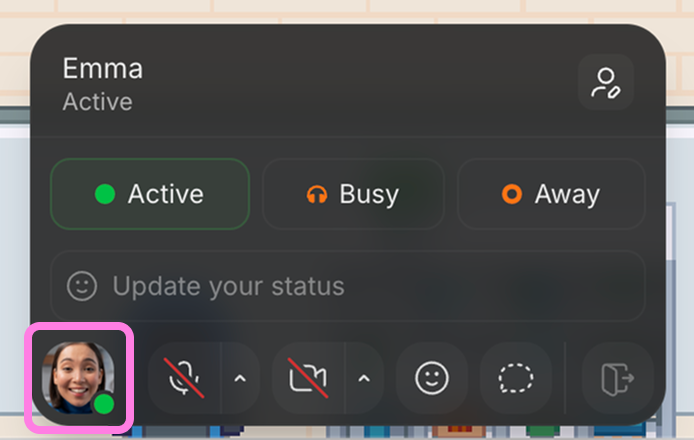
Click your profile picture in the bottom bar
Select Active, Busy, or Away to show others if you’re free to talk
(Optional) Select an emoji and type a custom status to display
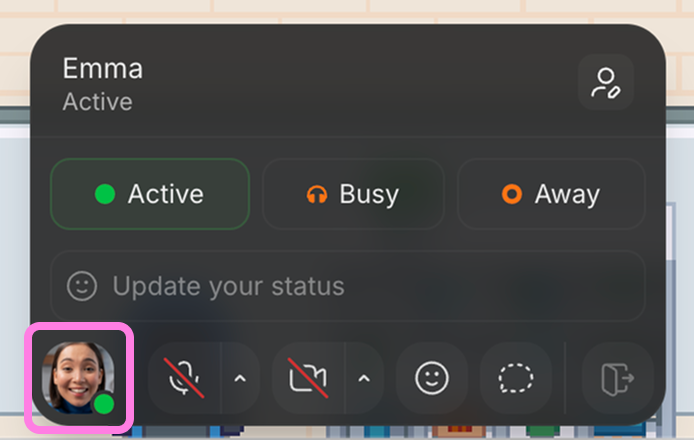
Learn more: 📄 Set status & availability
Review Settings
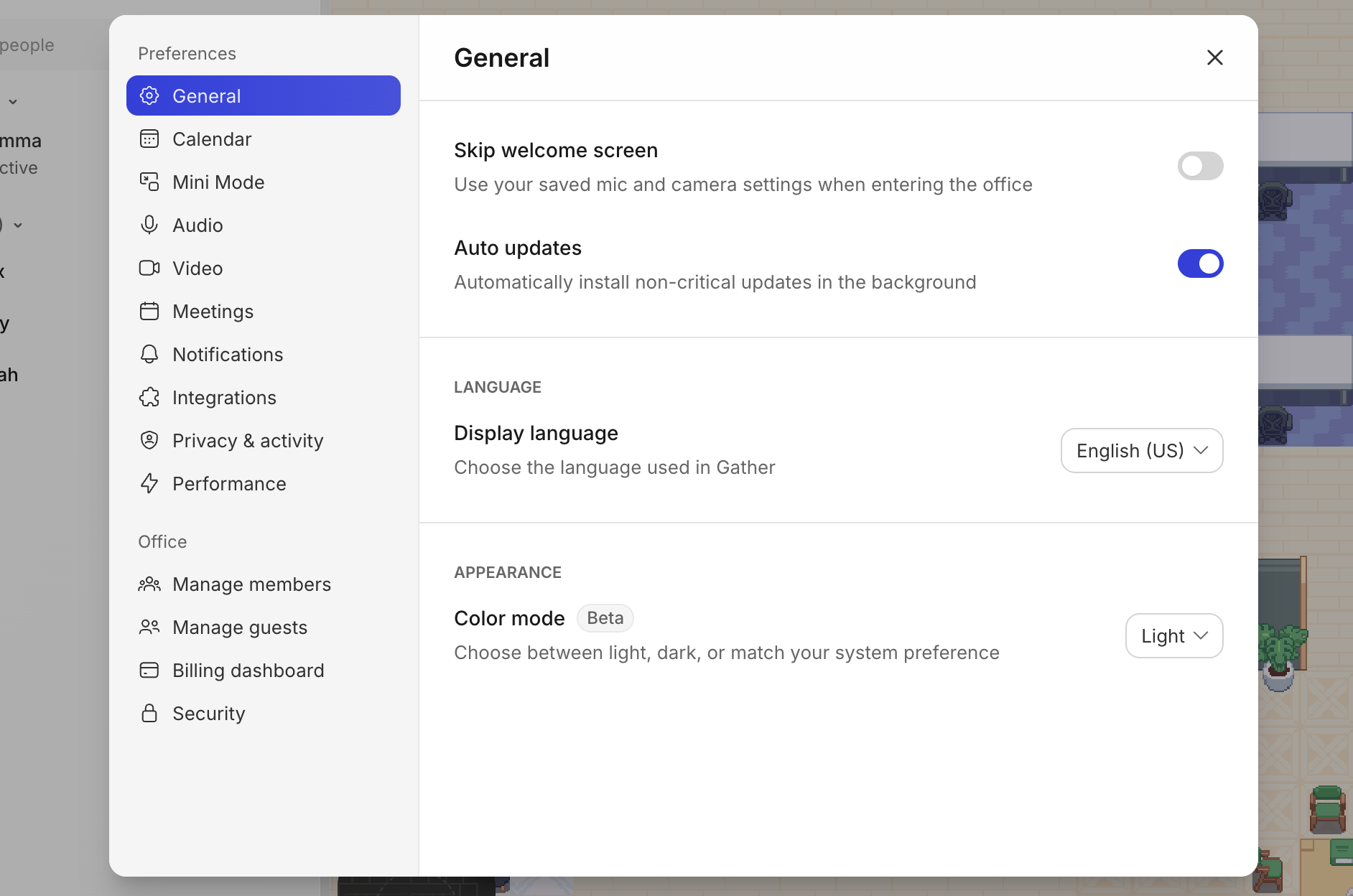
Open the Main Menu (Gather logo in the left sidebar) and navigate to Settings to customize your preferences. A few we recommend reviewing:
General > Color Mode: Set light mode, dark mode, or follow system settings
Calendar > Smart Status: Automatically update your status based on calendar events like Lunch, Focus, or Appointment.
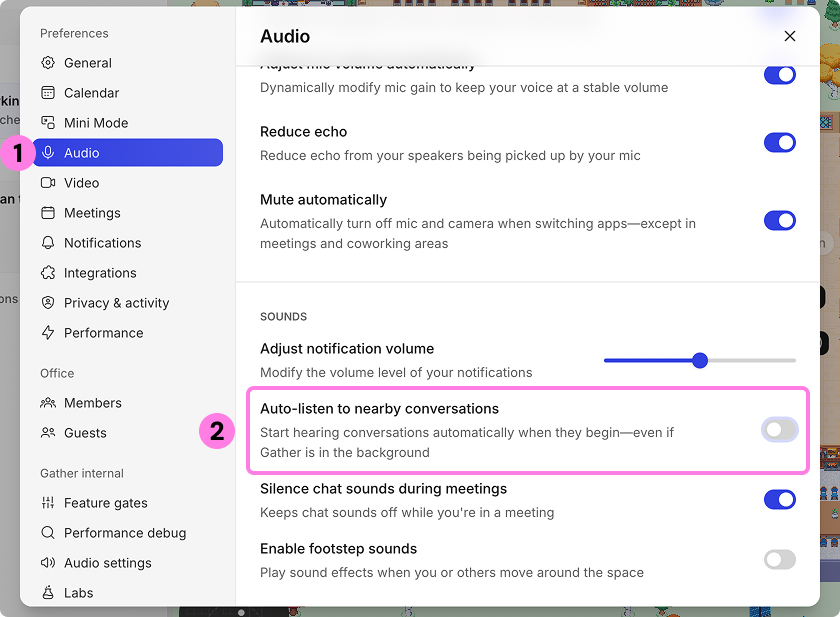
Audio > Auto-listen to nearby conversations: Enable to hear conversations happening at desks around yours. Disable to receive a notification instead (giving you the option to join in or stay focused).
Meetings > Auto-lock desk conversations: Enable to automatically make any conversation at your desk private. Disable to keep conversation at your desk open so others can listen in or join.
Meetings > Hide self view: Enable to hide your video from yourself when on calls. Disable to see your own video.
Notifications: Choose what you want to receive notifications for, including meetings, nearby conversations, and chat.
Integrations: Manage Google Calendar, Spotify, and GitHub integrations.
Privacy & activity > Share what app you have focused: Automatically update your status with the app you’re currently using. Enable/disable this feature, and control what apps can be displayed.
Performance: Adjust your performance mode for optimal performance.
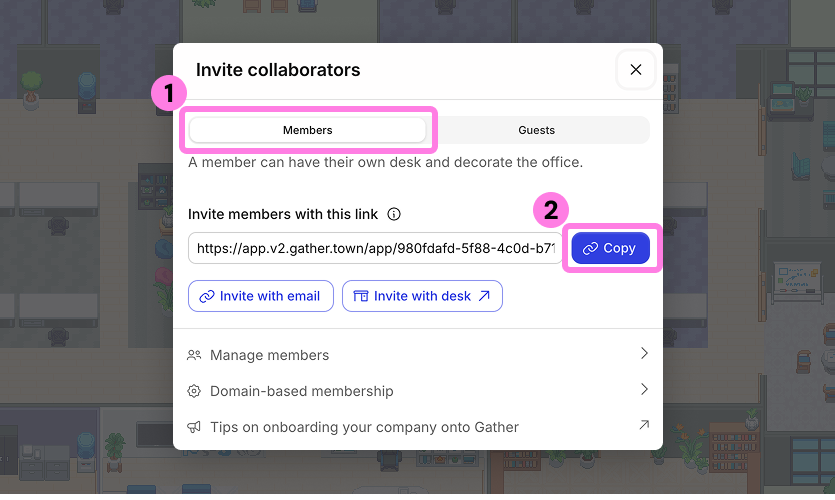
Add Teammates
Open the Main Menu and click Invite to office
Make sure the Members tab is selected
Click Copy and share the link with your team to add them as Members
Admins also have the option to invite team members via email, or assign them directly to a desk via the Desk Manager.
Learn more: 📄 Managing Desks & Where People Sit
Talk to People
Audio & Video Controls
Use the buttons at the bottom to turn your mic & camera on/off
Use the toggles to change devices or adjust background effects
The mini map shows nearby teammates who will be able to hear you if you un-mute
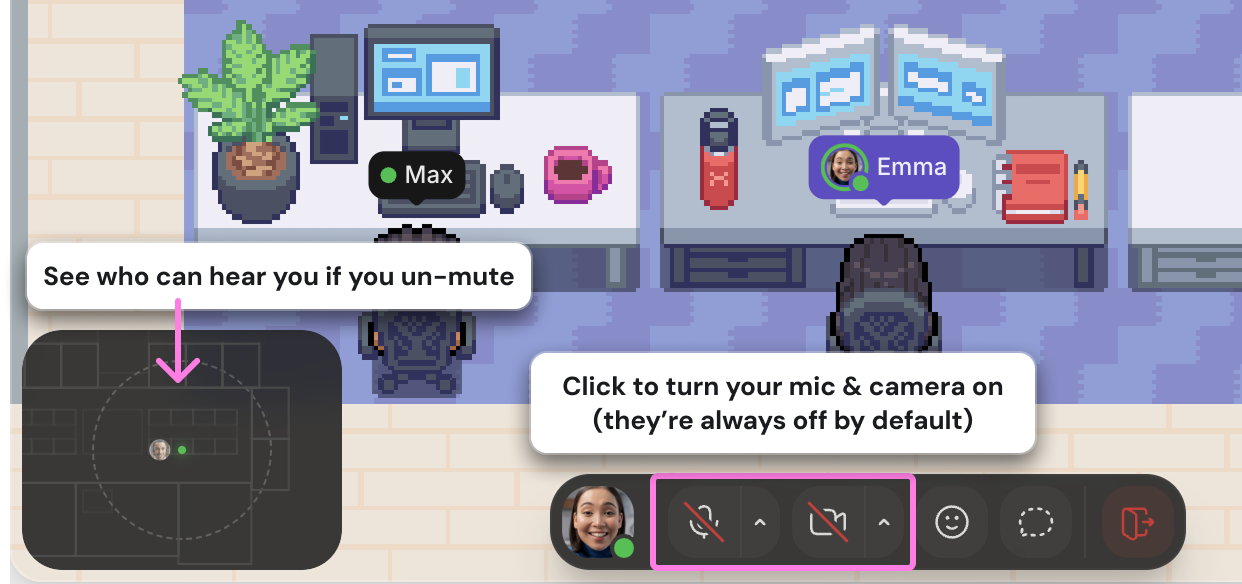
Your Mic and Camera are always off by default. You must turn them on in order for someone to see/hear you.
To quickly turn both the mic and camera on/off, use the shortcut:
⌘ + Shift + Dfor MacsCtrl + Shift + Dfor Windows
Start a Conversation
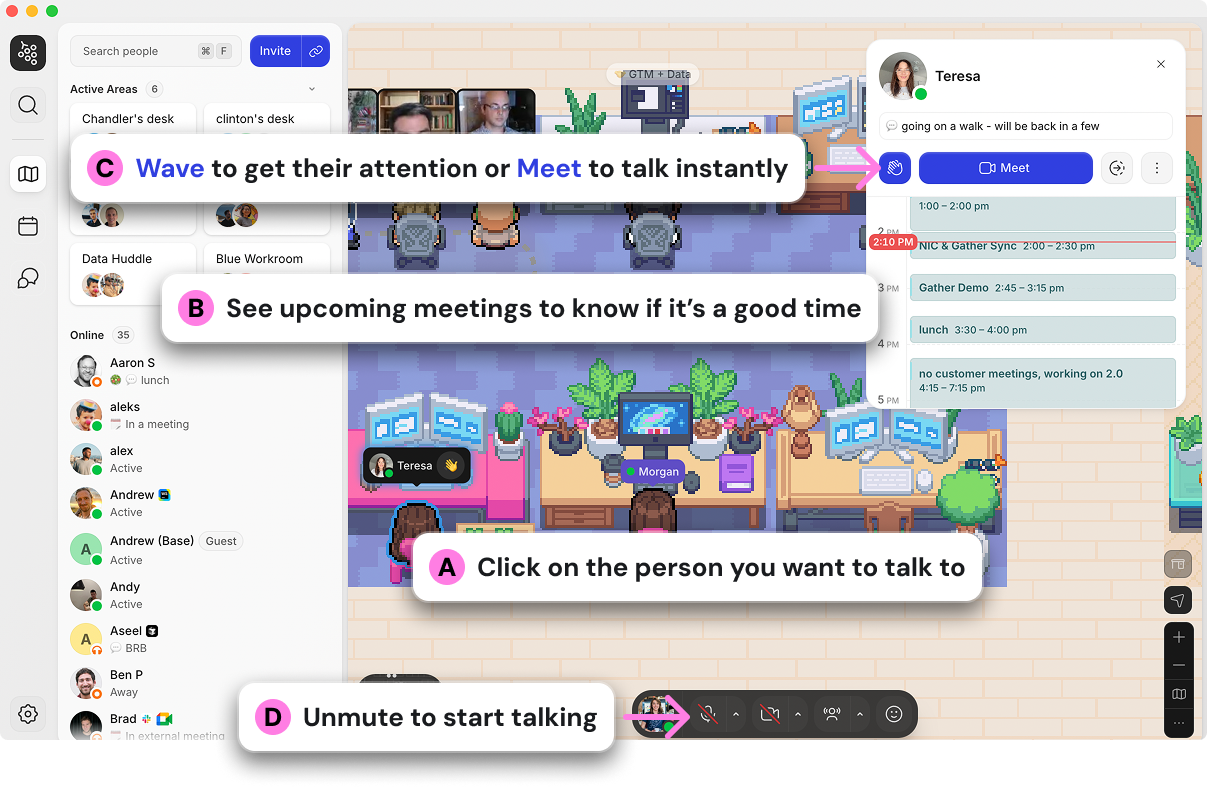
Click on the person you want to talk to.
If they've connected their Google Calendar, you'll see their upcoming meetings, helping you choose the perfect time to reach out.
Decide how you want to initiate the conversation:
Wave to get their attention. If they’re free to talk, they’ll walk right up to you.
Meet to send an instant meeting request. If they accept, you'll both walk into a meeting room.
Go To your teammate to walk over to them. Simply unmute to start talking.
To search for someone specific, use the shortcut ⌘ + f for Macs or Ctrl + f for Windows to open search.
Schedule a Meeting:
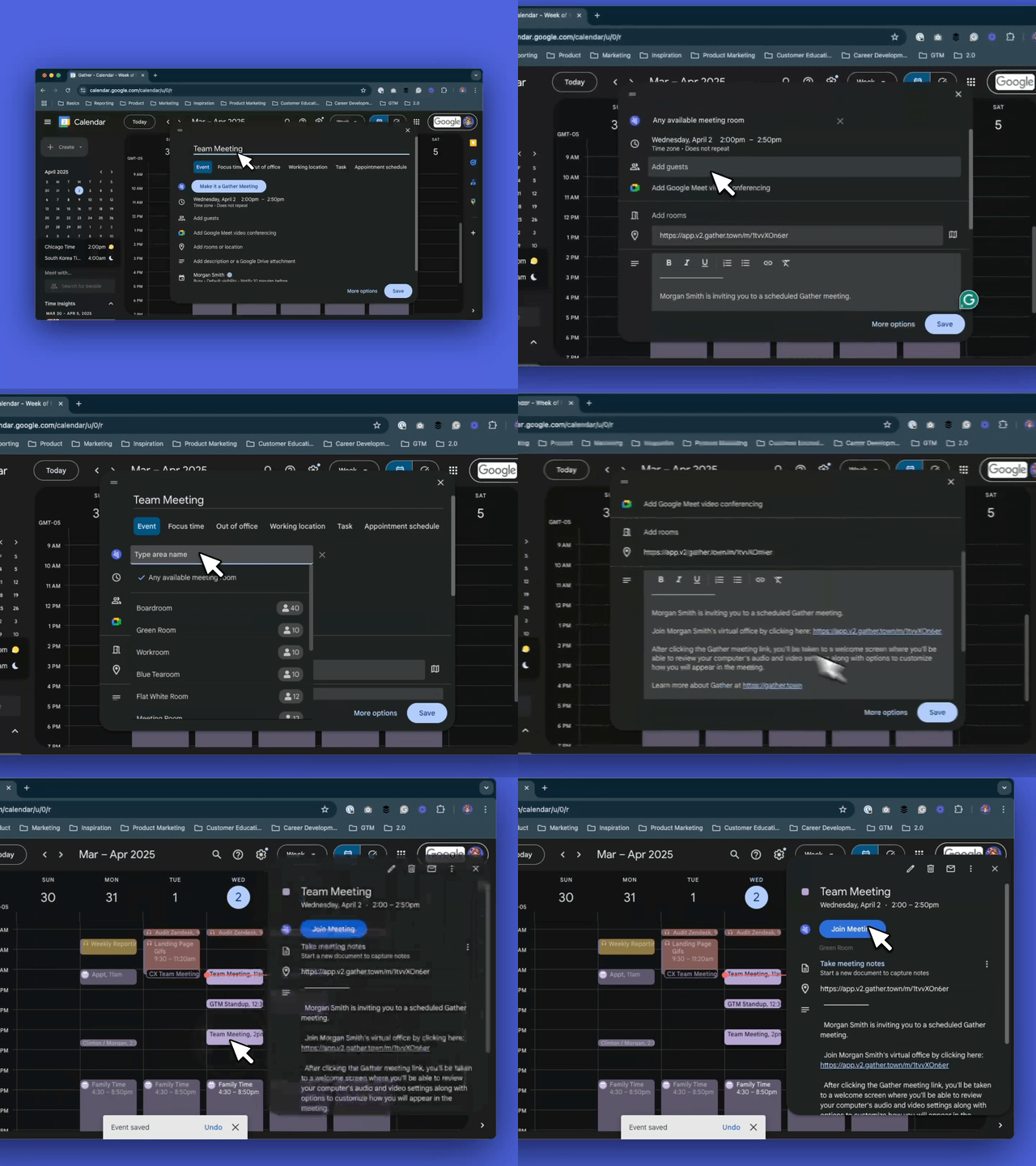
Install the Gather Meetings v2 Chrome extension
Uninstall the old Chrome extension if switching from Gather 1.0
Open your Google calendar & create a meeting
Click Make it Gather Meeting to automatically generate a link to any available room
To select a specific room, click the link and select an option from the dropdown
Save the meeting
Clicking the link will automatically bring attendees to the correct meeting room in Gather
Learn more: 📄 Google Calendar Integration & Chrome Extension
Join a Conversation
If a public conversation is happening near you, you can walk in/out of it at any time. If you hover over the people talking, you'll see a "Join" button that will automatically walk you over.
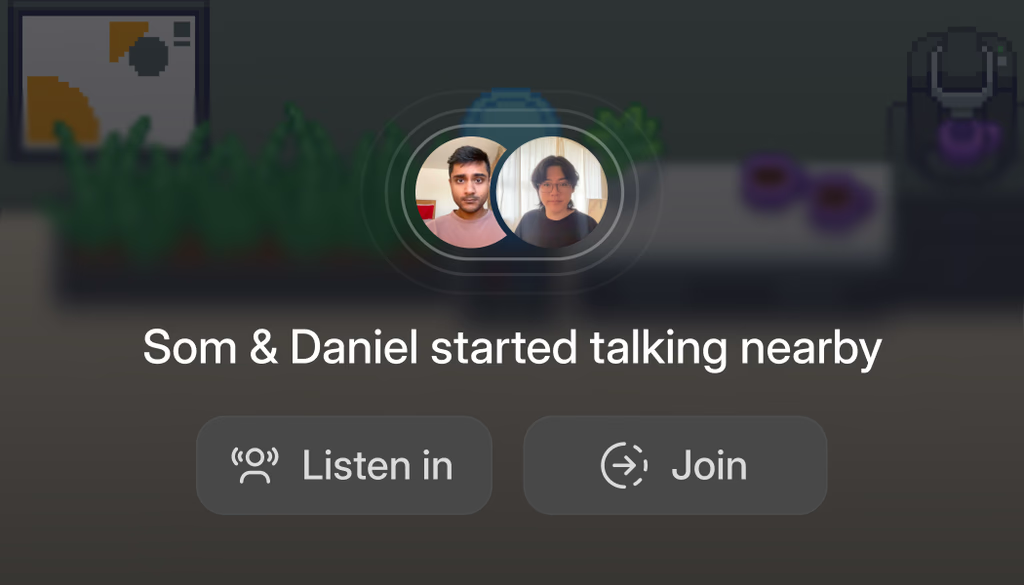
Need to focus? Click “Mute” to mute a conversation happening near you.
Join a scheduled meeting
Before the meeting starts, you’ll receive a notification
Click “Join” to automatically walk over
Or walk in/out of the meeting at any time
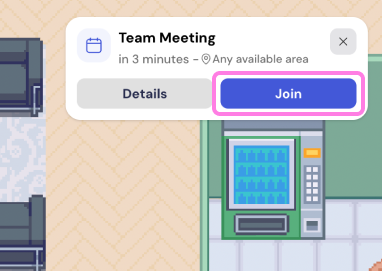
To receive calendar notifications, you must first connect your Google calendar.
Learn more: 📄 Google Calendar Integration & Chrome Extension
Talk Privately
To keep a conversation private, you can Lock it. This option is available whether you're holding a formal meeting in a meeting room, talking to someone at your desk, or striking up a conversation in the hallway.
To lock a conversation:
Click the Lock button directly under everyone's videos or up in the top navigation bar.
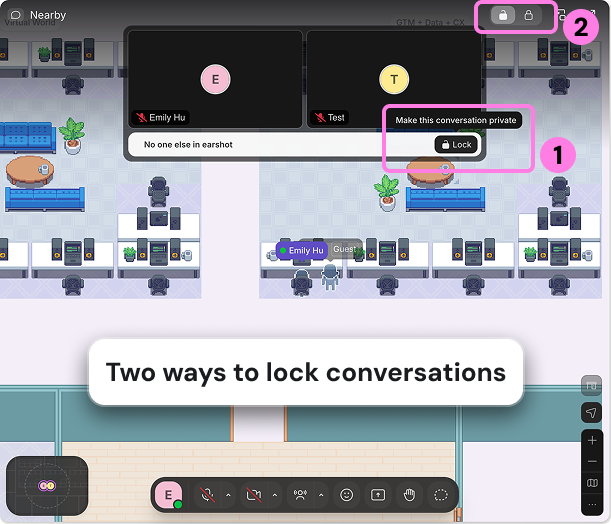
You'll see several indicators when a conversation is locked, so you can feel confident it's a private talk.
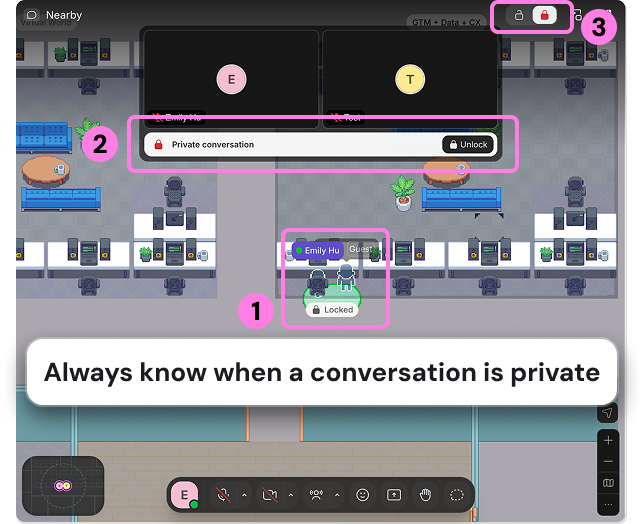
If anyone tries to join a locked conversation, they'll be blocked until someone inside grants them permission.
To unlock the conversation, click the Unlock button.
This will allow anyone to join or overhear if it's a public conversation.
Focus
Mute conversations around you and switch your status so teammates know not to disrupt you.
Mute Nearby Conversations
To mute a single conversation: hover over the people speaking and click Mute.
To temporarily mute all nearby conversations: change your status to Busy. Recommended when you’re working but don’t want to be interrupted.
To default mute all nearby conversations: Open the Main Menu and go to Settings > Audio > Auto-listen to nearby conversations. Turn this setting off.
Simplify Your View
Switch to Simplified View using the controls in the lower right-hand corner for a distraction-free view of the office.
Use Mini Mode for a mini Gather window to stay connected while working in other apps.
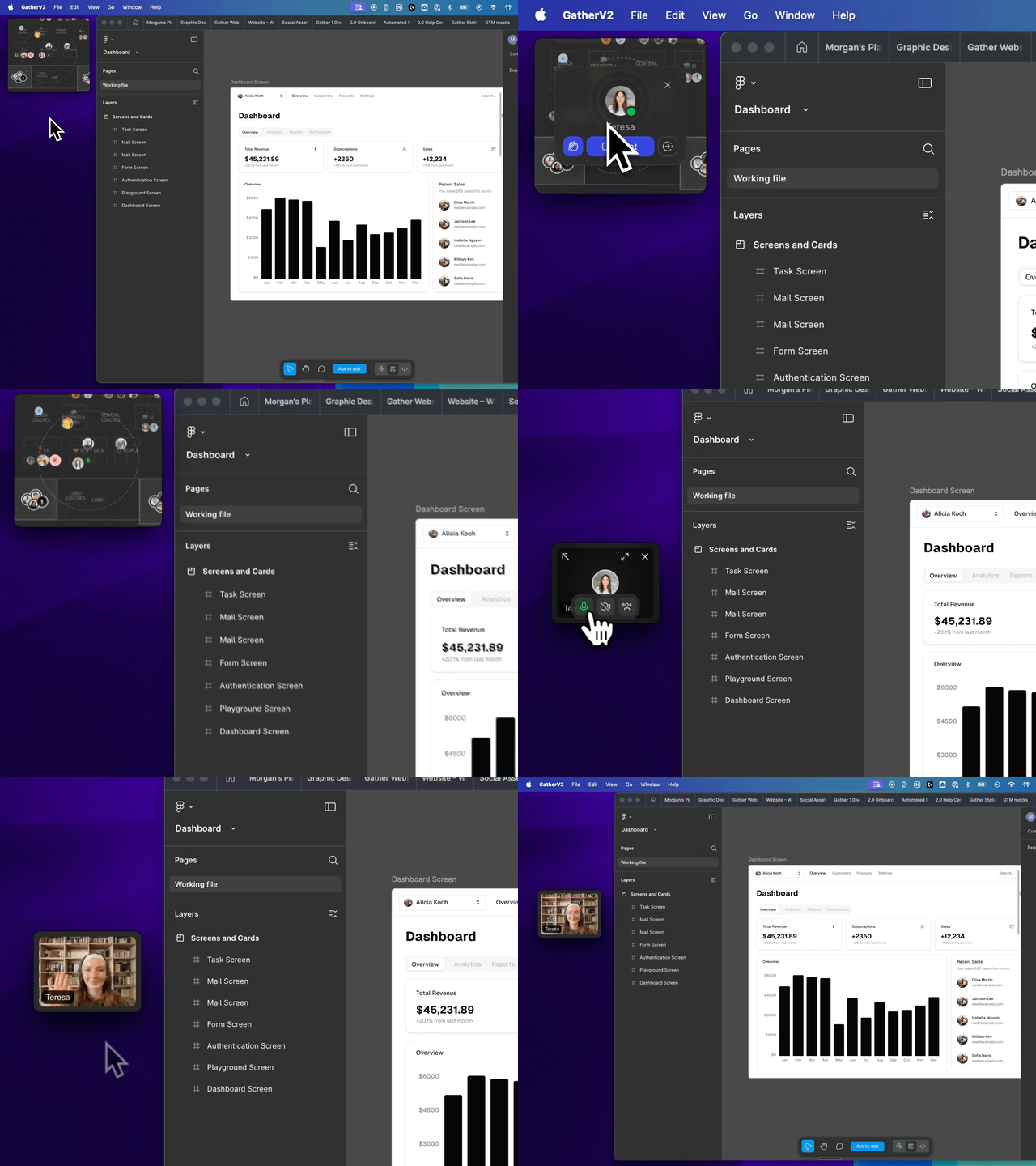
Learn more: 📄 View Gather in Mini Mode
Leave the Office
When you need to step away from your real-life desk (think: coffee refills, lunch break, walking the doc, etc.) set your status to Away. Your avatar will leave the office so teammates know you’re unavailable.
Chat
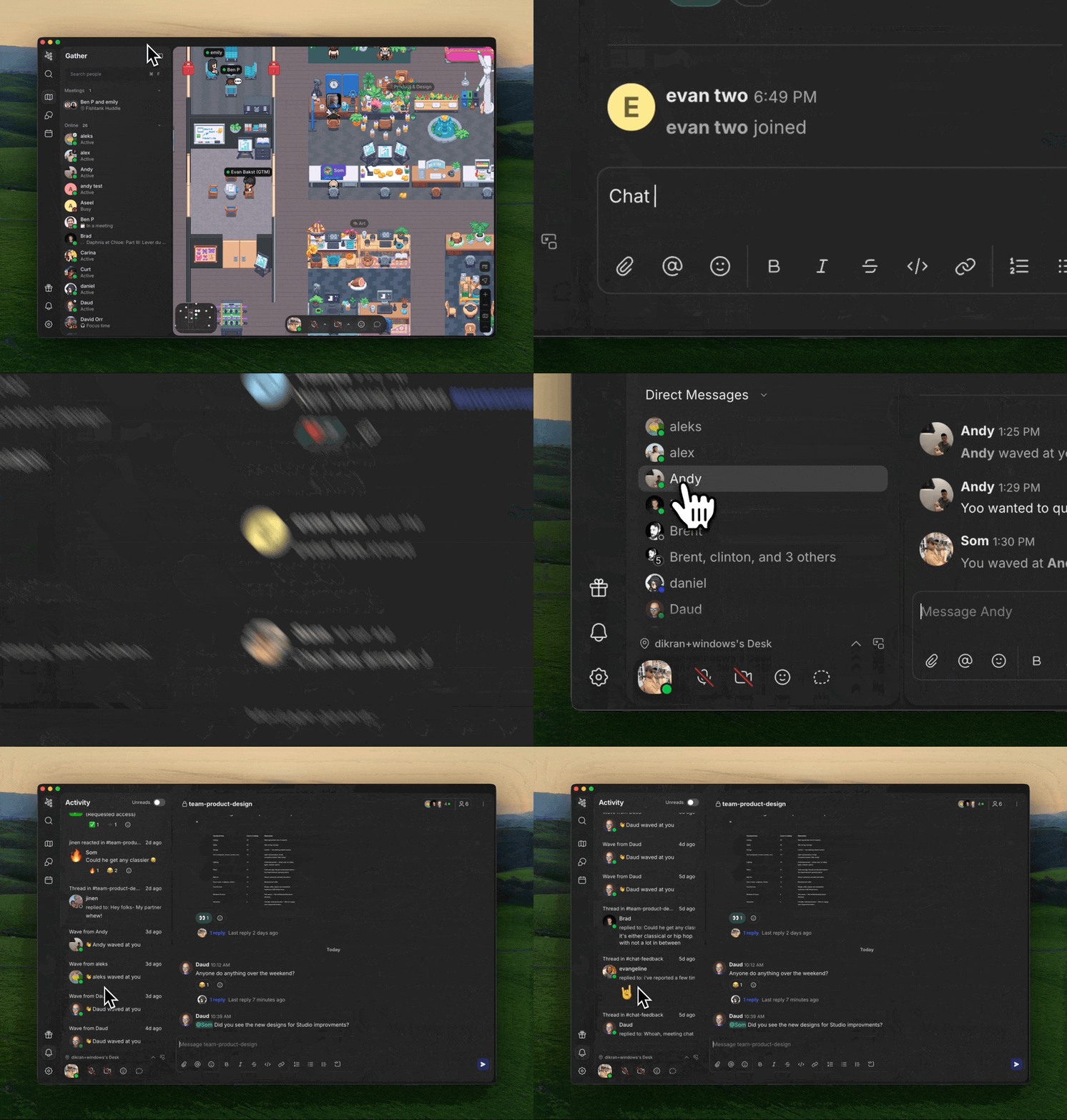
There are three types of chat messages in Gather:
Primary Chat: Visit the Chat tab for seamless and familiar messaging right within Gather. Create channels, send DMs, & thread conversations.
Meeting Chat: Send messages during meetings that persist only while the meeting is in progress.
Nearby Chat: Send quick, temporary chat messages that only display to people near you in Office view.
Learn more about chat: 📄 Chat Overview
To submit a bug report or share feedback:
Open the Main Menu and select ‘Report an issue’
Or email support@gather.town