Insights
Last updated: November 20, 2026
This new feature is rolling out now! If you don't see it in your menu, stay tuned. You will soon.
Curious how your team really uses Gather? Admins can see weekly activity, conversation trends, and how new members are settling in.
Insights can help you answer questions like:
How often are people collaborating with each other?
How connected are members of my team?
How much time do we spend talking to each other?
Are people working too much? Too little?
Have members of my team successfully onboarded to Gather?
Has our virtual office improved how we collaborate?
Member Insights do not include timestamps of when members log in or out. These insights are designed to help you onboard your team and measure engagement with Gather while respecting employee privacy.
Getting Started
To view Insights, you must be an Admin of your space. Go to the Main Menu (Gather logo) and click Insights.
It can take about a week for meaningful Insights to appear. If you're just getting started, check back in a few days!
There are two groups of insights to view: Overview and Members. You can view data from the last month, 3 months, or 6 months. The data refreshes once each day.
Overview Insights
Discover activity and collaboration trends in your office, along with key onboarding milestones.

Weekly Active Users
The average weekly count of unique members who entered the space or had a conversation.
User Conversations
The total count of user conversations in the selected period. If 3 users have a conversation together, that equals 3 user conversations.
Median Conversation Length
The median length of a conversation in the selected period.
For context, Gather users tend to have more frequent, shorter conversations. Across all Gather spaces, the average conversation typically lasts less than 10 minutes.
Active Users and Members
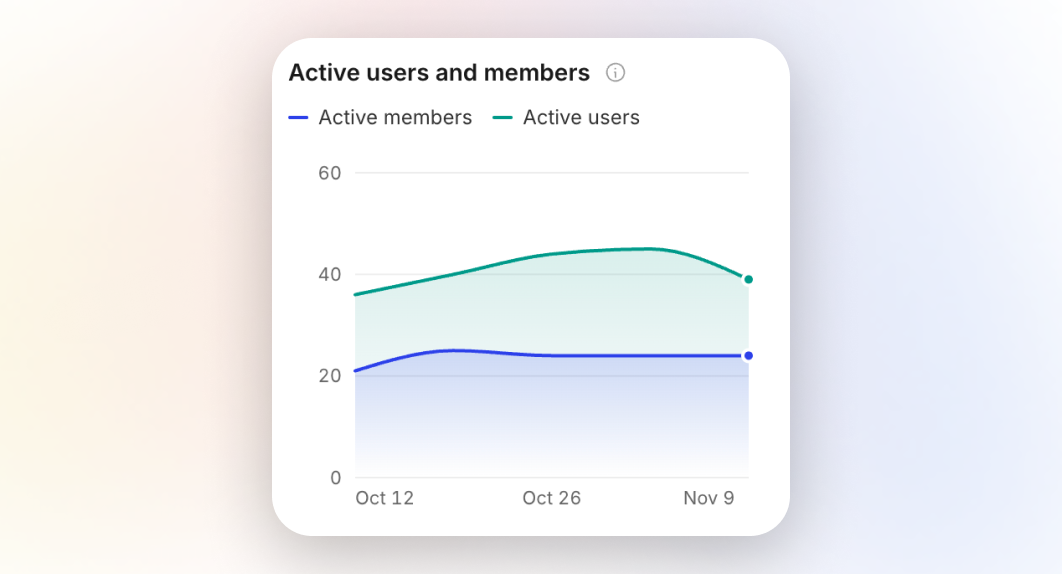
The count of unique users and members in each week who either entered the space or had a conversation with another user in the space.
Peak Concurrent Users
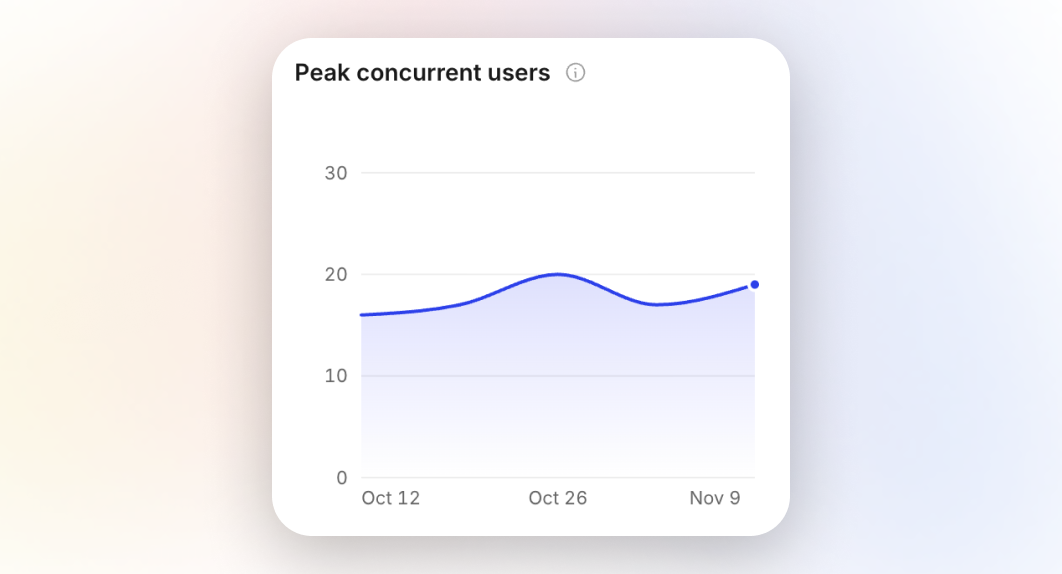
The largest number of users who were in the space at one time each week. This includes both space members and guests.
Active Days by Member
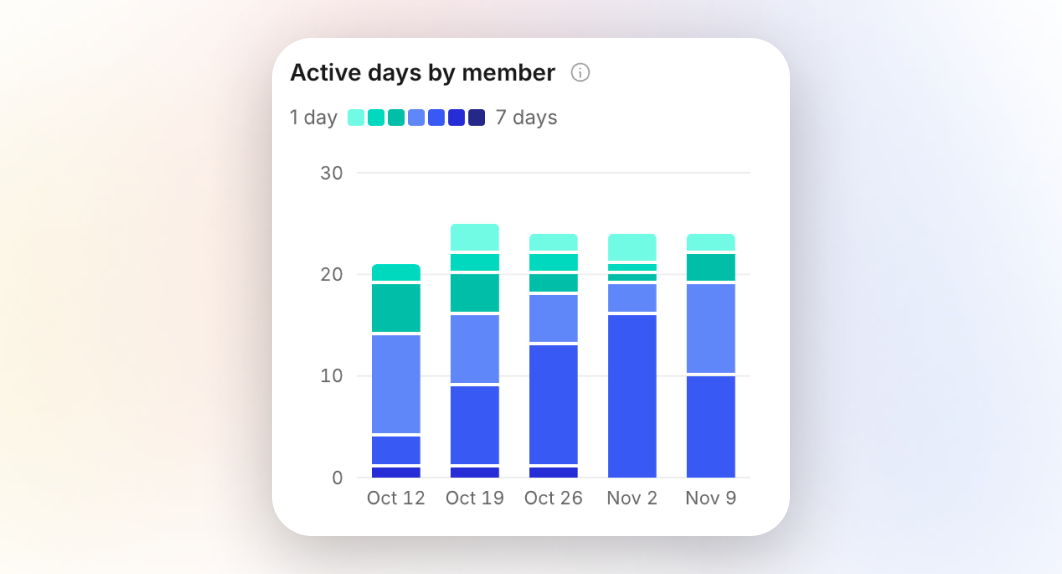
The count of members who were active for one day, two days, etc. each week. This shows how frequently members are using Gather.
Hours of Conversation
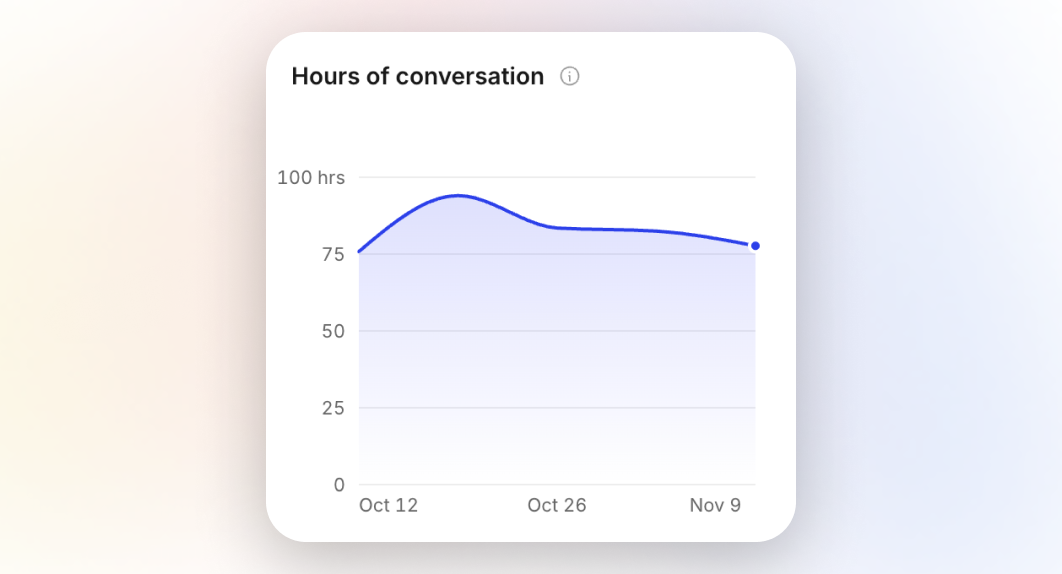
The total hours of conversation logged in a space each week across all users. If 3 users have a 20-minute conversation together, that equals 1 hour of conversation.
Median Conversation Length
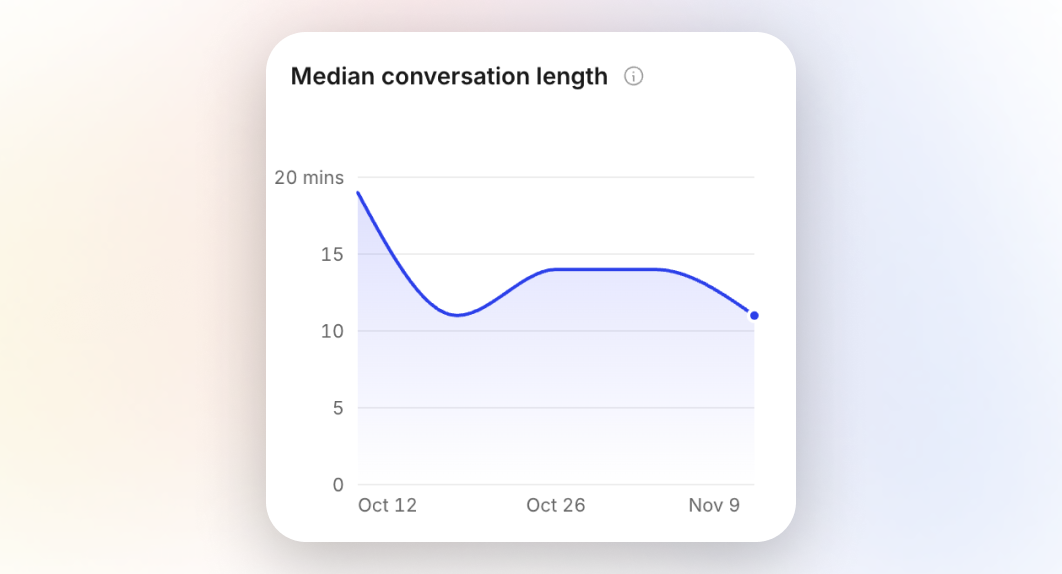
The median length of a conversation, in minutes, in a space each week across all users.
Conversation Length
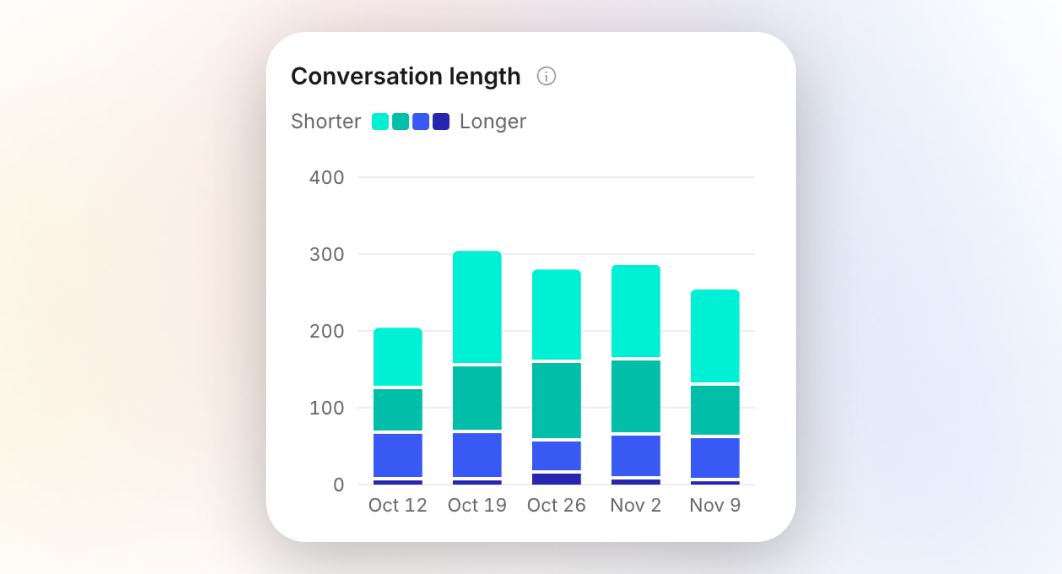
The frequency of conversation length in minutes in a space each week across all users.
Onboarding
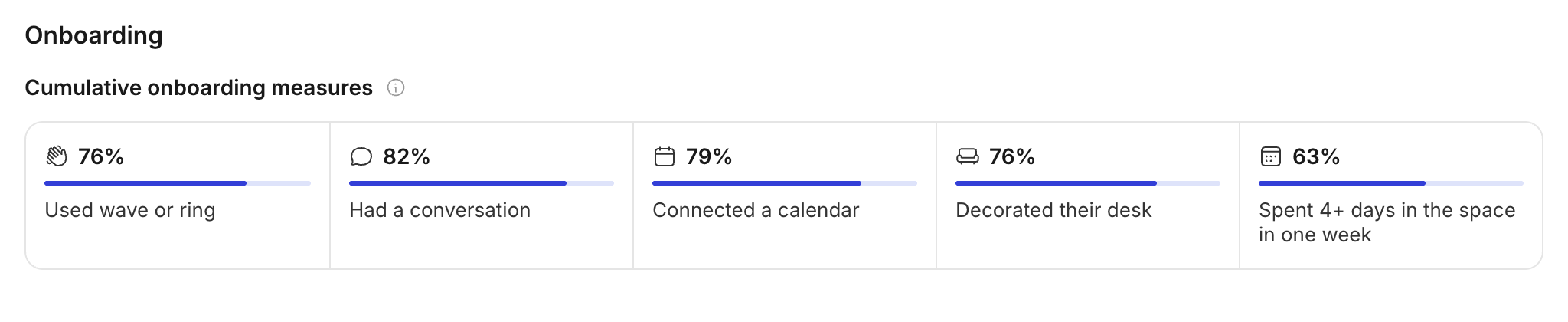
The cumulative count of members who have reached certain onboarding measures since the space's creation. Completing these steps helps to create an active and engaging space.
Member Insights
Better understand employee engagement and visualize how your team collaborates together. These Insights include, by member:
Conversation
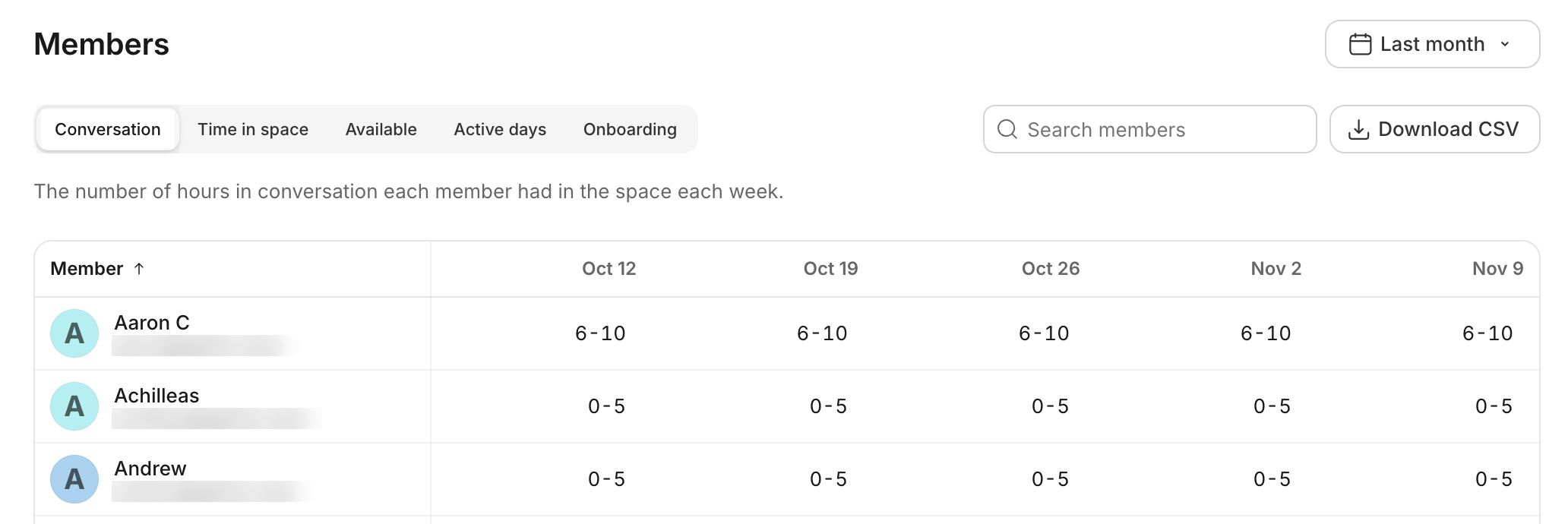
The number of hours of conversation each member had in the space each week.
For example, if two users have a conversation that lasts 15 minutes, it will show up as 2 users * 15 minutes = 30 total minutes of conversation. If there’s an hour-long meeting with 30 attendees, it will count as 30 hours of conversation. If two users have a conversation for 30 minutes and a third user joins for the last 10 minutes, this would count as 30 + 30 + 10 = 70 minutes of conversation.
This is bucketed in 5-hour increments, with anything above 100 grouped together.
Top Conversations for [Member]
When you hover over someone's name, it will show the top five people someone has conversed with during the timeframe, along with the number of hours they spent talking.
To view this chart, hover over someone's name when viewing Hours of Conversation in the Member Insights tab.
Time in Space
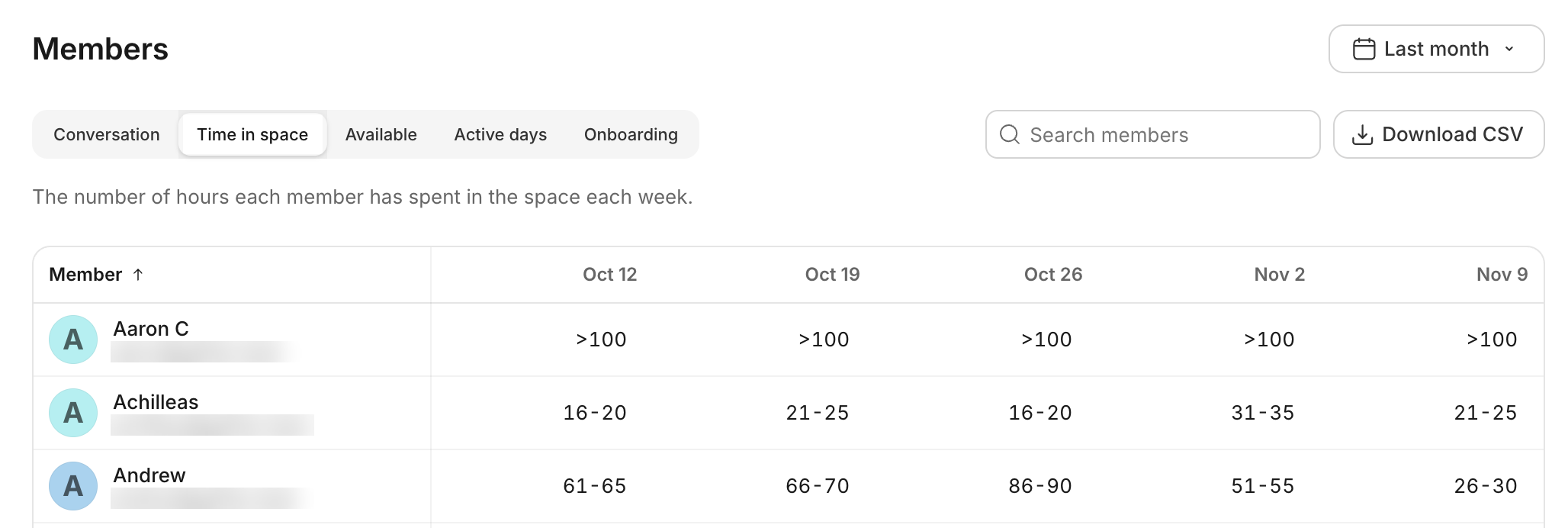
The number of hours each member has spent in the space each week. This is bucketed in 5-hour increments, with anything above 100 grouped together.
Available
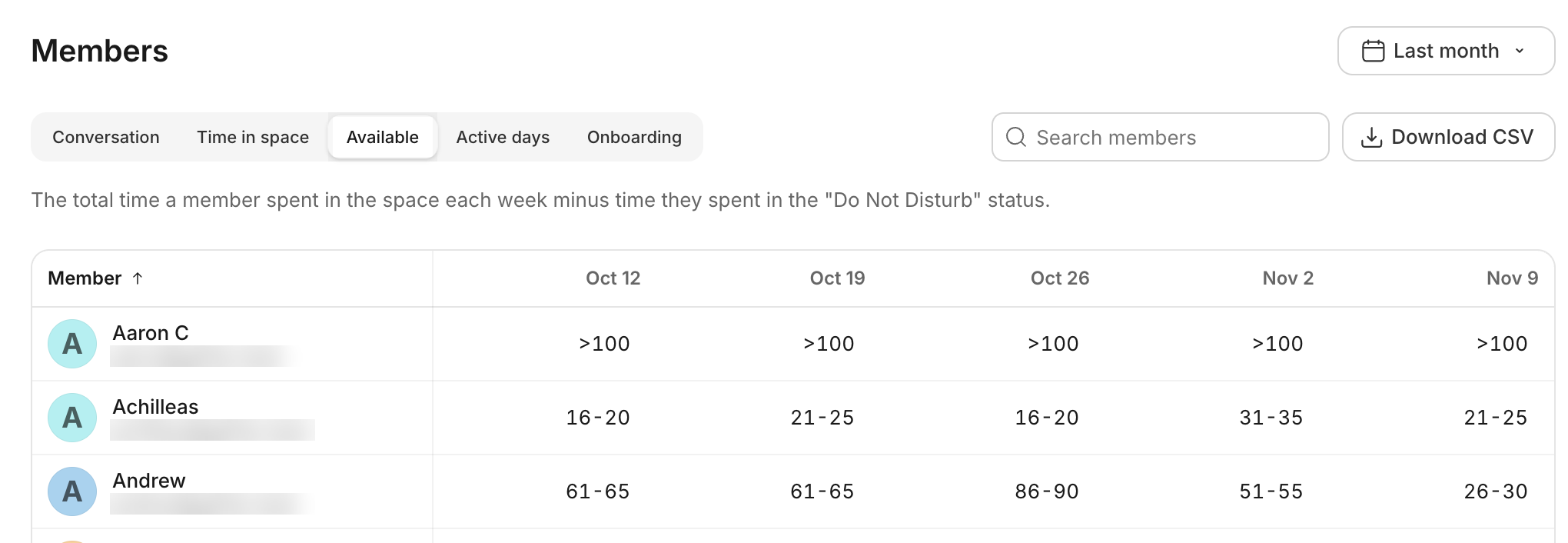
The total time a member spent in the space each week minus the time they spent in the "Away" status.
This is bucketed in 5-hour increments, with anything above 100 grouped together.
Active Days
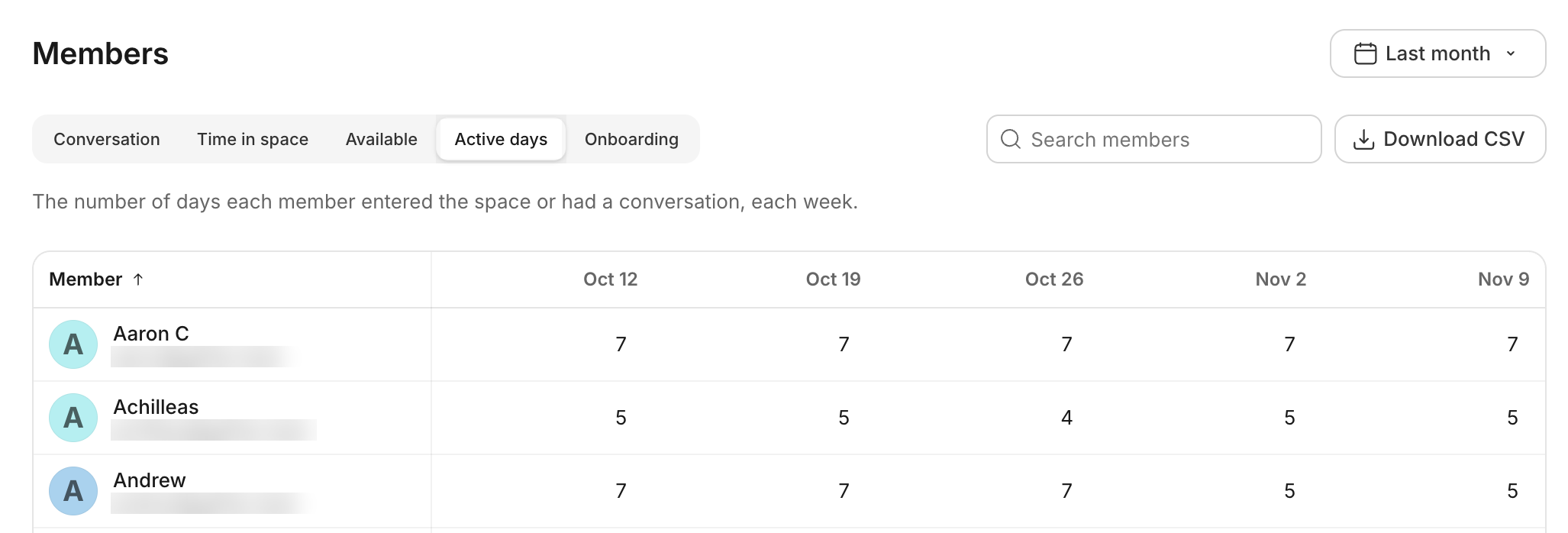
The number of days each member entered the space or had a conversation, each week.
If a member does not enter the space (i.e., leaves the Gather app open overnight and returns in the morning) and does not have a conversation, they will not appear as an active member.
Onboarding
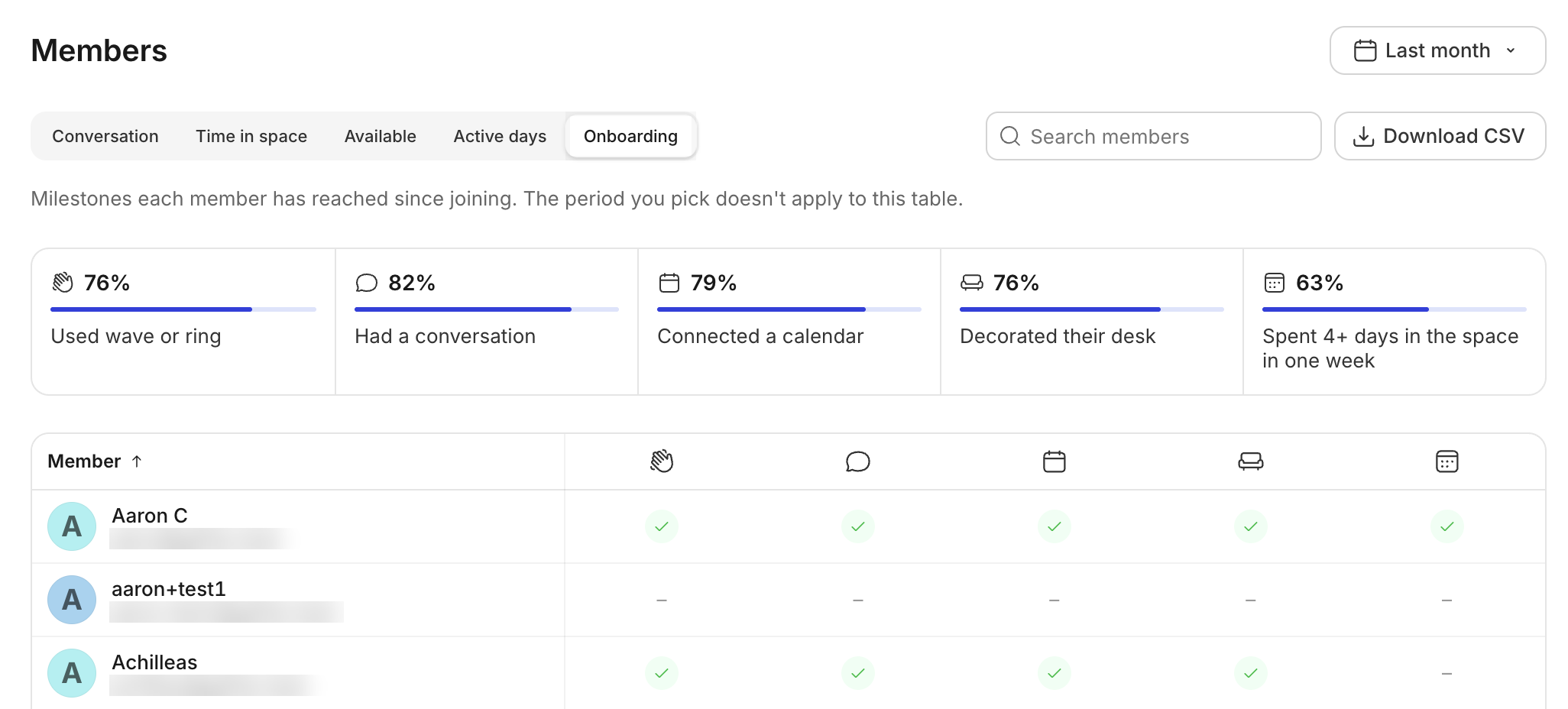
Milestones each member has reached since joining. The period you pick doesn't apply to this table.
Recommendations
Insights can be leveraged in a variety of ways. We recommend using this data to inform the onboarding process and discover collaboration patterns within your team.
When adding new members to your office, you can use Insights to ensure everyone is sufficiently onboarded.
In the Office tab, the Onboarding Milestones chart can give you a sense of how many members of your team are collectively hitting certain milestones.
In the Member tab, you can filter those same milestones by individual members, making it easy to know who to nudge to complete certain steps. For example, you might send an email or Slack message to anyone who hasn’t claimed a desk yet.
In the Office tab, Peak Concurrent Users will give you an idea of whether the majority of your team is online together at the same time. If not, you may want to send a reminder about using Gather throughout the day.
Once your team is successfully onboarded onto Gather, you can use Insights to learn more about how everyone works together.
In the Office tab, periodically review your Median Conversation Length. An increase could signal that everyone is spending too much time in meetings.
In the Office tab, Peak Concurrent Users and Active Days by Member can give you a sense of how engaged the team is.
In the Members tab, Hours in Office and Active Days can help you know if someone is working too much or too little.
Note: This is not meant to be used for time tracking, but rather to ensure members of your team are striking a healthy work/life balance.
In the Members tab, with Hours of Conversation selected, you can hover over someone to see who they spend most of their time talking to. This can show you how connected your team is within a department or with cross-functional teammates.
Trying to explain the value of Gather to leadership? In the Office Insights tab, benchmark the Number of Conversations, Median Conversation Length, and percentage of conversations that last fewer than 10 minutes. Compare this against your previous video tool.
Most teams on Gather see the total number of conversations increase while median conversation length decreases. Together, these metrics act as a signal that your team is having more quick, unplanned conversations thanks to the proximity of working together in a virtual office on Gather.
To submit a bug report or share feedback:
Open the Main Menu and select ‘Report an issue’
Or email support@gather.town