View Gather in Mini Mode
Last updated: October 2, 2025
Overview
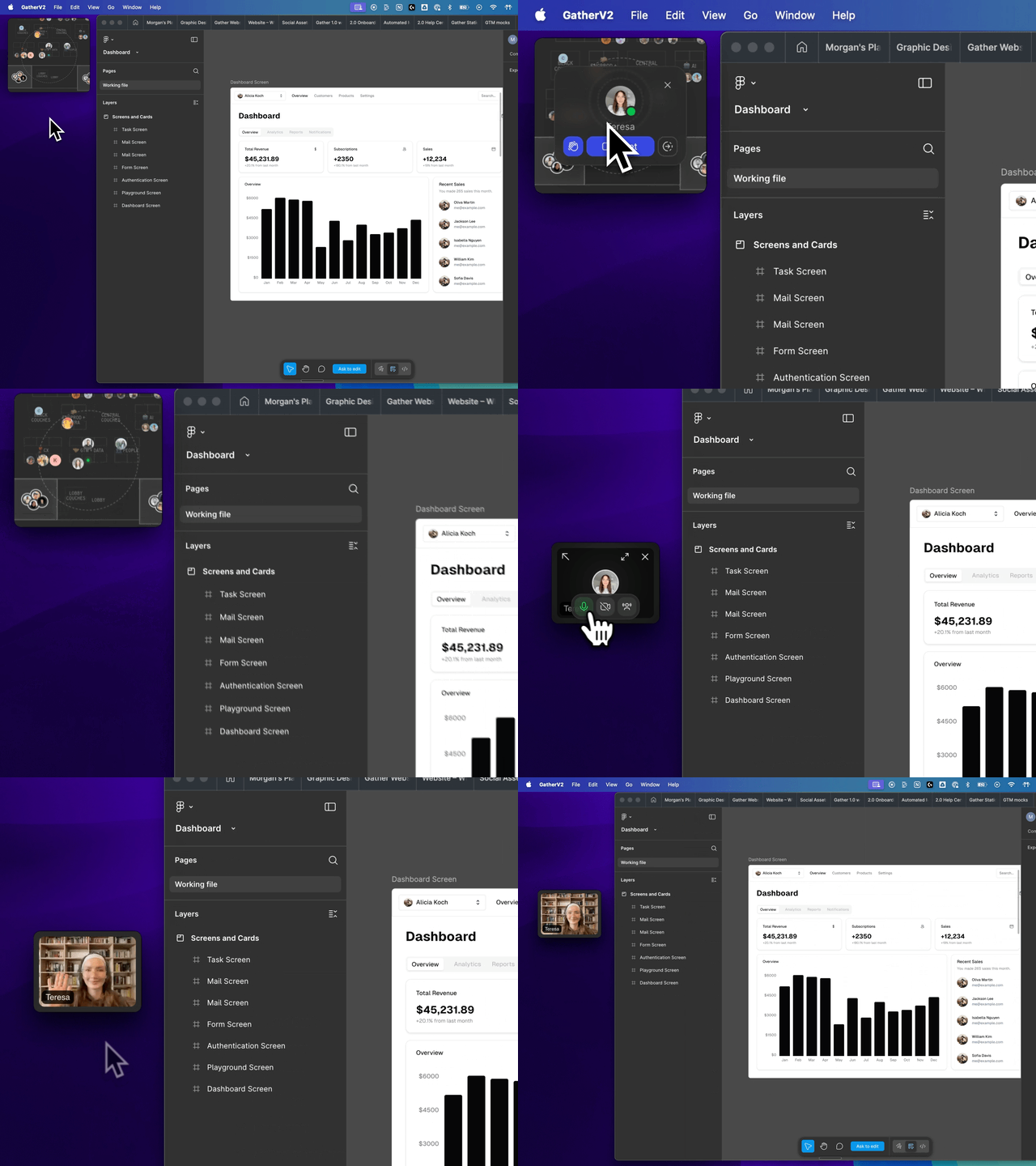
Mini Mode keeps you connected to your office while working in other apps. This compact window makes it easy to see who's around, join or start conversations, and mute nearby discussions — all without opening the full Gather app.
A few examples:
While working on wireframes in Figma, two other designers start talking nearby in Gather. You can join their conversation or mute it with a single click — no need to switch apps.
When an urgent incident requires your complete focus, you can use Mini Mode to set your status to Busy 🎧 and mute all nearby conversations, helping you stay concentrated.
You're coding in Webstorm and need someone to quickly pair up for a PR review. With Mini Mode, you can start and maintain that conversation without switching apps or losing focus.
You’re working on a single laptop screen and want to see videos from the meeting you’re in while also commenting on a Notion doc. Mini Mode makes it easy to drag smaller videos around when screen real estate is limited.
You’re waiting for your Team Lead to come back to their desk. You can see at a glance when they return, without having to open the full Gather app.
Mini Mode Actions
Starting Conversations
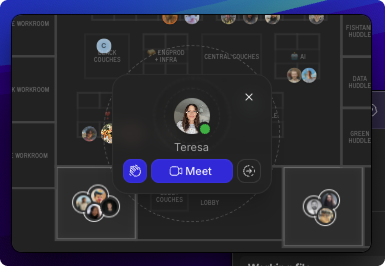
Find the person you want to talk to and click on their profile picture.
Make sure they’re Available 🟢
Wave to get their attention. If they’re free to talk, they’ll walk right over!
Meet to send an instant meeting request
Go To your teammate to walk over to them and start chatting
Joining Or Muting Nearby Conversations
You’ll see and hear when people are talking near you
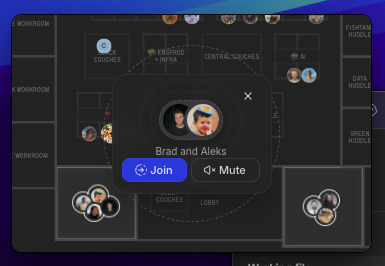
To join in or mute the conversation, click on it
Join will allow you to instantly join the conversation. Don’t forget to un-mute!
Mute will mute the conversation so you no longer hear it.
Editing Your Status and AV Settings
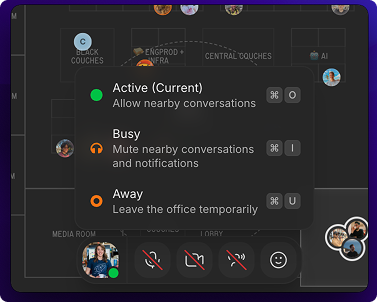
Don’t worry about having to open the full Gather app just to change your status. At the bottom of the Mini Mode window, you can:
Change your status between Active 🟢, Busy 🎧, or Away
Turn on/off your mic and camera
Turn on/off the option to hear nearby conversations
Mini Mode Settings
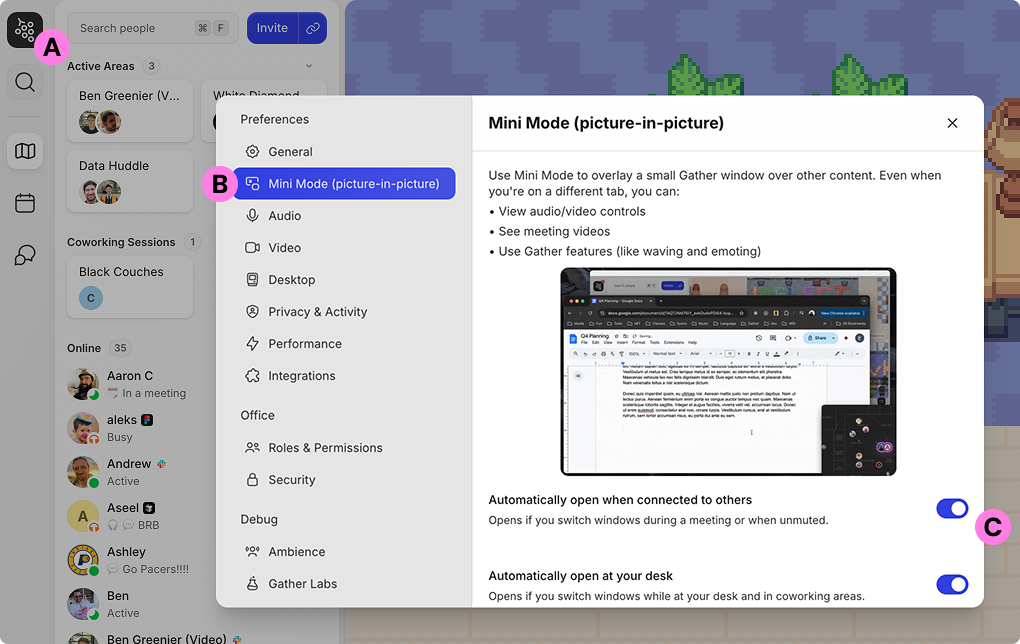
Go to Main Menu > Settings > Picture-in-Picture
Automatically open when connected to others
When toggled On, this automatically opens Mini Mode if you tab away while talking to others. This includes formal meetings and impromptu conversations, and if you’re un-muted but not actively talking to anyone.
If you close the Mini Mode while you’re in a meeting, it won’t pop up again until after you leave that meeting.
Automatically open at your desk
When toggled On, Mini Mode automatically opens if you tab away while you’re at your desk or a common area.
If using the Gather Desktop App, this setting will only activate if you switch to an app on the same screen. If you open an app on a second monitor, for example, Mini Mode will not automatically open.
To submit a bug report or share feedback:
Open the Main Menu and select ‘Report an issue’
Or email support@gather.town