Set Status & Availability
Last updated: April 22, 2026
Overview
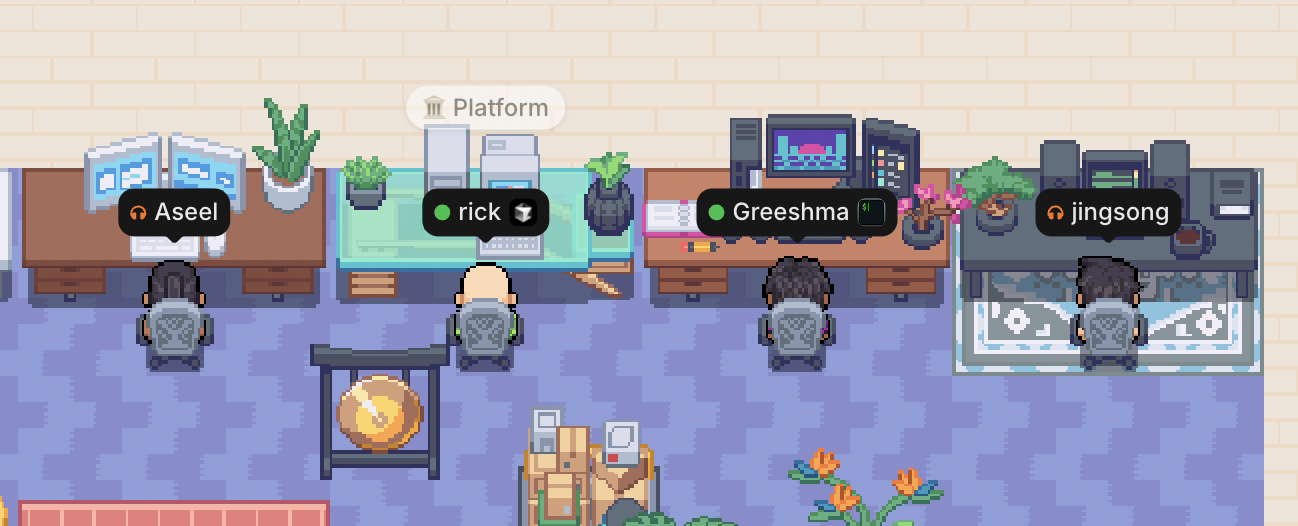
Your status in Gather is more than a green or gray dot. At a glance, your coworkers can know:
If you’re free to talk (Active 🟢)
Heads down focused (Busy 🎧)
On a lunch break 🥗 or at an appointment 📅
Working in popular apps like Notion or Figma
App Status
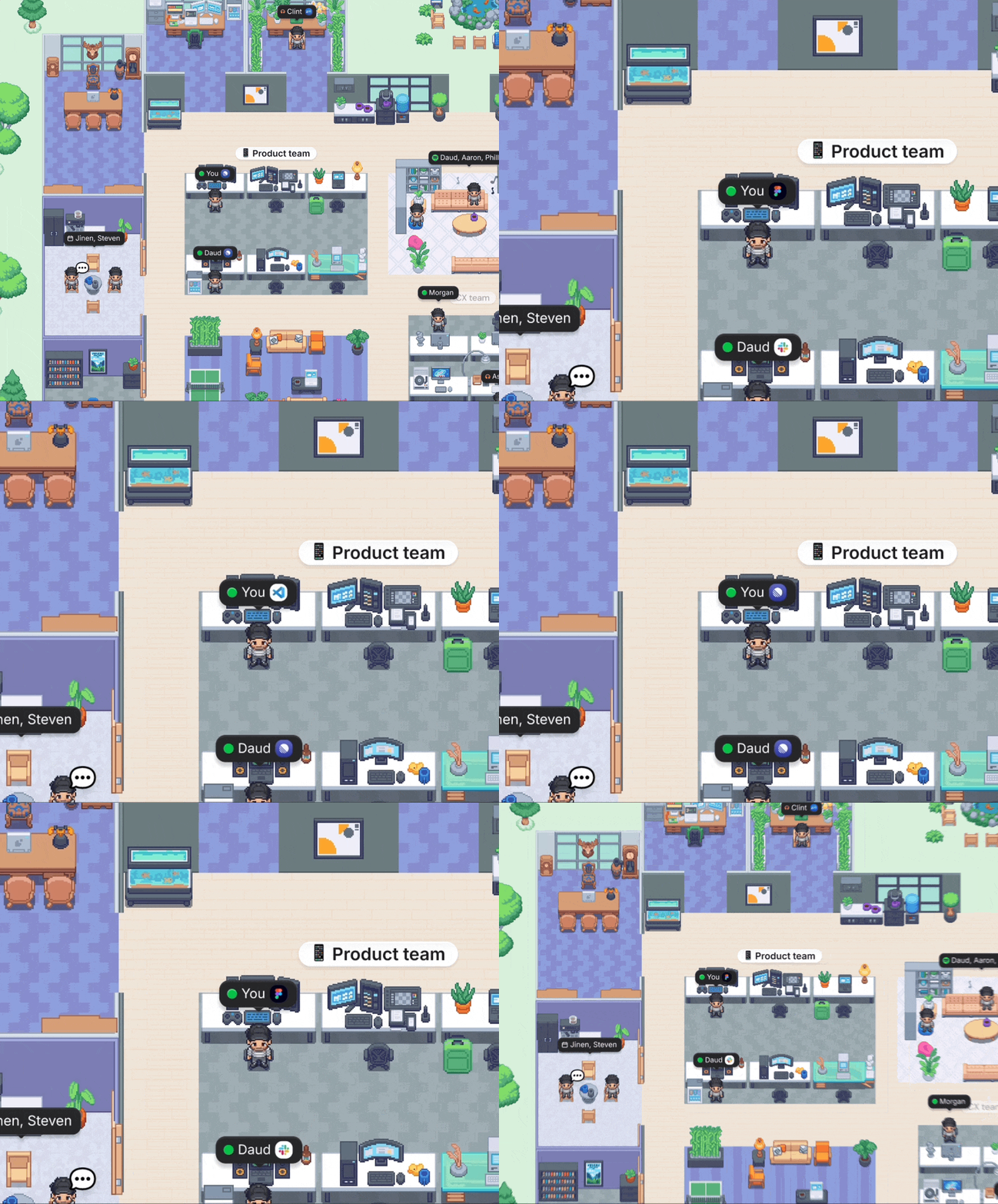
With App Status enabled, an icon appears next to your name when working in apps like GitHub, Figma, Spotify, Notion, and more.
To enable this feature and select which apps you’d like to share:
Go to Main Menu > Settings > Desktop > App Status
Click the toggle for each app you want to display
What apps are available for App Status?
Cursor
Xcode (Mac Only)
iTerm (Mac Only)
Warp
Figma
Loom
Blender
Slack
Spotify
SoundCloud
Notion
Linear
Keynote (Mac Only)
ChatGPT
Claude
Zoom
VSCode
Webstorm
Github
This feature requires desktop version 0.14.0. Click here to download the latest version.
Smart Status
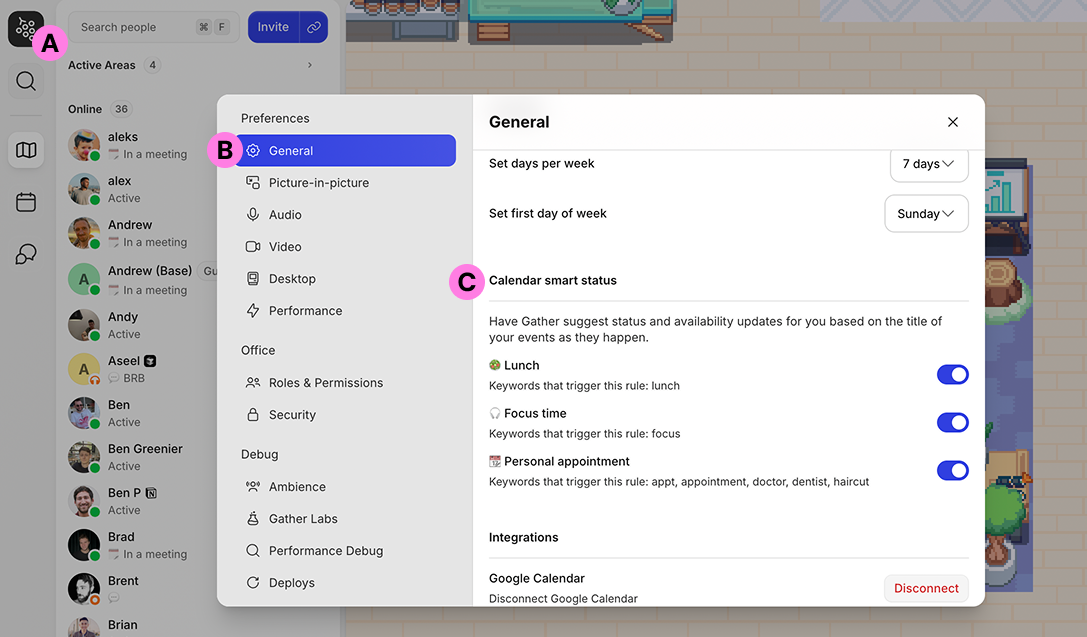
If you’ve connected Google Calendar, Gather will automatically suggest status changes for 🥗 Lunch, 🎧 Focus time, and 📆 Personal appointment based on your event titles.
You can edit this feature by going to Main Menu > General > Calendar Smart Status
Learn more: 📄 Google Calendar Integration & Chrome Extension
Custom Status
To customize your status:
Click your profile picture in the bottom bar
Click Update your status
Type your status and click Save
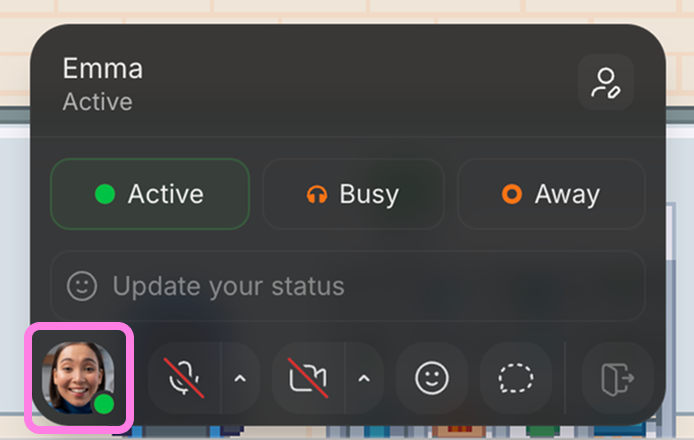
Your custom status will display next to your name in the Office List and if someone clicks your name or avatar.
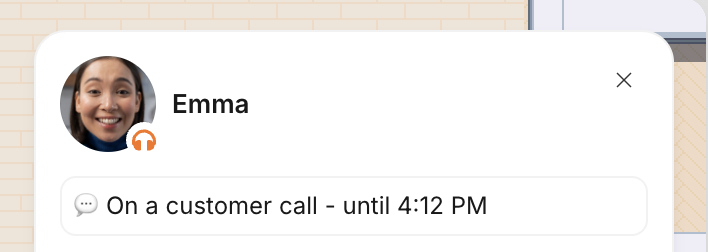
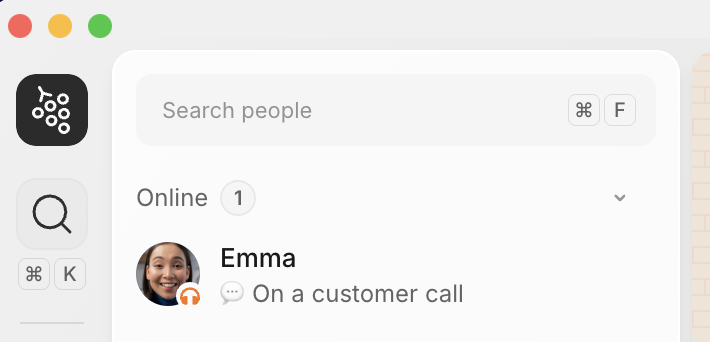
Automatically switch to ‘Busy’ for external meetings
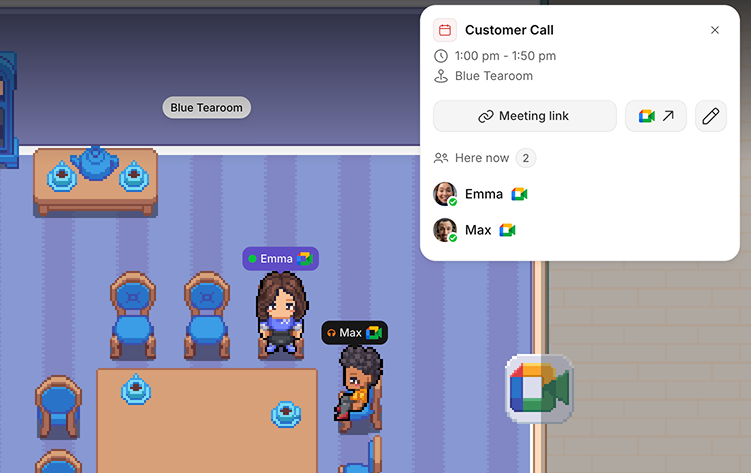
Don’t worry about manually setting your status before taking an external call. With this setting enabled, we’ll automatically detect external video links (such as Zoom, Google Meet, etc.) and update your status to Busy. We’ll even move your avatar into an empty meeting room so others can see you’re on a call. People on the same external call will join you in the Gather meeting room.
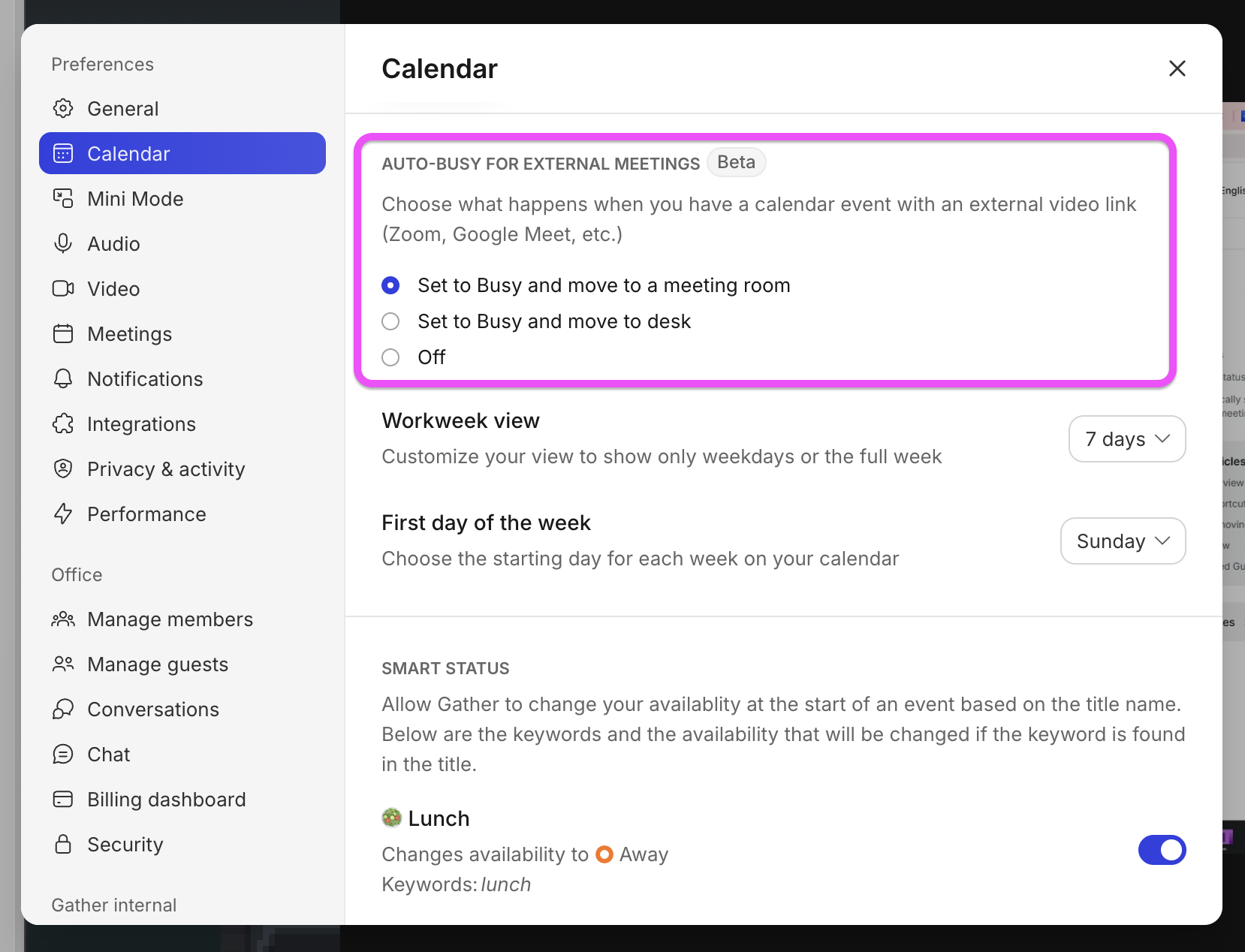
To enable this setting, go to Main Menu > Settings > General > Auto-busy for external meetings.
To submit a bug report or share feedback:
Open the Main Menu and select ‘Report an issue’
Or email support@gather.town