Inviting & Managing Guests
Last updated: November 16, 2026
It’s easy to meet with anyone in your Gather office, including Guests like clients, candidates, or colleagues from other teams.
Guests are required to request approval from an online Member before entering an office. Depending on your team’s Guest access settings, Guests may need to use either a Guest link or a Gather meeting link.
Guests cannot claim their own desk or use features like meeting recording, team chat, or decorating.
Learn more: 📄 User Roles & Permissions
Guest Access Settings
Admins can control how Guests are allowed into your Gather space from Settings → Security → Guest access.
There are three Guest access options:
Allow all guests
Use this option when you want Guests to be able to request entry with a Guest link.
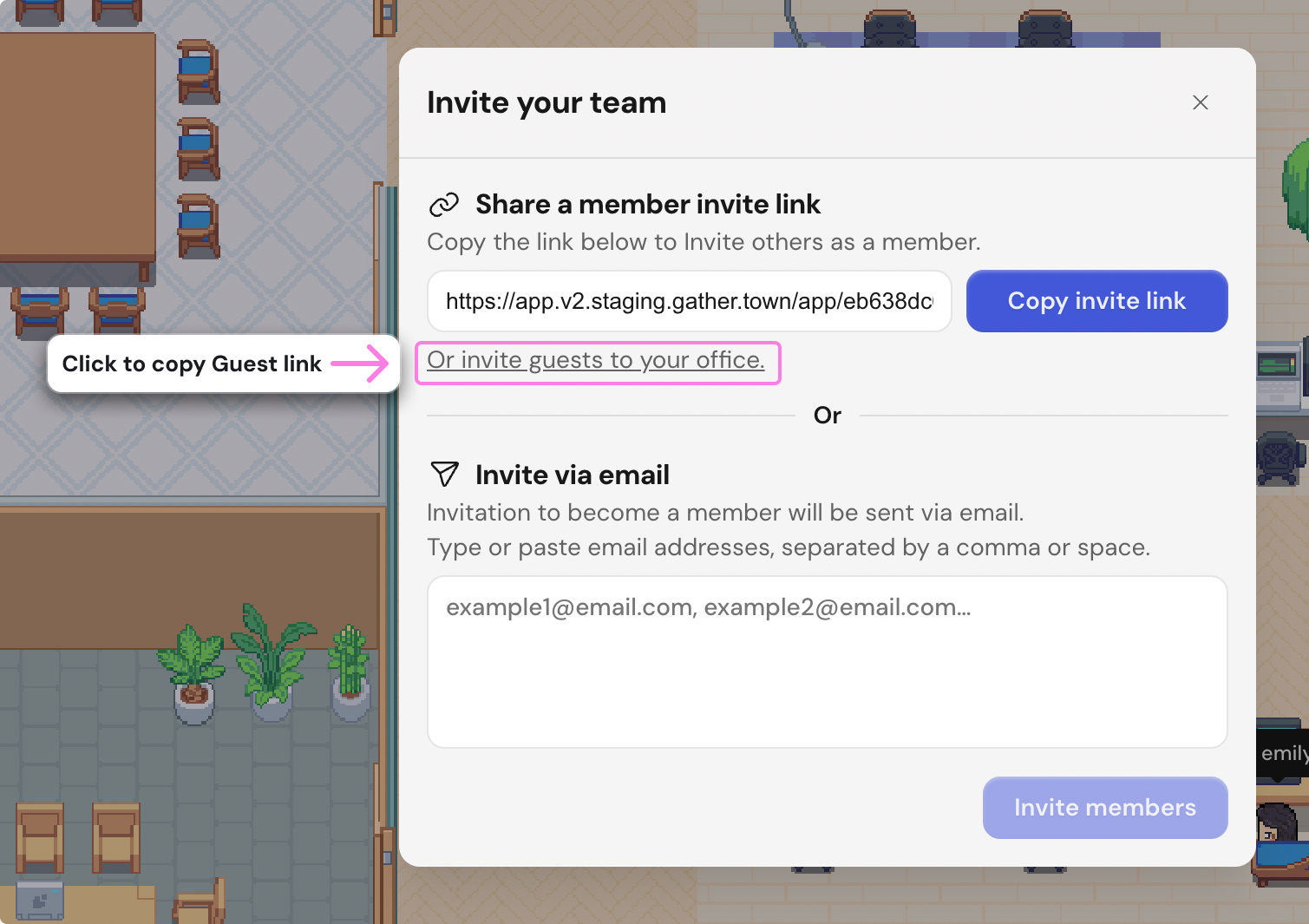
Open Invite collaborators → Guests.
Copy and share the Guest link.
When the Guest opens the link, they’ll select an online Member and request entry.
That Member must approve the request before the Guest can enter.
The Guest link does not automatically admit anyone. Guests must still request entry and be approved by an online Member.
Allow meeting guests only
Use this option when you only want Guests to request entry through a Gather meeting link.
Create or schedule a Gather meeting.
Share the Gather meeting link with your Guest. Both copied meeting links and links generated with the Google Chrome extension work.
When the Guest opens the meeting link, they’ll request approval from a Member.
Once approved, they’ll have normal Guest access to the whole space, not just the meeting.
If this setting is enabled, do not share the Guest link or main space link with Guests. They must use a valid Gather meeting link.
Disable guest access
Use this option when you don’t want Guests to enter your space.
When Guest access is disabled, Guests cannot be invited, and only Members can enter. Switching to Disable guest access removes current Guests from the space and revokes their Guest passes.
To invite Guests again later, an Admin must first switch Guest access back to Allow all guests or Allow meeting guests only.
The Guest Check-In Experience
Guests need to request approval from an online Member before entering your office. (Think of it like checking in at the front desk!) Depending on your team’s Guest access settings, they may need to use either a Guest link or a valid Gather meeting link. After they’re approved, you’ll instantly connect. Here’s what that experience looks like:
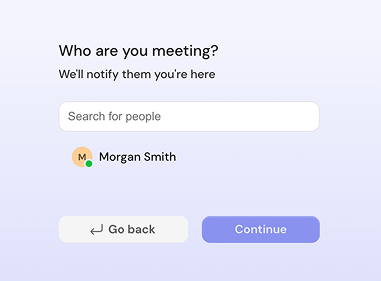
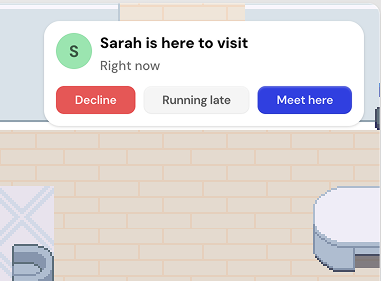
When you select “Meet here,” your guest will automatically be brought to your location, allowing you to instantly connect.
If you’re in a Meeting Room, they’ll enter Meeting View (which feels similar to a traditional video call) so they don’t even have to worry about moving around.

Don’t forget to turn on your mic and/or camera so they can hear and see you! (And let them know they’ll need to do the same.)
To Invite Guests
How you invite Guests depends on your team’s Guest access settings. Guests may be able to request entry through a Guest link, or they may need a valid Gather meeting link.
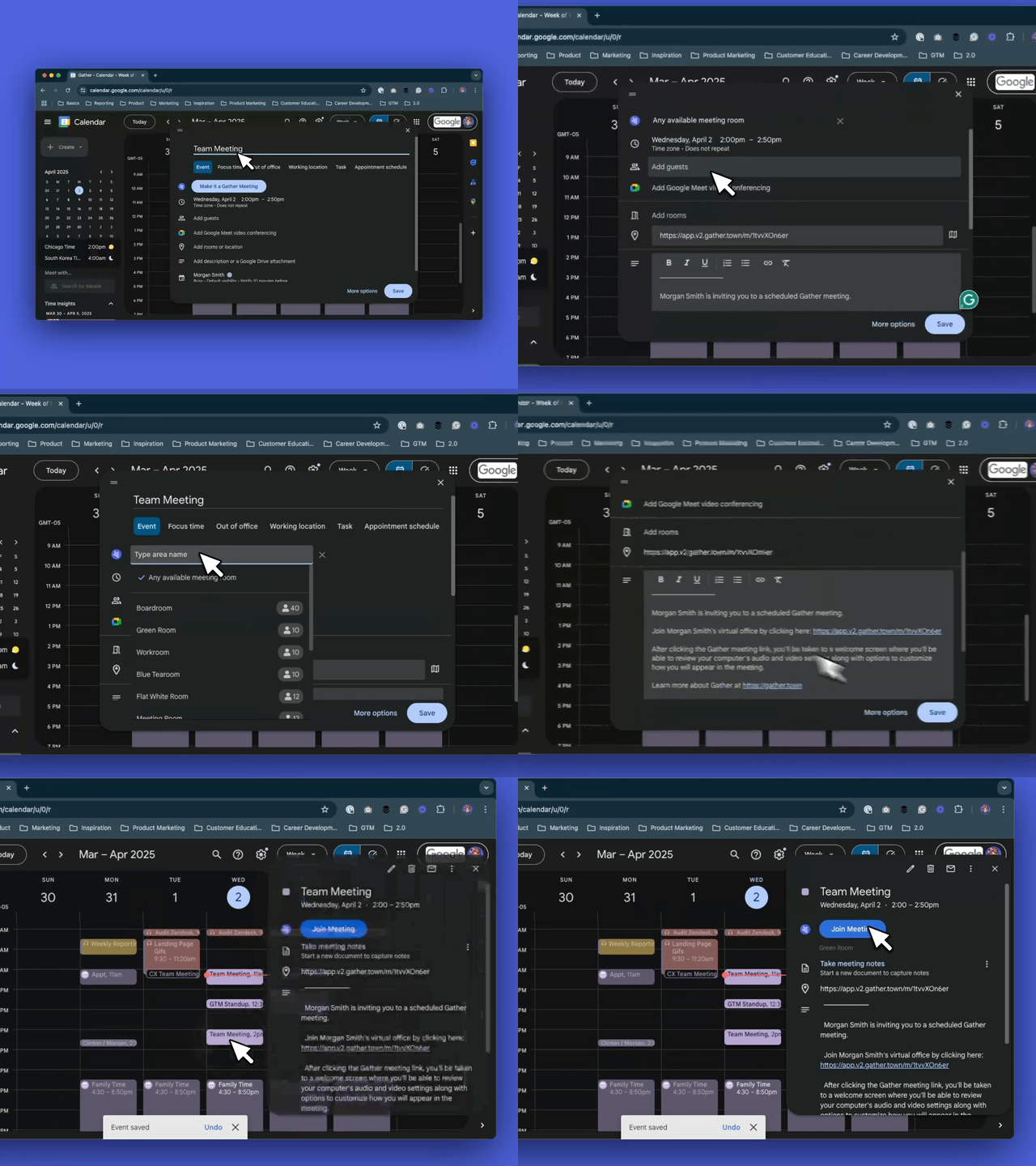
Inviting via Google Calendar:
Make sure you’ve installed the Gather Meetings v2 Chrome extension
Schedule the meeting like normal from your Google Calendar.
Share the Gather meeting link in the calendar event.
When a Guest opens the meeting link and checks in with you, they’ll join once approved.
Learn more about meetings on Gather: 📄 Overview of Meetings
Inviting via Meeting Scheduler (like Calendly, HubSpot, etc.)
If your space is set to Allow all guests, you can add your Guest link to your meeting scheduler.
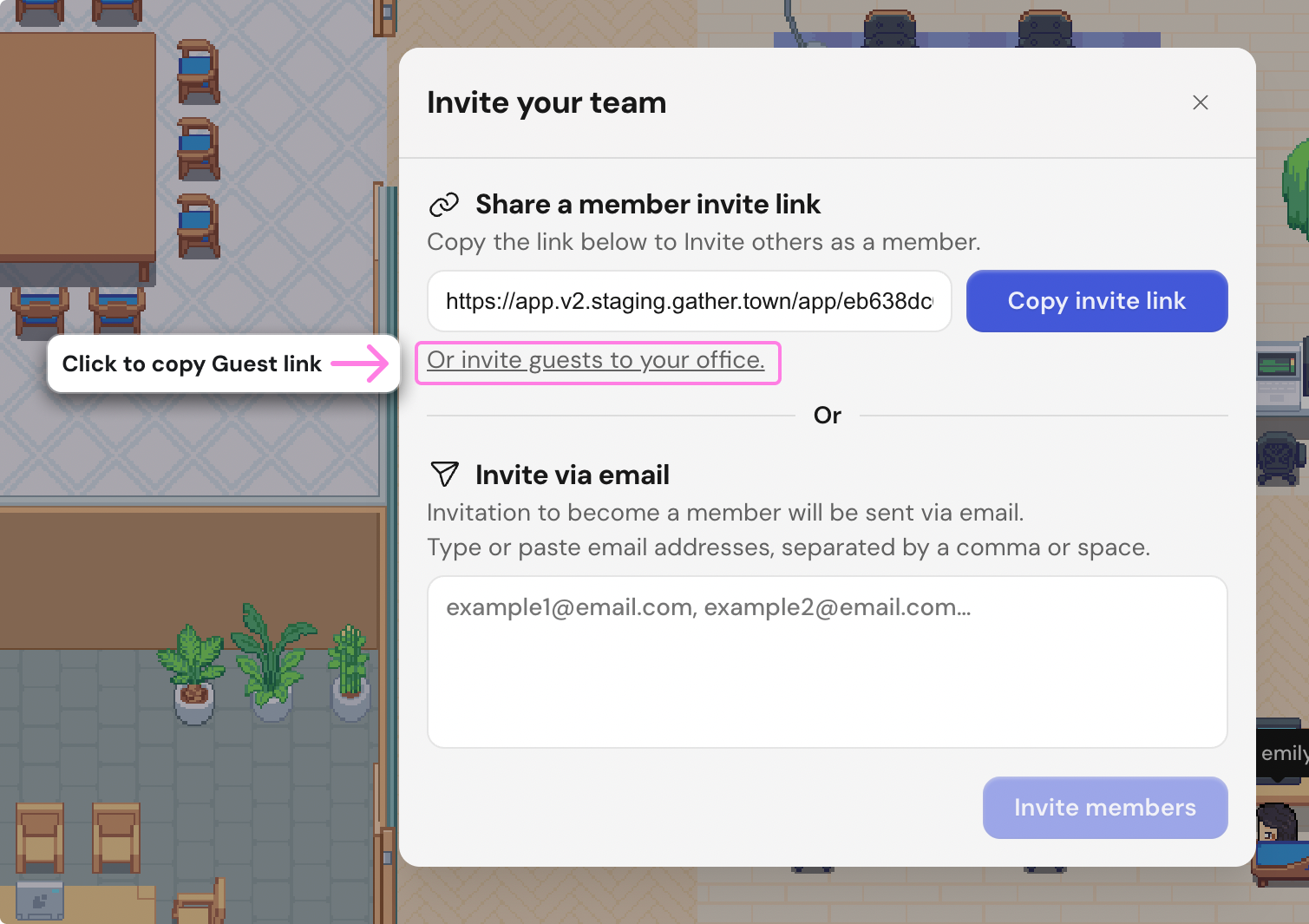
Open Invite collaborators → Guests.
Copy the Guest link.
Paste this in the Location field of your meeting scheduler.
When a Guest opens the link, they’ll select an online Member and request entry.
Once approved, they’ll meet at that Member’s location.
If your space is set to Allow meeting guests only, use a Gather meeting link instead of the Guest link or main space link. Copied meeting links and links generated with the Google Chrome extension both work.
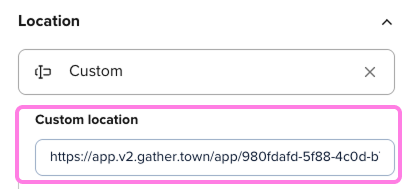
For the smoothest experience, walk into a meeting room before admitting your guest so they enter immediately in Meeting View.
Inviting during a Meeting:
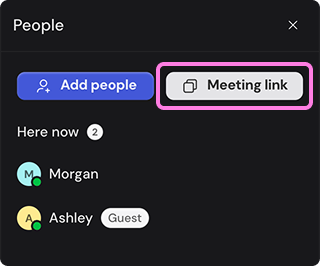
While in Meeting View, click the People List icon in the lower right-hand corner.
At the top of the panel, click Meeting Link to automatically copy the link.
Share this with the person you want to invite.
When a Guest opens the meeting link and checks in with you, they’ll join once approved.
If your space is set to Allow meeting guests only, Guests must use a valid Gather meeting link. Once approved, they’ll have normal Guest access to the whole space, not just the meeting.
Inviting to the Office (No Meeting Required)
If your space is set to Allow all guests, you can invite someone directly to the office without scheduling a meeting.
Open Invite collaborators → Guests.
Copy the Guest link.
Share it with your Guest.
When the Guest opens the link, they’ll select an online Member and request entry.
Once approved, they’ll join that Member’s location in the space.
If your space is set to Allow meeting guests only, Guests must use a valid Gather meeting link instead of a Guest link or main space link.
Removing Guests
Guests can leave at any time by closing the Gather browser window or desktop app, or clicking the Leave Office button in the left sidebar.
To remove a guest:
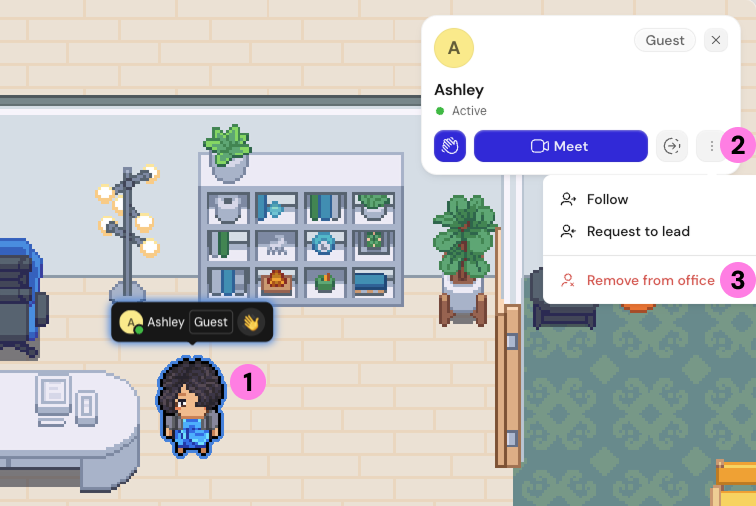
Click on their name or avatar.
In their Profile card, click the three dots to expand the menu.
Select Remove from office.
Confirm.
They’ll instantly be removed.
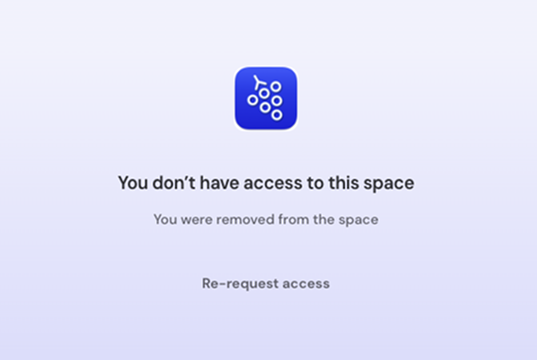
If they try to re-enter, they’ll be notified they no longer have access to this space. They may try to check in as a Guest again.
FAQs
Are Guests required to create an account?
Nope! They’re required to check in with an online Member, so no one enters your office without permission, but they will not be required to create an account with Gather.
How long does Guest access last?
Guest passes last up to 12 hours. After the pass expires, the Guest must request approval again using the appropriate Guest link or a valid Gather meeting link.
What happens when a Gather meeting link expires?
Expired Gather meeting links can’t be used for Guest entry. If a Guest opens an expired meeting link, they’ll need a new valid Gather meeting link, or they’ll need to use the Guest link if your space is set to Allow all guests.
Can I use Gather with a meeting scheduler like Calendly, HubSpot, etc.?
Yes! While we won’t have direct integrations, you can place a Gather link in the Location field so people can book meetings with you in your Gather office.
If your space is set to Allow all guests, you can use the Guest link. If your space is set to Allow meeting guests only, use a valid Gather meeting link instead.
To submit a bug report or share feedback:
Open the Main Menu and select ‘Report an issue’
Or email support@gather.town